Simile documentation and help

What’s new?

New features of Simile version 5. The latest version of this help can be found online at simulistics.com

Getting started: how to build and run a simple model

Learn basic techniques for working with model diagrams, adding equations, running models and displaying the results

Elements of the model diagram

Introduction to compartments, flows, and the other elements used in model diagrams

Working with model diagrams

Zooming; changing what is displayed; changing scale; printing

Working with equations

How to formulate equations; functions; sketched-graph and tabulated relationships

Working with submodels

Types of submodel; saving submodels as models; loading submodels from file; plug-and-play modularity

Running models

Preparing a model for running; running the model; displaying results

Working with external data

Loading parameter values, time-series data and other values into a model at run time: the scenario file mechanism

Scripting

            Writing scripts to automate repetitive tasks or to batch model simulations

Working with files

Opening and saving models, exporting model code and graphics

New in version 5

New in version 5.0:

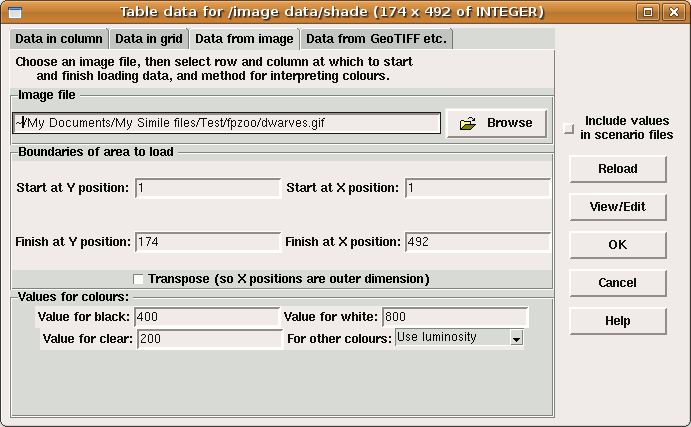
Direct loading of grid data

Load 2-dimensional parameter arrays from comma-separated grids, image files or other datafile formats

Saving raw data in scenario files

Keep all the parameter information in one place, and have models start up faster

Following influences round the diagram

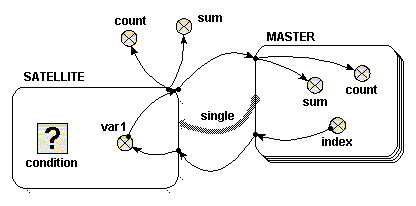
Simile v5 makes it easy to show, and follow, the way information flows round the model

with_greatest(...) and with_least(...) functions

New functions allowing data from special submodel instances to be picked out

Adaptive step size variation

Get more accurate results more quickly in 'stiff system' problem domains

There are a lot of other improvements, most of which do not require the modeller to do anything differently; see What's new in Simile 5.0, 5.1, etc for a more comprehensive list.

Happy modelling!


Getting started: how to build and run a simple model


Getting started: how to build and run a simple model

This section takes you through the whole process of building and running a model as quickly as possible. The exercise is based on a simple model of a bank account, since we are all familiar with this context, and we can readily do the calculations ourselves. This should save you from thinking that there is something mysterious about how Simile calculates the behaviour of a model.

The model: a simple bank account model

Step 1: Starting Simile: what's on the screen

Step 2: Making the model diagram

Step 3: Adding initial values, parameter values and equations

Step 4: Initialising the model

Step 5: Choosing the output displays

Step 6: Running the model

Step 7: Repeating the model edit/run cycle

Step 8: Saving and loading the model


Simple bank account model

The model: a simple bank account

Next Step >>

We will make a model for a simple bank account, with interest paid annually at a rate of 10%, and $10 taken out every year. The account initially contains $300. This is what we expect to happen:

Year 1

Opening balance

$300.00


Interest paid in


$30.00


0.1 x 300


$10.00


Closing balance

$320.00


300 + 30 - 10

Year 2

Opening balance

$320.00


Interest paid in


$32.00


0.1 x 320


$10.00


Closing balance

$342.00


320 + 32 - 10

Year 3

Opening balance

$342.00


Interest paid in


$34.20


0.1 x 342


$10.00


Closing balance

$366.20


342 + 34.2 - 10

And so on. Note that the increments are getting bigger each year because each time the balance goes up, so the interest paid increases. The balance of the bank account is increasing at a faster and faster rate.

Having understood the calculations that we are going to perform, we now turn to the concepts needed to express these ideas in Simile.

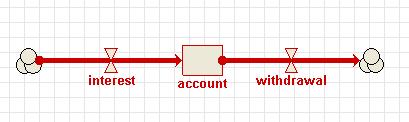
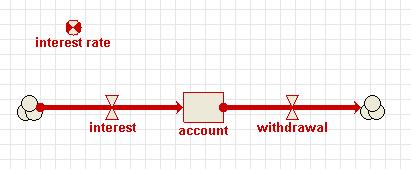
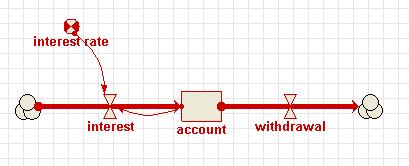
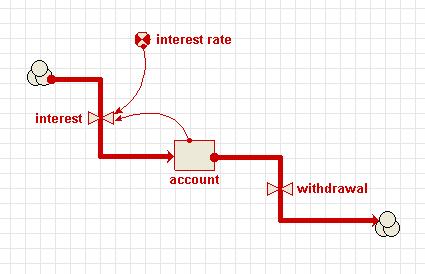
We use a compartment to represent the amount of money held in the bank account, since this a quantity that changes incrementally over time. We use two flows, one to represent the gain of money from interest and the other to represent the loss of money by withdrawal. One flow (interest) will go into the compartment, while the other flow (withdrawal) will come out of the compartment. We will also use a variable to represent the interest rate (10%, or 0.1). This variable will be linked to the flow representing the payment of interest by an influence arrow, indicating that the amount of interest paid depends on the interest rate. Since the amount of interest paid also depends on the amount in the bank account, there we will also use an influence arrow from the compartment representing the bank account to this flow.

In this tutorial we want to introduce you mainly to the mechanics of working with Simile, and these are explained in detail in the following steps. The concepts involved in representing even a simple system like this one in a modelling language can be quite complex.

Next Step >>


Step 1: Starting Simile: what's on the screen


Step 1: Starting Simile: what's on the screen

<< Previous Step Next Step >>

Starting Simile

You start Simile by double-clicking on the desktop icon created during installation, or by clicking on the Simile icon in the Start Menu.

These are both shortcuts to the file <Simile Program Files>\System\bin\Simile.exe, where <Simile Program Files> is the directory you chose to install the program. By default, this is commonly "C:\Program Files\Simile50", though if you are using a network, it may be on a remote hard drive. If you would like to be able to start Simile from a different location, create a shortcut to this file.

Within a few seconds, the main window will be displayed.

The Main Window

When Simile starts, you see a single window. This contains:
 

  • a menu bar, containing a standard File menu, some menus specific to Simile, and a Help menu. Hold the mouse over the title for each menu to see the options it contains.
     
  • a toolbar, extending over two rows. The top row has standard tools (e.g. for opening and closing files), plus some specific to Simile.
  • a component bar, containing buttons corresponding to each type of model-diagram element: you will use these for building up your model diagram. The right-hand part contains buttons for editing the model diagram. Hold the mouse over each button to get a brief description of its function.
  • an equation bar, for entering equations into the model. At the right-hand end of the equation bar are the tools to accept or reject changes to equations, and to help build equations.
     
  • a big blank area (the "desktop canvas") with faint lines. This is where you will draw your model diagram. The grid can help you arrange your diagram neatly.

<< Previous Step Next Step >>


Step 2: Making the model diagram

Step 2: Making the model diagram

<< Previous Step Next Step >>

We begin by drawing the model diagram for the bank account model. A note on colours used in the following description: when you add a component to the model diagram, it is initially drawn in blue. This means that the component is selected. You will see the ways in which this is useful later on. When the component is not selected, it will turn red. This is its usual colour, and means that the component needs some extra information (like a value or equation) before the model can be built.

1. Add a compartment to the model diagram.

  • Click on the compartment symbol in the toolbar.
  • Move the mouse to the middle of the desktop window, and click again.

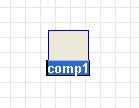
You should see a box labelled comp1.

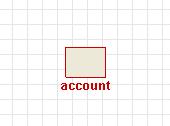
2. Rename the compartment "account".

Type in the label account.

3. Add an interest flow and a withdrawal flow.

  • Click on the flow symbol in the toolbar.
  • Move the mouse to the left of the compartment labelled account, hold the mouse button down, and drag the mouse into the centre of the compartment. Release the mouse button.
  • Type in the label interest.
  • Move the mouse into the centre of the compartment, and drag to the blank area to its right. Release the mouse button.
  • Type in the label withdrawal.

4. Add a variable for the interest rate

  • Click on the variable symbol in the toolbar.
  • Move the mouse to the blank area above the interest flow, and click once.
  • Type in the label interest rate.

7. Draw the influences

  • Click on the influence arrow button in the toolbar.
  • Move the mouse to the middle of the compartment labelled account, and drag an influence arrow to the flow labelled interest.
  • Release the mouse button when the flow has turned green.
  • Move the mouse to the middle of the variable labelled interest rate, and again drag an influence arrow to the flow labelled interest.

8. Re-arrange the model diagram

  • Click on the pointer button in the toolbar.
  • Move the mouse to the middle of the compartment labelled account.
  • Drag the mouse, and watch the compartment and its associated arrows re-arrange themselves.
  • You can also move the following components:
  • the cloud symbol at the end of each flow arrow;
  • the variable;
  • the valve symbols on the flows;
  • the middle of an influence arrow;
  • the position of the "kink" that appears in a flow arrow when it goes between two components that are not exactly above, below or to the left or right of one another; and
  • the labels. (A note on moving captions: if a component is selected, and is coloured blue, then the caption can be edited. To edit a caption, click on the label and type. You can drag the mouse to select a range of characters. To move the label relative to its component, make sure the component is not selected. You can then drag the label into its new position.)

This completes the drawing of the model diagram. In the next step, you will provide the numeric values and equations you need for simulating the behaviour of the bank account. Note, however, that this sequence (complete the model diagram before providing any quantitative information) is followed here for convenience: in general, you are free to provide the quantitative information at any stage in the diagramming process.

<< Previous Step Next Step >>


Step 3: Adding initial values, parameter values and


Step 3: Adding initial values, parameter values and equations

<< Previous Step Next Step >>

1. Prepare to set component properties

Click on the pointer button in the toolbar.

2. Assign the initial value for the compartment

  • Click on the compartment labelled account.
  • Enter the value 300 into the equation bar.
  • Click on the green tick mark or press the Return key.

3. Add the interest rate equation

  • Click on the flow labelled interest.
  • Variables account and interest_rate are now listed as influences upon interest. These influences are visible by clicking on the xs button. Selecting an influence from the drop-down list, places the text in the equation bar.­

  • Enter the expression account*interest_rate into the equation bar, either by selecting each variable in turn or by typing. Be sure to use an underscore rather than a space in interest_rate.
  • Click on the green tick mark.

4. Assign the value for the withdrawal flow

  • Click on the withdrawal flow.
  • Enter the value 10 in the equation bar.
  • Click on the green tick mark.

5. Assign the value for interest rate

  • Click on the variable labelled interest rate.
  • Enter the value 0.1 in the equation bar.
  • Click on the green tick mark.

Notice that every component of the model diagram is now black, rather than red as it was before. This indicates that every component has been mathematically specified, and so the model is ready for running: Simile has enough information to work out the flows, and thus to update the amount of money in your bank account forward through time.

<< Previous Step Next Step >>


Step 4: Preparing to run the model

Step 4: Preparing to run the model

<< Previous Step Next Step >>

This and subsequent steps assume that you are using the single-window Run-Time Environment. This is the default, so it is the one that you will be using if you have installed Simile and not changed your Preference settings. If the windows that appear when you come to run the model differ from the ones shown here, then please go to the "Edit" menu, select the "Preferences" item, and then select the "Use single-window Run-Time Environment" option.

1. Run the model

  • Open the Model menu
  • Select the Run item.

Simile creates a new window: the execution window. This contains the controls for running the model; a list of the variables in the model; and an area where any of a variety of tools for showing model results can be displayed.

2. Change the time step

Simile supplies a default time step of 0.1 when you first run a model. In natural science, a time step shorter than the time unit results in greater mathematical accuracy, but here we are dealing with an unnatural example; a bank paying compound interest on the balance of the account at the start of each year.

The above screenshot was taken from Simile v4; in v5 and later, the run settings are displayed on a separate tab within the run control notebook. Click on this tab to get at them, and then on the Run Control tab again to get the main controls back.

  • Change the value for Time step #1 from 0.1 to 1.

This is because we want to use a time step of 1 year rather than the default value of 0.1 years.

3. Change the duration of the simulation run

  • Change the value for Execute for from 100 to 10.

This is because we want to run the model for just 10 years at a time.

<< Previous Step Next Step >>


Step 5: Choosing the output displays

Step 5: Choosing the output displays

<< Previous Step Next Step >>

1. Select the graph-plot display

  • Click on the "Plotter" display tool on the toolbar; or select it from the list in the Add menu.
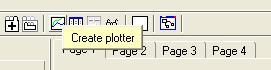
2. Choose the variable you wish to have displayed

Note the graph window that appears. This is initially scaled with default values on both axes, but will rescale itself as needed. You can re-size the panel containing the graph by dragging on the little boxes on the horizontal and vertical panel separators.

  • Click on the "Add a variable" button on the plotter toolbar
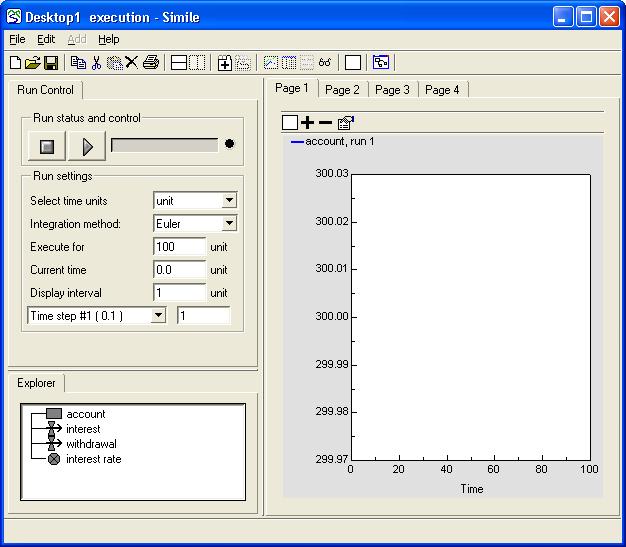
  • Click on the compartment labelled account in the list of model variables.

You can either click on the line representing the compartment in the "Explorer" tab at the bottom left of the execution window, or you can go back to the model diagram and click on the compartment there.

<< Previous Step Next Step >>


Step 6: Running the model


Step 6: Running the model

<< Previous Step Next Step >>

1. Start the simulation

  • Click on the "Play" button in the Run control dialogue window.

Note the line that appears on the graph.

2. Continue the simulation

  • Click on the "Play" button again.

The simulation carries on for another 10 years.

<< Previous Step Next Step >>


Step 7: Repeating the model edit/run cycle

Step 7: Repeating the model edit / run cycle

<< Previous Step Next Step >>

1. Return to the desktop canvas

  • Click on the "Go to Model Window" toolbar button.

2. Prepare to edit the component properties

  • Click on the pointer button in the toolbar.

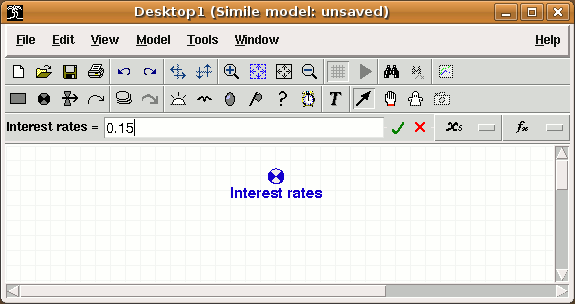
2. Change the interest rate from 10% to 15%

  • Click on the interest rate variable.
  • Change its value from 0.1 to 0.15
  • Click on the green tick mark.

3. Run the model again

  • Click on the "Run" button on the toolbar.

The model will automatically rebuild, re-initialise and run again.

<< Previous Step Next Step >>


Step 8: Saving and loading the model


Step 8: Saving and loading the model

<< Previous Step

1. Save the model to file

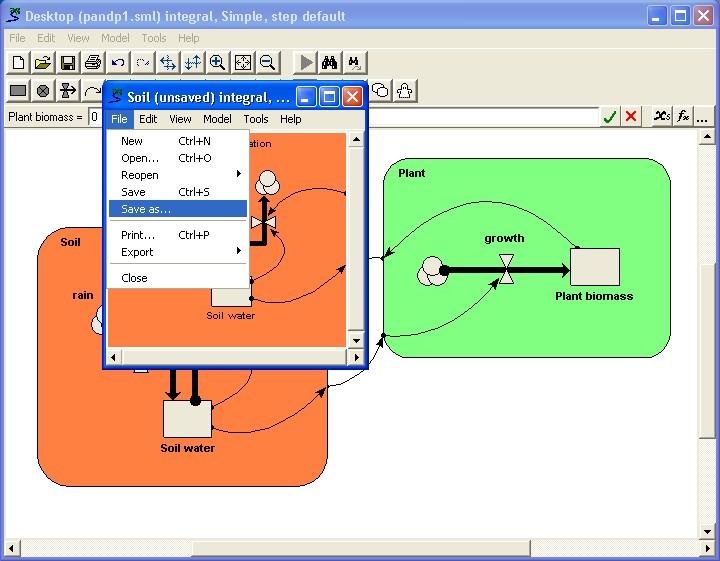
  • Select the "Save As…" item in the File menu in the main (model diagram) window.
  • Navigate through the file directory system in the normal way, to the directory where you wish to save the model.
  • Enter a name for your model, and save it.

3. Loading a model from file

Either:

  • Select the "Open…" item in the File menu
  • Search for your model.
  • Click on the OK button.

or:

  • Select the "Reopen -->" item in the File menu
  • Select from the list of recently-used models

<< Previous Step


Working with model diagrams

Working with model diagrams

Working with the model diagram is the heart of the modelling process. The model diagram is a graphical representation of the all the elements and relationships within the system being modelled. Using the model diagram elements, and the tools described here, an infinite range of models can be created. All work on the model diagram uses a selection mechanism to determine the elements affected.

Adding node-type elements

Adding arrow-type elements

Adding submodels

There are four tools for manipulating the elements of the model diagram.

Selecting, in order to duplicate, move, delete or label elements

Dragging the canvas around inside the viewport to show different parts of the model (this can also be done with the scrollbars or mouse wheel)

Creating ghost elements

Inspect a model variable


The following tools are provided for convenience in working with model diagrams

Printing model diagrams

Undoing and redoing changes

Zooming in and out

  Aligning symbols on a grid

Searching for a particular element

The following advanced topics are dealt with separately.


Rescaling symbol size in a particular submodel

  Customizing the diagram's appearance
 

Controlling the amount of detail shown in the model diagram


Following influences around the diagram


Adding pictures to the model diagram


Setting preferences

In: Contents

Working with model diagrams : Adding node-type elements

Adding node-type elements

The node-type elements are the variable and the compartment, as well as the elements used in population submodels. The T text box also behaves as a node-type element, though no node is associated with it. The following procedure is used to add node-type elements.

  1. Click on the required node symbol in the tool bar.
  2. Click on the diagram canvas where you want to place the element.
  3. At this point the caption is selected and you can type in your chosen caption.
  4. Repeat (2) if you want to add more nodes of the same type.

Note that the button you selected on the tool bar remains depressed until you select another button (i.e. to add a different element, or to change into a different mode, such as label or move). This allows you to add quickly several elements of the same type.

There are other methods if you want to add just one element without leaving pointer mode. Any of the following will add a single element to the diagram:

  • Drag from the tool bar symbol to the chosen place on the diagram.
  • Right-click at the chosen place on the diagram, and in the context menu select "Create New" -> your chosen node type. The population submodel membership controls are listed in their own submenu.

However you add a node, it appears with a default caption, e.g., "comp33". Since this caption is rarely what it needs to be in the finished model, it is selected for editing when the node is added, so you can immediately type in a more appropriate one, e.g., "Bananas".

Note that it is not possible to add a node-type element to an area of your diagram that is already occupied. A warning message appears, so if this happens, simply click somewhere else where there is sufficient space, or move existing elements around to make sufficient space. You can also adjust the relative size of components in a submodel to make more room around them.

In: Contents >> Working with model diagrams


Working with model diagrams : Adding arrow-type elements

Adding arrow-type elements

The arrow-type elements are the influence, flow and role arrows. In general, arrows link two nodes, though there are exceptions, as explained below. There are two methods of adding arrow-type elements.

  1. Click on the required arrow symbol in the tool bar.
  2. Drag the mouse from the place where you want the arrow to start, to the place where you want it to end. If you drag outside the model window during this operation, it will be scrolled in that direction bringing more space into view.
  3. Repeat (2) if you want to add more arrows of the same type.

Alternatively,

  1. Click on the required arrow symbol in the tool bar.
  2. Click on the place where you want the arrow to start. The cursor becomes a 'cross-hairs' indicating another click on the diagram is needed to finish adding the link.
  3. Click on the place where you want the arrow to end. If you miss the exact point, you can keep the button down and drag to it. If you drag outside the model window during this operation, it will be scrolled in that direction bringing more space into view.
  4. Repeat (2) and (3) if you want to add more arrows of the same type.

Note that the button you selected on the tool bar remains depressed until you select another button (i.e. to add a different element, or to change into a different mode, such as label or move). This allows you to add quickly several elements of the same type.

You can also add a single link using either of the methods you would use to add a single node without changing mode, i.e.,

  • Drag from the link's toolbar symbol to the start point on the diagram, or
  • Right click at the start point to get the context menu, and select "create new" followed by the link type.

Either of these actions sets the cursor to 'cross-hairs', requiring another click to set the end point of the new link.

Specific instructions for each type of arrow

Flow arrow

A flow arrow must:

  • begin in a blank area of the screen, and end in a compartment; or
  • begin in a compartment, and end in a blank area of the screen; or
  • begin in a compartment, and end in a compartment.

Note that if the flow arrow begins or ends in a blank area of the screen, Simile automatically adds the source/sink symbol (a cloud).

Note also that if you draw two flow arrows between the same two compartments in opposite directions, the arrows mainly lie on top of each other, but the valve (bow-tie) symbols are separated. You need to be careful that you know which valve symbol is associated with which arrow, when you come to add influence arrows or equations to the flows. You may like to use the move tool to drag the ends of the flows around one of the compartments to separate them from one another.

Influence arrow

An influence arrow must:

  • begin in any model element (except a submodel or an influence arrow); and
  • end in any model element (except a submodel or influence arrow).
     

There is an exception to this rule. If you have an influence arrow coming from an input variable inside a submodel to some element (E1); then it is legal to draw an influence arrow from some other element (E2) to this influence arrow. The effect of this is to eliminate the input variable and to cause the influence arrow to go directly from E2 to E1.

Note that if you should accidentally miss the target model element, then the influence arrow will go shooting off to the edge of the model diagram window or submodel boundary. If that happens, then simply click on the undo button in the toolbar, and try again. The reason for this behaviour is to allow you to add placeholders for influence arrows to be taken from submodels. Drag an influence arrow from the placeholder on the submodel boundary, to the desired element outside the submodel to complete the link.

Multiple influences coming from a variable in a submodel to variables outside it will share a common link as far as possible. This makes for a much neater diagram when there are lots of influences. However, this can cause odd behaviour when the influences point to variables on opposite sides of the submodel. You may find that one or more arrows leaving the submodel become detached from the point on the submodel boundary that the influence is attached to. You can usually fix this by selecting the move tool from the toolbar, and dragging the attachment point around the submodel.

Role arrow

A role arrow must:

  • begin in a submodel; and
  • end in a submodel.

In: Contents >> Working with model diagrams


Working with model diagrams : Adding submodels

Adding submodels

The following procedure is used to add a submodel to the model diagram.

  1. Click on the submodel symbol in the tool bar.
  2. Drag the mouse from a blank area of the desktop canvas, corresponding to one corner of the submodel envelope, to the opposite corner of the area that you want to be enclosed in the submodel envelope. If you drag outside the model window during this operation, it will be scrolled in that direction bringing more space into view.
  3. Repeat (2) if you want to add more submodels.

Alternatively,

  1. Click on the submodel symbol in the tool bar.
  2. Click on the place where you want to put one corner of the submodel envelope. The cursor becomes a 'cross-hairs' indicating another click on the diagram is needed to finish adding the link.
  3. Click on the opposite corner of the area that you want to be enclosed in the submodel envelope. If you miss the exact point, you can keep the button down and drag to it. If you drag outside the model window during this operation, it will be scrolled in that direction bringing more space into view.
  4. Repeat (2) and (3) if you want to add more submodels.

You can also add a single l using either of the methods you would use to add a single node without changing mode, i.e.,

  • Drag from the submodel symbol to the first corner point on the diagram, or
  • Right click at the corner point to get the context menu, and select "create new -> submodel".

Either of these actions sets the cursor to 'cross-hairs', requiring another click to position the diagonally opposite corner of the new submodel.

Note that the submodel you make may, or may not, enclose existing model elements. Simile will not allow you to add a submodel with the boundary passing through an existing component other than a link. When making a submodel, you can either make it to enclose some existing model elements, or it can begin life empty, with the intention of adding elements later on. The following notes apply to the two situations:

Submodel is drawn around existing model elements

The elements must be arranged so that it is possible to enclose them in a rectangle. You will need to move them around prior to drawing the submodel envelope if this is what you wish to do. The elements are then deemed to be enclosed inside the submodel. Any links coming from outside this new submodel to elements inside it, or vice versa, will be redrawn to show a break at the submodel boundary.

Submodel does not enclose existing elements

You need to find an empty area of your model diagram that is big enough to contain the new submodel. You may need to move existing model elements around in order to create some space.

In: Contents >> Working with model diagrams


Working with model diagrams : Selecting model diagram elements

Selecting model diagram elements

The selection mechanism is straight-forward. First select one or more elements on the model diagram, then perform an action on the selection.

To select a single element, click on it using the pointer. To continue to select further elements, hold down the Ctrl key (Cmd key on the Mac) whilst clicking on them. If you select an element by mistake, click on it again with the Ctrl key held down, and it will be unselected, leaving the rest of the selection unchanged. To abandon a selection altogether, click in a blank area of the diagram, outside any selected submodels. To select multiple elements at once, drag the pointer across the area containing them: a marquee (rectangular selection) will be drawn around the elements that are included in the area. If you drag outside the model window during this operation, it will be scrolled in that direction bringing more space into view. The elements will all be selected when the drag is released. If any part of an element (other than the caption) is included in the area, it will be included in the selection.

The context menu contains the commands "Select all", "Unselect all" and "Invert selection". These apply within the submodel in which you right-click to display the menu, and any submodels nested within it.

Selected components and captions will be highlit in blue. Links between selected components are also highlit in blue, while links between selected and unselected components are green. These green links will stretch if the selection is moved, and will be deleted if it is cut, but will not be put on the clipboard.

Ghosts of selected components, and base components of selected ghosts, will be highlit in bright green. It is also possible to have components connected to the selection highlit like this. Under the "View" menu, select "Highlight back" -> "One function". Now all components starting influences going to the selection, including via ghosts, are highlit. There is also the option to highlight back two functions, and an equivalent choice for highlighting forwards, which shows up nodes influenced by the selection. Components that are highlit in this way are not affected by actions done on the selection.

Various actions can be performed on selected element(s). The actions are available in the context menu, invoked with a right click. Once one or more elements are selected, the action chosen from the context menu will be performed on the selection, wherever the mouse is when the right-button is clicked.

The selection can be cut or copied to the clipboard. If you paste the clipboard into another program, such as Microsoft Word, a picture (metafile) will be shown in the document. If you paste the clipboard into Simile, the elements will be inserted, complete with functions and other properties.


Working with model diagrams : Duplicating elements

Duplicating elements

You can make multiple copies of one or more elements. This can be quick when some parts of your model are similar to one another. Follow these basic steps.

  1. Click on the pointer tool on the tool bar.
  2. Click to select the element you wish to copy. If you wish to copy more than one element, hold down the Ctrl key whilst selecting the elements.
  3. Use the context menu (right-click) copy and paste commands.

The selected elements will be duplicated into an area where there is sufficient space to receive them. The elements will also receive new valid names to avoid clashing with the existing selection. The elements are selected ready to move to the desired position together.

In: Contents >> Working with model diagrams

Working with model diagrams : Moving elements


Moving model diagram elements
around

You will inevitably want to change the layout of the elements in your
model diagram. For the elements you have placed on the diagram yourself,
such as compartments and variables, you will find that at some stage you
need to move them around, to make the diagram neater, easier to understand,
etc. For some elements, such as the route taken by arrows and the
placement of labels, you will want to arrange them to suit yourself:
perhaps an influence arrow goes behind a compartment, or two labels run
together.

The basic steps are:

  1. Click on the pointer tool.
  2. Move the mouse to the element you wish to move.
  3. Click to select the element.
  4. Drag the element to the new position.

For node-type elements, the effect is pretty obvious. But note
that:

  • All arrows are sticky, so that moving any node-type element causes all
    the arrows associated with it to move around, according to the built-in
    arrow pathway algorithm.
  • Nodes cannot be moved into space occupied by other nodes. However, if
    you keep on dragging past an obstruction, then the element you are moving
    will leap into position as soon as there is sufficient free space.

Special considerations apply to the following elements:

In: Contents >> Working with model diagrams

Working with model diagrams : Moving labels

Moving labels

You can move a label for a model element independently of moving the element itself. (I.e. if you move the element, the label keeps the same relative position; but if you move the label, then only the label moves - the element doesn't.)

There is no constraint on where you move the label to, so it is possible for the label to be visually far removed from the element that it is labelling. You can also move the label to be inside the element: e.g. a compartment label inside the compartment, or a submodel label inside the submodel rather than (by default) just outside it. Clicking on either the label or the element will highlight both, which is useful if you reach a situation where it is not obvious which label goes with which element.

To move a label relative to its element, the element itself must not be selected. If the element is selected, then dragging the mouse across the label will select the text of the label, allowing you to edit the label. To move the label instead, click in a blank area of the diagram or choose "Unselect all" from the context menu to ensure that nothing is selected, and then drag the label to its new position.

In: Contents >> Working with model diagrams >> Moving model diagram elements

Working with model diagrams : Moving flow valve symbols

Moving flow valve symbols

If a flow arrow has a "kink",you can adjust the position where this is drawn by clicking on the middle section, well away from the bowtie symbol, and dragging it along the length of the rest of the flow. In other cases, you cannot change the actual path taken by a flow arrow. However, you can always change the position of the valve (bowtie) symbol on the flow arrow, by dragging it along the arrow in the desired direction. You can also move the cloud associated with flows, generating a corresponding re-alignment of the flow route.

If you draw two flows between the same two compartments in the same direction, then the second one may partially overlap the first, including the valve symbol. You can move one or both valve symbols to enable each to be handled separately.

If you draw two flows between the same two compartments in opposite directions, then the flows may partially overlap, but the valve symbols will not, so that you do not have to move them for each one to be visible.

In: Contents >> Working with model diagrams >> Moving model diagram elements

Working with model diagrams : Moving influence arrows

Moving influence arrows

With influence arrows, you can change the route taken by the arrow. Simply drag any part of the arrow, and the whole arrow will be redrawn along a new curve.

Where an influence arrow is broken into several segments, as it traverses submodel boundaries, each segment is treated independently. Thus, dragging one segment only affects that segment. Dragging a node at the start or end of the influence arrow likewise only affects the first or last segment.

You can move the dot where the influence arrow crosses a submodel boundary. This changes only the two segments that enter or leave the dot.

In: Contents >> Working with model diagrams >> Moving model diagram elements

Working with model diagrams : Moving role arrows

Moving role arrows

Role arrows can be moved in the same way as influence arrows, by dragging any part of them. Note that as for influences, the endpoints of a role arrow cannot be moved as such; the effect of dragging them is the same as that of dragging any other part of the arrow.

When a relation arrow crosses several submodel boundaries then, as with influence arrows, the effect of such changes are local to a given segment of the relation arrow. You can drag the blobs that are drawn where they cross intermediate submodel boundaries, and this will affect the routes of the sections either side of that boundary.

Two role arrows that connect the same pair of submodels cannot be positioned directly on top of one another.

In: Contents >> Working with model diagrams >> Moving model diagram elements

Working with model diagrams : Moving and re-sizing submodels

Moving and re-sizing submodels

The following rules govern the behaviour of the move tool, when applied to submodels.

  • dragging in any blank area of a submodel moves the whole submodel and all its contents, if the submodel is selected;
  • dragging the submodel boundary resizes the submodel by moving the boundary that is dragged; and
  • dragging a corner of the submodel resizes the submodel in both the horizontal and vertical directions.

If a submodel is not selected (i.e. the boundary is not drawn blue) then dragging in a blank area within the submodel draws a rectangular marquee for selecting elements within the submodel. Only if the submodel is selected, is it possible to move it by dragging.

When moving or re-sizing a submodel, there must be sufficient area of blank canvas (with no obstructing elements) available.

Note that it is not possible to move an element across a submodel boundary, or vice versa. This is because such a move would change the actual semantics (mathematical properties) of the model, which "move" operations generally do not. It is necessary instead to cut the element (or group of elements) from one side of the boundary, and paste them in the other. This will cause any links between the element(s) and other parts of the model diagram to be broken, and they mut be added again individually.

If a lot of elements are to be moved in or out of a submodel, it may be easier to delete the submodel boundary and redraw it around a different group of components. Any special properties of the submodel, e.g., dimensions, will have to be set again when it is re-created.

In: Contents >> Working with model diagrams >> Moving model diagram elements

Working with model diagrams : Moving groups of elements

Moving groups of elements

To move a group of elements while keeping them in the same places relative to each other, select the whole group as described in Selecting model diagram elements, then click on any selected element, or inside any selected submodel, and drag. It must be a fully selected element (not a highlit link connecting a non-selected element) and only components inside the same submodel as the dragged component will be moved.

Movement will stop if any component in the group being moved collides with another component. In very complex models, moving large groups of components may cause Simile's graphics to respond slowly as it redraws highlit links and checks for collisions. If this becomes a problem, use the preferences dialogue to choose "Quick drag" as described in Preferences: Edit. This turns off collision detection and link updating during a drag, allowing the graphics to run at full speed. In this mode, link re-routing and collision detection are done only when the group is dropped at the end of the drag. If the move results in elements overlapping, or ending up in a different submodel from where they started, the selection will return to where it was at the start of the drag.

In: Contents >> Working with model diagrams

Working with model diagrams : Deleting elements


Deleting elements from the model diagram

To delete elements from the model diagram, follow these basic steps:

  1. Click on the pointer tool.
  2. Move the mouse to the element in the model diagram that you wish to delete.
  3. Click to select the element. You can select more than one element at this point, holding down the Ctrl key.
  4. Use the context menu (right-click) and choose the delete command.

Please note

If you should accidentally delete something, then the Undo tool will bring it back again.

In: Contents >> Working with model diagrams

Working with model diagrams : Changing labels


Changing the label for elements on a model diagram

To re-label any element in the model diagram:

  1. Click on the select tool on the toolbar.
  2. Click on the label of the element in the model diagram that you wish to change.
  3. Use the Backspace or the Delete key to remove the existing label.
  4. Type in the label you wish for this model element. You can use any characters from the keyboard, including spaces, capital letters, the RETURN character and special characters, except for the forward slash ( / ) and the reverse slash ( \ ).

If you try to change a label to one that already exists in the same submodel, or you use illegal characters in the label, then Simile will generate an error message and leave the label unchanged.

Suggestions

  • Using the RETURN character is a good way of avoiding having long labels that stretch across the model diagram.
  • You should choose labels that to some extent make the model diagram self-documenting: someone who is knowledgeable about the subject area of the model should be able to read the diagram and have a good idea of what most of the labels mean.
  • However, remember that the labels are (by default) the names of the variables used in equations. Therefore, you should avoid labels that are too long and wordy. (You can however provide your own local names for variables inside equations, so you can use long labels if you prefer.)
  • Remember also that the full label for an element in the model diagram is the label that you give it, along with the labels of any submodel(s) that it is enclosed within. (This is just like file names: the name of a file is the name given to it, along with the names of all the directories it is enclosed within.) Therefore, if you have a biomass compartment in each of two submodels - say "animal" and "plant" - then it is quite acceptable to label each of the two compartments with the same label, "biomass", since one is "plant/biomass" and the other is "animal/biomass".
  • Choose names that reflect the type of element that you are re-labelling: see below.

Appropriate types of label for different types of model element

Compartments

The label should reflect the fact that this is (usually) referring to an amount of something. Thus, use terms like biomass, area or numbers.

Flows

The label should reflect the fact that the a flow is (usually) some process. Thus, use terms like production, growth, reproduction.

Simple submodels

The label should reflect the subsystem being modelled, for example, "vegetation".

Multiple-instance submodels (fixed-membership and population submodels)

The name should reflect one instance of the type represented by the submodel. Thus:

  • if you are modelling a stand of trees, then the submodel should be called "tree";
  • if you are modelling an area as multiple patches, then the submodel should be called "patch";
  • if you are modelling multiple size classes, then the submodel should be called "size-class".

i.e. use the singular, not the plural. The reason for this is that the submodel represents a single individual: the fact that there is a set of them is indicated by the appropriate setting in the Properties box for the submodel: it is not an intrinsic property of the submodel itself.

Association submodels

The label should reflect the type of association that exists between the two types of object involved in the relation. Thus:

  • if the association submodel represents ownership between people and patches of land, then label it "ownership";
  • if the association submodel represents the fact that some spatial units are next to others, then label it "next to".

Role arrow

The label should reflect the role of the object in the association. Thus, if the association submodel is used to represent ownership of patches of land by people, then the role arrow coming from the person submodel should be labelled "owner", and the role arrow coming from the patch submodel should be labelled "owned".

In: Contents >> Working with model diagrams

Working with model diagrams : Create ghosts

Creating ghost elements

Large diagrams can become unwieldy, due to the long distances across which influence arrows must be drawn. To work around this, it is possible to create a ghost of a node element (a compartment or a variable), which has the same value at all times as the original. The ghost can be placed close to the other element(s) that the original element influences. A ghost can be recognised by its appearance (ghostly).

A single original element can be ghosted more than once, each ghost being placed closer to other elements. Influence arrows and flows can be drawn to and from ghosts as usual. These will affect all instances of the original. To create a ghost, the following procedure is used:

  1. Click on the ghost button on the tool bar, or select the "Ghost" item on the "Tools" menu.
  2. Click on the element to be ghosted. The cursor now takes on a 'cross-hair' appearance, indicating another click is needed to complete the operation.
  3. Click on the model diagram to place the ghost. If you click on an existing element on the model diagram, it will become the ghost. If you click in a blank area, a new symbol will be placed there.

Alternatively, you can:

  1. Click on the ghost button on the tool bar, or select the "Ghost" item on the "Tools" menu.
  2. Drag from the component to be ghosted, to the location of the new ghost.

Once a ghost is created, changes to its value or equation, will also affect the original, and other ghosts created from the same original. Care must be taken in using ghosts as it is easy to overlook the fact that a ghost exists elsewhere and will be affected by changes made to the original which are not appropriate for the ghost. When a component is selected, all its ghosts are highlit in bright green.

There are implied influence arrows between the original element and its ghost. You can turn on the display of these influence arrows, in order to find all related ghosts for example, using the "Show detail… Ghost links" command of the View menu. Once the ghost links are displayed, they can be deleted, in which case the component at the end ceases to be a ghost, and is marked incomplete (red) unless it has an equation of its own.

It is sometimes useful to replace a component in one part of a model with the ghost of another, allowing the value of the ghosted component to be used everywhere the value of the original component was previously used. To do this, you can click on, or drag to, another component when creating a ghost. The component becomes a ghost, keeping all its connections. For this to happen it must be the same type as the component being ghosted. The original equation of the replaced component is remembered, and reappears if it ceases to be a ghost.

Note that if you delete the original element, all its ghosts will become undefined unless they previously had equations of their own. You can delete a ghost without affecting the original, unless you have added influence arrows or flows to the ghost, in which case these will no longer be used by the original.

In: Contents >> Working with model diagrams


Working with model diagrams : Inspect model variable

Inspect model variable

The snapshot tool is only available once a model has been built and is ready to run. It is provided to inspect the values of complex data structures held by some model elements. By hovering over a model variable it is possible to view pop-up windows that contain an element's equation, description and value. But in some cases, particularly where the data have more than one dimension, this pop-up window is rather hard to read. In any case, if the data is a very large array, the central portion will be elided to prevent the popup window being too large. As an alternative, use the snapshot tool. This will pop-up a larger, permanent window with the values structured by dimension.

As its name implies, the snapshot tool provides a view of the data structure at a moment in time. You can leave the window displaying the snapshot open, run the model for some more time, and then click again on the same element to open a second window that displays the new data structure. Having the two windows open at the same time, each labelled with the time at which the snapshot was taken, is the easiest way to trace changes to an element or sequence of elements. If you would rather just see the current data, the snapshot tool includes an update button () which will refresh the displayed data with the current values from the model.

Saving data from snapshot tool

Normally you would use the data table helper to create a file containing model data. But because this tool is more oriented to displaying data interactively, it can operate very slowly with large tables. The snapshot tool is much quicker, although less flexible.

To save data from the snapshot tool at a given time point, hit the save button. It will prompt you for a file name and the data will be saved to this file as a comma-separated (.csv) file that can be loaded into a spreadsheet. The indices will be listed in columns to the left, outermost first, and the actual data items will appear in the rightmost column.

You can also use the snapshot tool to save data as a time series as the model runs. To do this, hit the log button () and select a file name. Then start the model executing. The values displayed in the snapshot window will not change, but after each display interval the current values will be appended to the file. In this case the indices will be listed in rows at the top of the file, outermost first, with the actual data items appearing below them, one row for each time point. The times themselves will appear in the leftmost column. To stop logging, hit the log button again.

Remember that the snapshot tool is disabled until the model has been built. Only after building the model do the elements have values. The tool is available at any point during the model run.

In: Contents >> Working with model diagrams

Working with model diagrams : Printing


Printing model diagrams

To print a model diagram, either select the "Print…" option on the "File" menu, or click the button on the tool bar. Either command will invoke the print dialogue box, which allows you to select a printer, choose the number of copies, and change printer settings, such as printing in portrait or landscape orientation.

The model diagram is scaled to fit on a single sheet of paper.

In: Contents >> Working with model diagrams

Working with model diagrams : Undoing and redoing changes


Undoing and redoing changes to the model diagram

A record is kept of the last 32 changes you have made to the model diagram, including operations like adding new elements, deleting, moving and renaming elements, and entering or changing a value or equation.

Undo

The Undo button on the toolbar and the Undo command on the Edit menu reverses the effect of the preceding operations in turn (up to a maximum of 32). You must undo operations in sequence, it is not possible to undo an earlier change without also undoing all subsequent changes.

Redo

The Redo button on the toolbar is, in effect, an un-undo button: it reverses the effect of a preceding click on the Undo button. As with the Undo button, you can Redo any number of Undo's (up to the maximum of 32). However, note that the Redo button is only activated immediately after a click on the Undo button. If you click on Undo, then do something else (like add a new compartment), then the Redo button is greyed out and you can no longer use it.

In: Contents >> Working with model diagrams

Working with model diagrams : Zooming in and out

Zooming in and out

You can zoom in and out of a model diagram. Zooming in makes the symbols bigger but shows less of a large diagram. Zooming out shows more of the diagram but makes the symbols smaller.

There are two methods for zooming:

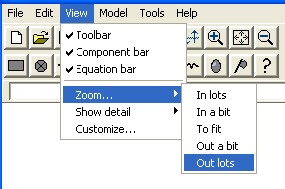
  • using the Zoom... item in the View menu
  • using the Zoom buttons on the toolbar

Zooming using the "Zoom..." item in the View menu

In lots

2x scaling: symbols are doubled in (linear) size.

In a bit

approx. 1.25x scaling: symbols are slightly bigger

To selection Scales and scrolls the diagram so the viewport fits around the selected nodes and submodels. This will not change the size or shape of the overall diagram.

To fit

Re-sizes the whole diagram so all components just fit the window. Note that this is according to the most constraining dimension, so the operation may add more whitespace to the overall diagram. Whitespace outside the viewport is trimmed from the diagram.

Out a bit

approx 0.8x scaling: symbols are slightly smaller. If the diagram shrinks below the size of the viewport, whitespace will be added around the edges.

Out lots

0.5x scaling: symbols are halved in (linear) size. If the diagram shrinks below the size of the viewport, whitespace will be added around the edges.

Zooming using the Zoom buttons on the toolbar

  • has an effect between the "Zoom...in a bit" and "Zoom...in lots" items in the View menu: it scales by approx. 1.4x, making the symbols larger and showing less of the diagram.
  • has the same effect as the "Zoom...to fit" item in the View menu: see above for a detailed description of its behaviour.
  • has the same effect as the "Zoom...to selection" item in the View menu: see above for a detailed description of its behaviour.
  • has an effect between the "Zoom...out a bit" and "Zoom...out lots" items in the View menu: it scales by approx. 0.7x, making the symbols smaller and showing more of the diagram. Whitespace may be added.

In: Contents >> Working with model diagrams

Working with model diagrams: Aligning symbols on a grid

Aligning symbols on a grid

Simile's desktop area can display a grid of horizontal and vertical lines which is used to aid accurate placement of model components. The display of this grid is turned on or off by means of the toggle-grid button () in the menubar. The functions of the grid can be activated whether or not it is currently being displayed.

Controlling grid appearance

The pitch of the grid (frequency of lines) and how heavy they appear on the desktop can be adjusted from the 'Layout' tab in the Preferences dialogue. There is also an option on this tab to select whether the grid appears initially in a new window.

Using the grid

The 'Edit' tab in the Preferences dialogue has a checkbox labelled 'snap to grid'. When this is checked, any component added to a model will 'snap' to the nearest grid intersection. When dragging a component, or dragging a submodel boundary, it will 'jump' between successive grid intersections or lines. This does not happen when dragging a link to change its route, when dragging a component's caption, or when dragging a bowtie along a flow.

Components that were previously placed higgledy piggledy can be aligned to the grid by selecting them, then choosing 'align to grid' from the Edit menu. This works whether or not 'snap to grid' is checked. Components are aligned on their parent submodel's grid. Note that if a submodel has a relative scale that does not go into 1 an exact number of times, then its internal grid will not match up with its parent model's grid.

Changing the grid pitch does not itself cause components to snap to the new grid; this must be done afterwards using Edit -> Align to grid.


Working with model diagrams : Searching for a particular element

Searching for a particular element

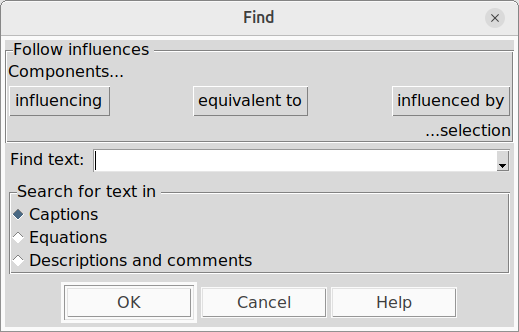
Navigating through large or complicated diagrams is made easier by the search facility. This will highlight the element you are looking for, and centre it in the window, if the model diagram extends beyond the window's edges. You can search for elements using text contained in the element's caption, equation or description and comments, using the "Find" tool.

The simplest way is to use the two tools provided on the toolbar:

  • "Find" calls up a dialogue box into which you enter the text, and specify which text elements to search
  • "Find Next" searches for successive occurrences of variables satisfying your search criterion

Elements are searched in order, with the first to match the text being highlighted. If this is not the one you want, or you want to find others using the same text, use the "Find Next" tool. Alternatively, you can choose the commands "Find..." and "Find next" on the Edit menu. If you choose "Find..." from the context menu after right clicking in a submodel, the search will only turn up components within that submodel, even if you choose "Find next" somewhere else.

Searching equations is a useful way to find where a particular function is used. For example, searching for the text "rand" in equations will find all the elements using the functions "rand_var" and "rand_const".

As well as searching for text, the search system can follow influences around the diagram, even when these come to and from ghosts of the starting point. To use this feature, first select one or more nodes in the diagram, then hit the "Find" button. The dialogue contains a "Follow influences" panel with three buttons, "Components influencing selection", "Components equivalent to selection" and "Components influenced by selection". If you hit the first of these, the selection will be cleared and a component which starts an influence arrow going to a previously selected component will itself be selected. Now you can hit either "Find next" to go to another component that influences the original selection, or "Find" followed by "Components influencing selection" to go to a component influencing the one you just went to. "Components influenced by selection" does the same thing but searches forwards along influences rather than backward, and "Components equivalent to selection" merely finds ghosts of selected components, or bases of selected ghosts.

The description and comments associated with an element are entered using the equation dialogue window, as is the equation itself. The caption (or name) of an element is entered on the model diagram.

Note that the text is not case-sensitive, so "VAR" will mach "var". Note also that the text will match its use anywhere within the text elements searched, so "ar" will match both "car" and "arm". Also note that you cannot put a newline in the search string, as hitting the Return key starts the search. You can instead include \n (backslash-n) in the search string, and this will match a newline in the text being searched for.

In: Contents >> Working with model diagrams

Working with model diagrams : Rescaling symbol size in submodels

Rescaling symbol size in submodels

When you construct a submodel envelope around part of a model diagram, then the symbols inside it are the same size as the ones outside. Similarly, if you construct an empty submodel, then the symbols you place inside the submodel are, by default, the same size as symbols you place outside. In principle, one could construct a complex model, containing many (perhaps nested) submodels, with all the symbols being the same size at any level of nesting. In practice, however, this may be undesirable or difficult to achieve.

You can control the scale of the symbols inside the submodel relative to those in the desktop by using the "Relative scale" slider control in the "advanced" tab of the submodel properties dialogue box. This dialogue box is displayed by double-clicking anywhere within the submodel, or by selecting the "Properties…" command from the context menu, which can be displayed either by right-clicking in the submodel or by opening the submodel in a new window, and using the "Edit" menu in this window.

The default symbol size is the same as the desktop, i.e. a relative scale of 1, and using the slider control it is possible to reduce this to make the symbols smaller. If you wish to make the symbols in a submodel larger than in the desktop, you must use the same slider control on the desktop window, either by double-clicking on the desktop or selecting the "Properties…" command from the context menu. This control allows you to reduce the absolute size of the desktop symbols, meaning that the symbols in submodels are now relatively larger.

In: Contents >> Working with model diagrams

Working with model diagrams : Customizing the diagram's appearance

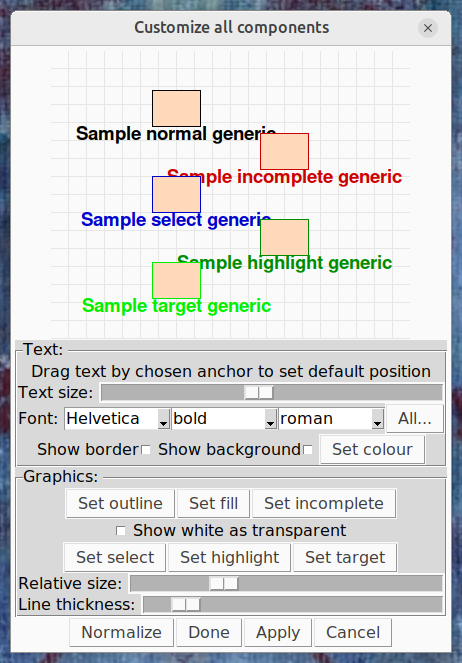
The "View -> Customize" menu selections display a dialogue that allows you to customize almost any aspect of the model diagram. You can change the appearance of just one type of component, or all components at once. The dialogue displays an example of how the component (a compartment if customizing all components) will look after any changes are applied.

Text panel

This panel is displayed only when customizing a item type that has a caption, or the text box item type, or all item types at once.

Default caption offset and anchor

In this display, dragging the caption will set the relative position in which it appears to the component by default. This setting is overridden when dragging the captions of individual components on the diagram. The caption can be dragged by any of nine 'anchors' -- the four corners, the middles of the four sides, and the centre. Dragging the caption by an anchor sets the point that will remain the same when the text is changed; e.g., if it has been dragged by the top anchor, then adding new lines to the caption will cause it to be extended downwards.

Size and font

A horizontal slider allows the relative size of the text (relative, that is, to the scaling applied in whichever submodel the component is in) to be set. Below that, three drop-down menu buttons allow the font family, weight and slant to be set. Not all combinations of these are available on any given machine, and in the case that the desired combination cannot be displayed, a close approximation will be selected.

Bounding box and colour

Text can be displayed with a bounding box, to allow it to show against a similarly coloured background and to make it easier to click on in a cluttered screen. The border and background of this box can be turned on and off with the appropriate checkbuttons in this panel. The border is the same colour as the text; the background is some other colour chosen to contrast with this. The "Set colour" button displays a dialogue which allows the default colour of the captions to be changed, although if a component is incomplete, selected or highlit, the caption will always be the same colour as the component's outline. When you hover over this button, it turns the currently selected colour.

Graphics panel

The graphics panel is displayed when customizing any item type except the text box, or all item types at once.

Colours

Items (except role arrows, influences and submodels, which have no fill) are drawn on the diagram using two colours, the outline and the fill. The fill colour is always the same, and can be set with the "Set fill" button. The outline colour depends on whether the component is incomplete, selected or highlit. "Set outline" sets the colour that applies if none of these are the case, and the other buttons set the colour for each of these cases. "Highlight" is the colour of a link between a selected and an unselected component, and "target" is the colour of a ghost when its base is selected, or vice versa, or a component highlit as a result of the highlighting choices in the View menu. All these buttons turn the currently selected colour when hovered over.

The colour used in a particular circumstance can be set to transparent. Any component or part of a component displayed as transparent will be invisible. A useful trick for very complex diagrams is to set the outline colour for influences to transparent. This prevents them appearing at all unless a component they connect to is selected.

Size and thickness

These sliders alter the size and thickness of each component type. Size is interpreted differently for some components; for a submodel it means the radius of the corner arcs, while for a link it sets the relative size of its arrowhead and 'blob' at the start, as well as the bowtie for flows.

Action buttons

This dialogue has four action buttons at the bottom:

  • Normalize: reload the dialogue settings with Simile's defaults
  • Done: Apply any changes to the diagram and quit the dialogue
  • Apply: Apply any changes to the diagram andkeep the dialogue open
  • Cancel: Close the dialogue, ignoring any changes that were made.

If a model is saved after its appearance has been customized, the customization settings will be saved with it and restored when it is reopened.

Working with model diagrams : Controlling the amount of detail

Controlling the amount of detail shown in the model diagram

By default, Simile displays all the elements in the model diagram (except for ghost links): compartments, flows, variables, influence arrows, labels, etc. However, you may want to suppress the display of some of the elements to make the diagram less cluttered and less confusing, especially if you are showing a fairly complicated model to someone else for the first time.

Simile enables you to control:

  • which types of elements are displayed; and
  • the levels of submodel nesting that are displayed for each type of element.

The first submenu for the Show detail item in the View menu enables you to select the type of element whose display you want to change. You can then select the submodel nesting level from a further submenu.

If you select:

 None

then that type of element is not displayed at all.

 All

then it is displayed at all levels.

1
levels

it is displayed only at the top (Desktop) level.

2 levels

it is displayed at the Desktop level and the top level of submodel (but not the submodels nested inside the top-level submodels).

The elements are arranged in order, such that turning off the view of compartments also turns off the view of variables at the same level. Turning off the view of variables also turns off the view of influence arrows, and so forth. This is to avoid producing nonsensical or misleading views.

Note that they apply within each window that displays part of the model. So, if you set submodel display to 1 level, so only the outlines of the submodels are displayed, then click on a submodel's boundary to open a new window for it, that window will show the contents of the submodel down to the next level.

There are three other mechanisms for limiting the amount of detail.

  1. If you open the properties dialogue box for a particular submodel and go to the Advanced tab, there is a checkbutton labelled "hide contents" in the Appearance panel. If you check this, the submodel will be displayed as an empty box, while other submodels at the same level still display their contents.
  2. At the bottom of the "Show detail" menu is a submenu for "Influence sections". This can be set to "Local", meaning only influences fully inside the same submodel are shown, or "Terminal" meaning only those actually connecting a component are shown, as well as "All", the default setting.
  3. As described in Customizing the diagram's appearance, you can set the default colour of a component's outline or fill to transparent. This is useful because it will then normally be invisible, but will show up if it is selected or highlit or becomes incomplete.

If you adjust the level of detail in a model's display, then save the model, these settings will be restored when the model is reopened.

In: Contents >> Working with model diagrams


Working with model diagrams : Following influences around

Following influences around the diagram

When creating a complex model, it can be very useful to see at a glance which components are influencing, and which are influenced by, the component you are looking at. This is particularly useful if you have a model spread over a very large diagram with ghosts used extensively to reduce the clutter of influence arrows. It is also very useful for debugging a running model - if you are looking at a component which seems to have the wrong value, it is useful to be able to jump to the values that are influencing that component to see where the error is creeping in.

Simile provides two mechanisms for following influences, one focused on the diagram and the other on the search mechanism.

Highlighting upstream/downstream

Normally, the selection is shown in blue, and the links to and from the selected area in dark green. There is also a set of highlit components, normally shown in light green (though all these colours are customizable, see "customizing desktop appearance"). The highlit components include the ghosts of components in the selection, and components whose ghosts are in the selection. But it can be modified to also include components influencing or influenced by those in the selection, at up to two steps away in either direction.

To enable highlighting of more components, select one of the last two entries of the desktop's View menu, 'Highlight Back' or 'Highlight Forwards'. Each of these has entries for One or Two functions, as well as the default setting of bases or ghosts only. Once this is done, components in the specified relation to the selection will be highlit immediately whenever a selection is made.

Searching for related components

This method causes the model diagram to scroll to show the relevant components, which is convenient for very large models. Make your selection in the normal way, then hit the 'Find' button as described in the Searching section. At the top of the dialogue that appears are three buttons, 'Components influencing selection', 'Components equivalent to selection' and 'components influenced by selection'. Hitting any of these buttons will start the search immediately; other fields in the search dialogue are ignored. One result is selected at a time, as for other searches, and the diagram scrolls if necessary to place the selected result at the centre. Since each result becomes a new selection, when you reach the one that is along the path you are following, you can immediately open a new search dialogue to continue searching from that point.

In: Contents>> Working with model diagrams

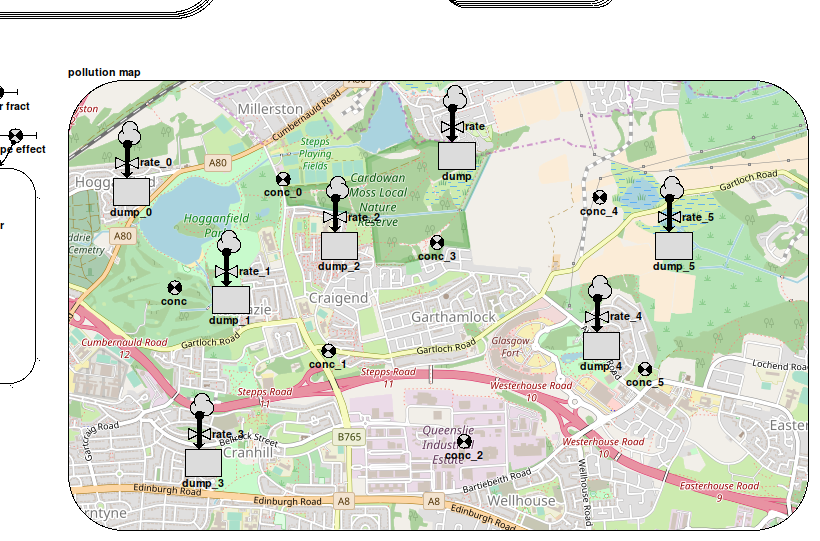
Working with model diagrams : Adding pictures

Adding pictures

There is limited support for including pictures on the model diagram.

To include a picture on the model diagram it can be in one of a wide range of formats, including gif, png  or jpeg format. Either the whole model desktop can be used, or a submodel can be used as a placeholder. The image can be cropped, stretched or tiled to fit in the available space.

The following procedure is used to add a picture to the model diagram.

  • Firstly, if you wish to use a submodel as a placeholder, add a submodel of the desired size and shape, as described in Adding submodels.
  • Secondly, to add the picture, use the select tool to double-click within a blank area, within the submodel if you have added one, or if not, anywhere on the desktop. This invokes the submodel properties dialogue box. Then:
  1. Click the "Image…" button in the "Background shade" section.
  2. Browse your file system and select the picture you wish to use, which must be in gif or jpeg format, and click "Open".
  3. Select one of the "Tiled", "Centred" or "Scaled" radio buttons to control how it is positioned. "Tiled" or "Centred" will cause it to be cropped if it is larger in pixels than the space available.
  4. Click "OK" to return to the model window.

The selected picture will now appear in the background of the model, or on the model desktop. You can continue to work with the submodel exactly as normal. You can resize it, in which case the picture will be cropped, stretched or tiled as necessary, or add model diagram elements, which will appear in front of the picture.

The submodel's background colour, or whatever is behind it if it is transparent, will show through any transparent or low-alpha parts of the image.

Note that if the image is positioned centred (i.e., cropped if it is larger in pixels than the space available) the zoom commands do not affect the size of bitmaps (these are fixed in pixels). Therefore if a model diagram is zoomed in to higher magnification, the bitmap will appear smaller than before, relative to its placeholder.

In: Contents >> Working with model diagrams


Working with model diagrams : Preferences

Preferences dialogue box

You can specify your preferred settings for the interface. The settings are edited using the preferences dialogue box. The settings are stored between sessions in a file called "prefs" in the .simile hidden folder in your home directory. The settings are stored in this file automatically; there is no need to edit it yourself.

The preferences box is displayed by selecting the last item in the "Edit" or context menu, but the preferences always apply to the whole of Simile. It is a 'persistent' rather than a modal box, which means you can continue working with Simile while it is displayed. Most changes take effect instantly, though some only apply when you actually interact with the relevant part of the diagram (e.g., flow routing). Those where you have to type in a preference (e.g., numerical) can be made to take effect immediately by hitting Return. The "OK" or "Cancel" buttons will remove the box; "OK" saves changes to the preferences, while "Cancel" puts the preferences back as they were when it was opened.

The options are displayed in five sections, in a tabbed notebook in the box:

  • Layout, for options relating to how the diagram window looks
  • Content, for options relating to popups and dialogues
  • Edit, to control the model design process
  • Build, for options which affect how the model is converted into a program
  • Save, for choices about how much information to save
  • Run, for options about how the output of the model is presented.

Please consult each section for further help.

In: Contents >> Working with model diagrams


Working with model diagrams : Preferences : Layout

Preferences dialogue box: "Layout" settings


Initial window position:

Your computer's operating system will normally decide where to put Simile's first window on your screen when you start it. This is usually the best choice, but on some setups you may prefer to always have it in the same place, in which case you can select "Where it was last time" in this panel, causing Simile to remember the position of the last model window when it closed.

In new model windows, display: bars and grid

When a new model window is created, which happens both when Simile is started or when a submodel is opened in its own window, the window is capable of displaying the standard toolbar, component bar and equation bar, if desired. Note that this does not change the display of the tool bars in existing windows. To control the display of the tool bars in existing windows use the "View" menu and check or uncheck the "Toolbar", "Component bar" or "Equation bar" items. The default is to display all three tool bars, unless the window is not large enough.

The display of the placement grid behaves the same way, but there is also a toolbar button to turn it on and off. Note that snapping to the grid can happen whether or not it is displayed.

Placement grid pitch and depth.

These choices allow you to set the vertical and horizontal pitch of the placement grid. Choosing different values for each of these results in a rectangular grid. The depth sets the visual prominence of the grid lines. How strong they actually appear will also depend on the display device.

Use large buttons, popup help text

An alternative set of tool bar and component bar buttons is provided with 24x24 pixel graphical images. The default is to use 16x16 pixel graphical images.

Normally, hovering over any active object in Simile's display (e.g., buttons, menu entries) will pop up a message with a brief description of what it does. The last option on this tab turns these popups on and off.

In: Contents >> Working with model diagrams >> Preferences


Working with model diagrams : Preferences : Content

Preferences dialogue box : "Content" settings


Display popups over model components for equations, values and comments

While in pointer mode, holding the pointer over any model component will cause a popup window to appear including that component's equation, value(s) (while the model is running) and description and comments. These can be suppressed by unchecking any or all of these options. If none is selected, the popups are suppressed completely.

  • The equation is displayed on a green background.
  • The description and comments are displayed on a brown background.
  • The current value for the variable, provided you have built the model, is displayed on a yellow background.

Note that an alternative, especially for complex data structures, is to use the snapshot tool.

Equation listings show parameter origins, enumerated type definitions, comments

The three checkboxes in this section control the behaviour of the equation listing generator.

  • 'Parameter origins' lists the paths to each component whose value is used in the equation.
  • 'Enumerated type definitions' lists the members of enumerated types with the submodels where they are defined.
  • 'Comments' includes descriptions and comments added to all components. 

In: Contents >> Working with model diagrams >> Preferences


Working with model diagrams : Preferences : Edit

Preferences dialogue box : "Edit" settings

Snap-to-grid, Quick drag, Custom keypad button.

When "Snap to grid" is selected, any time a component is added to or dragged around the diagram, its position will jump to the nearest intersection on the placement grid. When submodel boundaries are dragged, they will jump to the nearest parallel line on the grid. This does not affect link routing, or caption or bowtie positioning.

Select links end-to-end

Influences and other arrows that cross submodel borders are divided into sections. This option controls whether sections of influence arrows can be selected individually. The default is that clicking on a link at any point, or selecting either of its end points, will select all the sections of the link that are part of the same branch. This alternative, of selecting only the section clicked on, allows parts of a link to be deleted, leaving hanging sections that can be rejoined in different combinations. This is only really useful for separating and rejoining parts of a model.

Rectilinear flow routing

Flows can be drawn as either a series of horizontal and vertical sections (following a rectilinear route) or as a straight line (at any angle) between source and sink. Checking or unchecking this box does not cause the diagram to be redrawn immediately, but when flows are redrawn, they will be redrawn in the new style. The default is for rectilinear flow routing.

Default background for submodels

Submodels can have a background colour and/or a background image, or neither, in which case the background is transparent. A transparent submodel will show the background of its parent submodel through it. This can look messy if the placement grids do not align, so Simile's default behaviour is to give new submodels their own white background. This opton allows new submodels to be transparent by default instead.

In: Contents >> Working with model diagrams >> Preferences


Working with model diagrams : Preferences : Build

Preferences dialogue box : "Build" settings

Use which C++ compiler

To run a Simile model at maximum speed, it is converted into a c++ program. This program must then be compiled into executable code. The Windows and (as of release 5.4) Mac versions of Simile include a compiler (GNU g++) and associated tools to allow the code to be created without anything else being installed. This is the 'Default' compiler choice.

The Linux version does not include a c++ compiler; there must be one present on your system. Most Linux machines have one already, and if you do not, it should be simple to add it via your distribution's package management tools. This preference option does not appear on Linux.

Even if you have a built-in compiler, you may wish to use another that is present on your system. This choice allows you to do so. Models can be compiled and linked using either Microsoft Visual C++ (Windows only, any 32-bit version) or GNU G++ (version 2.95.2 or later). The GNU compiler is included in the XCode Tools for the Mac.

Important: The default compiler in the Mac version will only work on OSX 10.5 or later. If you have OSX 10.4 or earlier and want to run models at full speed, you must install the XCode Tools (either from your installation disk or available online from Apple Developer Connection) and set this option to GNU. Alternatively, run models slowly using the "Debug" menu entry.

Pause to edit c++ code

This option allows you to look at, and perhaps modify, the c++ program generated by Simile before it is compiled. This can be educational, and allows you to include the model source code in other tools. Because it is primarily used for debugging, this option also turns on various other messages relating to code generation.

In: Contents >> Working with model diagrams >> Preferences

Working with model diagrams : Preferences : Save


Preferences dialogue box

"Save" settings

Save models as canvas or model file only

Saving canvas data to a separate .cnv file allows the screen to be
redrawn more quickly when loading models. It does not affect the model
itself, and all the diagram information is still saved with the .sml model
file. The default is to save the canvas information.

Show how many reopen options

The "File" menu contains a recently-used file list, to speed up
re-opening models. The number of entries on this list is controlled
here.

In: Contents >> Working with model diagrams >> Preferences

Working with model diagrams : Preferences : Run

Preferences dialogue box : "Run" settings

Use single-window run time environment

This option selects between the single-window and multiple-window run time environments.

Position of run control and input sliders

Position of the run control and slider windows, when not using the single window run time environment is specified here, in the form xy, x and y specify the desired location of window on the screen, in pixels.

Each of x and y must be preceded by + or - . If x is preceded by +, it specifies the number of pixels between the left edge of the screen and the left edge of window's border; if preceded by - then x specifies the number of pixels between the right edge of the screen and the right edge of window's border. If y is preceded by + then it specifies the number of pixels between the top of the screen and the top of window's border; if y is preceded by - then it specifies the number of pixels between the bottom of window's border and the bottom of the screen. For instance, "+100-100" would place the window a short way in from the bottom left corner. Enter "default" to use Windows built-in placement algorithm.

Numerical value precision

This sets the number of significant figures that are used when a floating-point numerical value appears in a popup or a snapshot window. By default it is 12, and setting it greater than this will result in meaningless extra digits being added because the internal representation is double-precision. These displays may be easier to read if you select a lower precision. This setting does not affect data displayed in the I/O tools, which have their own means of setting precision.

In: Contents >> Working with model diagrams >> Preferences

Evaluation Edition limits

Upgrade to a full licence

This Evaluation Edition of Simile has been specially developed for introducing new users to this award-winning software. It is limited to saving models of no more than 25 functions. You can build and run larger models, but you cannot save them. We hope this introduction to Simile will inspire you to upgrade to the Standard Edition. To upgrade, please visit the web site of Simulistics, the developers of Simile.

www.simulistics.com

Model diagram elements

Elements of the model diagram

Simile model diagrams are constructed from the following set of 13 symbols. The first four, the compartment, flow, variable and influence, are the fundamental elements of all System Dynamics models. All models will include one or more of these elements.

compartment

An amount of some substance

flow

A process moving a substance between compartments

variable

A constant or variable quantity

influence

Represents the fact that one quantity is used to calculate another

Simile has a very rich concept: the submodel, which allows model elements to be grouped to represent an object or multiple objects. One chapter of the help is dedicated to the submodel concept. The following symbols are used in models involving submodels.

submodel

An envelope enclosing a group of model elements, collectively representing a class of object

initialisation

A process creating the initial number of instances of a population submodel

migration

A process creating new instances of a population submodel

reproduction

A process creating new instances of a population submodel for each existing instance

extermination

A process destroying instances of a population submodel

role

Represents the fact that one object is associated with another, with each playing a role in the association

condition

Represents the fact that an instance of a submodel can exist only under specific conditions

iteration

Represents an iterative loop within a single time-step

A diagram can also include T text elements. These are used to add extra description to parts of the model, and may be contained in a submodel, although unlike captions they are not associated with any other component.

In : Contents

Model diagram elements : Compartment

Compartment

How to add a Compartment symbol

See Adding node-type elements.

Interpretation

The compartment symbol is used to represent a quantitative state variable. Notionally, we think of a compartment as containing an amount of some substance, though it can be used in other situations where we want to represent the concept of state.

The informal interpretation of a compartment in System Dynamics modelling is that it represents a real, physical compartment that can contain some substance, just like a tank holds water. The compartment requires to be given an initial value - how much water does the tank hold at the start of the simulation? - and we need to construct flows in and out of the compartment so that the amount it holds can change over time.

This interpretation is fine to begin with, but must not be taken too literally. A compartment in System Dynamics modelling is, mathematically-speaking, a state variable: i.e. it is a variable whose behaviour is described by a differential (or difference) equation. And, unlike real, physical compartments, a compartment in System Dynamics:

  • can go negative (if the flows out are greater than the flows in, when the compartment gets to zero);
  • has infinite capacity (can go on increasing indefinitely);
  • cannot contain multiple substances. A real tank can contain both water and oil, but in System Dynamics modelling we would need a separate compartment for each one. However Simile allows a compartment to be an array with the dimensions of an enumerated type -- this could be used to model a single tank containing multiple substances.
  • can represent some state that does not correspond to the amount of a substance (such as the height of a tree, the area of land, the time when some event happened, or the x co-ordinate of a moving object).

Rules

  • You should not draw an influence arrow to a compartment, except for the special case of initialising it from other model variables. The behaviour of a compartment is determined solely by the net flows in and out of it. Its value at any point of time is found by incrementing or decrementing its value from the previous time step with the net inflow. But when you draw an influence arrow to a model element, you are saying that its value is calculated directly from the influencing variable, and that is incompatible with an approach base on adding or subtracting something from its previous value.
  • If you do draw one or more influence arrows to a compartment to initialise it in terms of other model variables, then those variables should be static (i.e. not time-varying).
  • If two compartments are connected by a flow arrow, then the two compartments should represent the same substance, and should have the same units.

In : Contents >> Model diagram elements


Model diagram elements : Flow arrow

Flow arrow

How to add a Flow arrow

See Adding arrow-type elements.

Interpretation

The flow arrow is used to specify a term contributing to the rate of change of a compartment. If the flow arrow enters a compartment, it specifies a positive contribution to the rate of change of that compartment. If it leaves the compartment, it specifies a negative contribution to the rate of change.

The information on the flows entering and leaving each compartment is used to calculate the net rate of change of the compartment. The net rate of change is the sum of all the inflow values minus the sum of all the outflow values. The net rate of change is in turn used to calculate the change in the value of the compartment.

If your model needs to keep track of changes in the amount of a substance but you are not interested in where it comes from or goes to, your flow may start or finish on a blank part of the model diagram. In this case a "cloud" will be drawn at the end point, indicating that the amount of substance there plays no role in the model. Each cloud may only have one flow connected to it.

Influences to and from a flow are attached to a "bowtie" (or "valve") symbol which is positioned on the flow. This represents the point that controls the rate of the flow.

In most respects, a flow is treated just like a variable. You can use the full range of the equation language when you enter an equation for the flow, just as you can do for a variable. You can have influence arrows going from it to other parts of the model, again just like a variable. The two differences are that:

  • a flow is the only way you can express a rate of change term for a compartment; and
  • a flow cannot be a "file parameter".

Rules

  • A flow arrow can only be drawn into and/or out of a compartment.
  • Influence arrows can be drawn to and from flows.
  • The units for a flow value must be the units of the corresponding compartment(s) that it is linked to, per unit of time. For example, if you have a flow going into a compartment whose units are kg, and the unit of time for the model is a year, then the units for the flow must be kg/year.
  • It is quite legitimate to have an influence arrow going from one flow to another. You might wish to do this if one flow is proportional to another, or if the two flows are in different submodels.

In : Contents >> Model diagram elements


Model diagram elements : Variable

Variable

How to add a Variable symbol

See Adding node-type elements.

Interpretation

A variable is used to hold one or more values. The value or values come from a mathematical expression. The expression may simply be a number, or it may be a complex mathematical expression involving various variables, operators (such as + and -), functions (such as log or square root), and conditional elements. The value of a variable may vary during the course of a simulation, if it is calculated from other parts of the model that change over time, or it may be constant.

The term "variable" is used to refer to a specific type of model element. This single element can be used for a wide variety of purposes, each of which is referred to in a different way by some modellers. There is rich potential for confusion here, so the following table sets out the correspondence between how a Simile variable is used in a model, and how a modeller would interpret that use. (In case you are wondering why we don't have a number of model elements, one for each type of use: the answer is that this would lead to an unnecessary proliferation of element types. Also, you might wish to change the role of a variable as you build up a model, and you would not want to have to keep on deleting one symbol and replacing it by another.)

Modelling use

Set-up of "variable"

Parameter (a coefficient in an equation): e.g. the reproductive rate per individual animal. Could also be a site constant: e.g. elevation above sea level. Its value will remain constant throughout a simulation run.

No influence arrows pointing to it.

One or more influence arrows pointing from it.

Value is a numeric constant or value is not supplied and "Fixed parameter" radio button is selected.

Input lever: a slider control can be generated for each such variable, and the user can modify its value during the course of a simulation run by moving the slider left or right.

No influence arrows pointing to it.

One or more influence arrows pointing from it.

Value is a numeric constant (representing initial slider position).

"Variable parameter" radio button is selected.

Exogenous variable: this is a variable whose value changes during a simulation run, and which influences the value of other variables, but which is not itself influenced by other variables. Typically used for climatic inputs, such as temperature or rainfall.

No influence arrows pointing to it.

One or more influence arrows pointing from it.

Expression is some function of simulation time (i.e. involves the built-in function time).

Intermediate variable

One or more influence arrows pointing to it.

One or more influence arrows pointing from it

Output variable: typically, this is used to report on some aspect of model behaviour (e.g. the ratio of two compartments).

One or more influence arrows point to it.

No influence arrows pointing from it.

Attribute of an object: there is only sense in doing this if the variable is inside a multiple-instance submodel, with different instances having different values. E.g. the x-coordinate or the species type of each of many trees.

No influence arrows pointing to it.

No influence arrows pointing from it.

Rules

  • A variable symbol may have zero or more influence arrows pointing to it.
  • A variable cannot have influence arrows pointing to it if it is a "file parameter".
  • A variable symbol may have zero or more influence arrows pointing from it.
  • A variable may not have other kinds of arrow pointing to or from it.

In : Contents >> Model diagram elements


Model diagram elements : Influence arrow

Influence arrow

How to add an Influence arrow

See Adding arrow-type elements.

Interpretation

To say that "A influences B" (i.e. to draw an influence arrow from A to B) means that A is used to calculate a value for B: in other words, the equation for calculating B will include A.

Rules

You can drag an influence arrow from and to most model elements. The exceptions and special cases are noted here below. Note that if you try to drag an influence arrow to a model element that cannot receive one, then it turns blue instead of green, and you will not be able to connect them together. You can store comments associated with an influence arrow by double-clicking the arrow.

Compartments

  • Elements that influence a compartment are used only to calculate the initial value of the compartment. Thereafter, the value of the compartment is calculated by adding the flows in and subtracting the flows out. It is not common therefore to draw an influence arrow to a compartment, though it is possible (in order to calculate the initial value). For example, although one may informally say "water temperature influences fish population size", in the model, temperature must actually influence one of the processes (reproduction, death and so forth) which change the fish population size. The influence arrow from the temperature variable must therefore point to one (or more) of the flows in or out , and not to the compartment representing fish population size itself.

Submodels

  • When working with submodels, you may find that an input parameter (A) in one submodel actually corresponds to a variable (B) in another, especially when the two submodels were developed separately, then later brought together. In order to get rid of the duplication, draw an influence arrow from B to the influence arrow from A. This is the only circumstance in which it is possible to draw one influence arrow pointing to another. Input parameter A will disappear, and the influence arrows will be re-drawn to show B directly influencing the element previously influenced by A.
  • You can drag an influence arrow to a submodel boundary, from either inside or outside the submodel. This has no meaningful modelling function, but acts as a temporary placeholder to the influence arrow until it is connected to an element on the other side of the boundary. In order to do this, drag an influence arrow from the head of the existing arrow to the desired element.
  • You cannot drag an influence arrow from a submodel boundary, other than to complete an influence arrow drawn to the submodel boundary (as described in the previous bullet point).

Influence and role arrows

  • You cannot drag an influence to a role arrow or to another influence arrow.

Calculation order

An influence arrow indicates that the value of one component is used in calculating the value of another. So it puts a constraint on the order in which the two values can be calculated each time step; the one at the head must be done after the one at the tail.

This means that if it is possible to get from a model component around a loop of influence arrows back to the same component, the model cannot be executed, because no ordering of the calculations can satisfy all the constraints. The problem is called circularity. Usually this problem indicates that a certain variable in the model should in fact be a compartment, and an influence that connects to it should instead connect to a flow going to it. But there are some circumstances in which circular influences are OK.

  • Influence arrows have one property that can be set. To invoke the property dialogue box for an influence arrow, double-click on the arrow. The property is "Use values made in same time step". The property indicates how the ambiguity associated with a circular loop of influences is to be resolved.
  • Normally, the value of the component at the end of an influence is calculated after that at its start in each time step. Selecting "Use values..." removes this constraint, and shows this by drawing the arrow dashed instead of solid.
  • This may be used in combination with the iteration symbol to implement many iterative methods.
  • You can also use this property to create a model process that iterates a fixed number of times and stores all its intermediate results in an array. In this case you do not need the iteration symbol. If you have two components in different fixed-membership submodels, and each has the same number of instances, then they can each have an influence to the other provided one of the influences has the "Use values made in same time step" property, and the equation of the component at the end of this influence uses only values of the other component with indices lower than its own. Subject to a similar restriction it is also possible to specify iteration between a base submodel and its association submodels.

There are two functions in the equation language, "last()" and "sofar()", which also allow a model with a circular chain of influences to execute. Putting "last()" around an expression means that its value at the end of the last time step is to be used, so the component using it does not have to be evaluated after it each time step. Putting "sofar()" round a value has the same effect as selecting the "Use values..." property described above for the influences used by that value; it is used to resolve circularity problems involving intermediate variables, where there is no influence arrow on which the property could be set.

In : Contents >> Model diagram elements

Model diagram elements : Submodel

Submodel

How to add a submodel symbol:

See Adding Submodels

A submodel is first and foremost a way of grouping together a number of other model elements, including other submodels. This is done by either drawing a submodel envelope around a number of elements in the model diagram, or by creating an empty submodel and inserting model elements into it.

However, the reasons for wanting to do this are many and varied, and it is important to appreciate that the submodel construct can be used for a range of modelling needs. There are considerable benefits to using a single method to fulfil this range of needs, both in reducing what you need to learn, and keeping the resulting models simple and flexible.

This section overviews the different uses of the submodel construct, and the different types of submodel that you can have. Other sections provide more detail on particular topics.

Using a submodel to show the main components of a complex model

You have constructed a model with a number of compartments and flows. Some relate to vegetation; some to the animals in the area; some to soil water and nutrients. By grouping the model-diagram elements for these different parts into submodels (called "Vegetation", "Animals" and "Soil"), the gross structure of the model is immediately apparent.

Conversely, you may prefer to design a model in a top-down fashion. Starting with a blank screen, you can rapidly add submodels corresponding to the main components of a proposed model, then subsequently add the various compartments, flows etc inside these.

Using a submodel for multiple views on a model, perhaps at different scales

Once part of a model is made into a submodel, you can open a separate window for it (by double-clicking on its boundary with the pointer). This window can be kept on the screen while you scroll the main model diagram to some other part of the model. Also, you can change the zoom factor for each main model window or submodel window separately, enabling you to see part of the model in fine detail while maintaining an overview of the whole model at a coarser scale.

Using a submodel to make a part of a model into a stand-alone model

For the model described above, you may want to see how the vegetation part behaves, assuming fixed inputs from the animal and soil sections that affect it. You draw a submodel envelope around the vegetation, open up a separate window for it, then use the File: Save command to save it to a file. You can then start up Simile again, and load just the saved vegetation submodel (which is now a model in its own right). You can now explore how it behaves by itself. This can be very useful for testing and debugging purposes.

Using a submodel for modular modelling: swapping one module for another

For many years, the battle cry of those fed up with the implementation of models in computer programs was "modular modelling!". If we had a modular modelling system, it was argued, then models could be easily constructed from a number of pre-programmed modules, and the effectiveness of the community as a whole would be greatly increased by the sharing of these modules, avoiding huge duplications of effort.

The submodel concept in Simile supports modular modelling. You can open up a separate window for a submodel (say, a vegetation submodel); clear the contents of the submodel (by doing File: New), then load a different vegetation model into the submodel window. Influence links with the rest of the model can then be made one by one.

Furthermore, Simile supports plug-and-play modularity (which is what is normally meant by "modular modelling"). If two or more vegetation submodels have been designed to share a common set of influences (in and out) with the rest of the model, then the information about this interfacing can be stored in a file (an interface specification file). When you next load one of the submodels from a file, you simply refer to the interface specification file, and all the influence links are made in one quick operation.

Using a submodel for disaggregation;

or (conversely) specifying a fixed number of objects of a certain class

These two terms are lumped together because they are the same concept, seen from opposite perspectives. You can disaggregate an area into a number of patches; or you can think in terms of one patch, then have multiple patches to represent some larger area. The end result in both cases is exactly the same.

Once you have made a submodel you can specify (by going to its Properties dialogue box) that it is a "fixed-membership submodel", and specify a number of instances. In the "Control of number of instances" panel, select the "Using specified dimensions" radio button and enter the number you require. The submodel then represents each of that number of instances. Visually, it now appears different, because it now has multiple lines on the right- and bottom-edges: like a stack of cards. Internally, Simile now handles each instance separately: each can have its own parameter and initial values, while they all have the same compartments, flows etc.

This enables many forms of disaggregation to be captured. For example:

  • disaggregating a population into age, size, or sex classes;
  • disaggregating a vegetation component into the several species that make it up;
  • disaggregating soil or forest canopy into a number of layers;
  • disaggregating space into grid squares, polygons, or some other form of spatial unit.

Using a submodel to specify a dynamically-varying population of objects

The modelling world divides into those whose models are based on differential/difference equations (with or without disaggregation); and those who subscribe to an approach based on collections of objects (variously called object-oriented, individual-based or agent-based modelling).

Simile enables a population approach to be combined with a differential-difference equation approach. For example, a modeller might represent the vegetation in terms of compartments and flows, while the herbivores might be represented as individual animals, which are created, grow and die. In order to do this, a submodel is specified as being a population submodel (Specify control of number of instances as "using population symbols" in its Properties dialogue box), and model elements can be added for specifying the initial number, and the rules for the creation of new individuals and the elimination of those already n the population. Visually, the submodel now appears with a shadow line for the top- and left-edges, and another for the bottom- and right-edges.

The remaining option for controlling instance numbers is "Using number of data records in file". This will set the number of instances according to the number of values provided for fixed parameters within that submodel, so the same model can be used for simulations involving datasets of different sizes.

Using a submodel to specify the conditional existence of some part of the model

When a model is implemented in a conventional programming language, large chunks of the program can be enclosed inside an if … end if block: i.e. whether it is actually evaluated depends on some condition. This programming device may be applied to several different purposes:

  • You may want to have several alternative ways of modelling some part of the system (e.g. a growth function), only one of which is active in any one run of the model. A flag determines which one is active.
  • You may want to model a set of species using a single submodel, but with only some species present in any one run of the model.
  • You may want to model a number of spatial patches, some of which contain one land use type, and others of which contain another. You need to include a submodel for each one within the multiple-instance patch submodel - but switch one or the other on in a particular patch.

All these situations can be handled in Simile using a conditional submodel. This is simply a normal submodel, but with a condition symbol added. Visually, we can tell that it's a conditional submodel both by the presence of the condition symbol, and by a set of dots going down diagonally to the right from the submodel envelope. The condition contains a Boolean expression: if this evaluates to "true", then the submodel (or an instance of it) exists; if not, then it doesn't.

A conditional submodel will, like any other, have influences coming out from the model elements it contains. However, the number of values passed along each influence will either be zero (if the submodel does not exist), or one, if it does. This is thus a variable-size data structure: in other words, a list (with the name of the variable enclosed in curly braces {…} ). In Simile, the only thing that can be done with a list is to evaluate it: usually, to sum its values. If the list is empty, then the sum is zero. If the list contains a single element, then the sum is whatever this value is.

Using a submodel to specify an association between objects

Once our modelling language allows us to think in terms of multiple objects of a certain type, then it is frequently the case that we start to recognise relationships between objects. These relationships may be:

  • between objects of the same type: one tree shades another; one grid square is next to another; one person is married to another; or
  • between objects of one type and objects of another: one farmer owns a field; one field is close to a village.

Since Simile is a visual modelling language, and since such relationships are an important aspect of the design of a particular model, Simile provides visual elements to show diagramatically such relationships between objects. Unfortunately, the term "relationship" is normally used in ecological modelling to refer to a relationship between variables (as opposed to objects), so we use the term "association" instead. This is the same term used in UML (the Unified Modelling Language, the standard object-oriented design language used in the software-engineering community).

An association can itself have properties. We can, for example, have a variable representing the actual distance between a field and a village: this is a property of neither the field or the village, but of the association between them. In Simile, the submodel is the construct that is able to hold a number of quantities, therefore we use a submodel to represent an association: it is then called an association submodel.

However, such a submodel is simply a normal Simile submodel. It becomes an association submodel by virtue of being linked to the submodel (or submodels) representing the objects that have the association. The linking is done using role arrows: one role arrow is drawn for each type of object that participates in the association. Thus:

  • for the owns association between farmer and field, we draw a single role arrow from the farmer submodel to the owns association submodel, and one from the field submodel to the owns association submodel;
  • for the next to association between one grid square and another, we draw two role arrows from the grid square submodel to the next to association submodel: one role arrow represents the field under consideration, while the other represents its neighbour.

Using a submodel to specify a satellite relationship between one object and another

Let's say that you have a multiple-instance submodel containing information on the species and volume of a set of individual trees: each instance is one tree. You would like to find the total volume of all trees belong to species 1.

This is easy to do if you have model the trees using a fixed-membership submodel (i.e. assuming that you have a fixed number of trees). You simply take influence arrows from the species and volume variables inside the submodel to a variable outside (say total), and give total the equation:

total = sum(if [species]==1 then [volume] else 0)

[species] and [volume] are both arrays with the same number of elements, and Simile's array language matches them up.

This technique will also work if you use a population submodel to model the trees. But suppose you want to do several operations on only the trees of a particular species? Rather than apply the species condition each time, you can make a satellite submodel corresponding just to the individuals you are interested in. It would involve creating a new submodel for the species 1 trees, using a single role arrow from the tree submodel to this satellite submodel, and entering the condition "species==1". An instance of this submodel will be created for each tree of species 1, and not for the others. If you then take the "volume" value into the submodel, then you can extract the volumes just for species 1.

A satellite model with the appropriate condition can represent any subgroup of the instances in its base model, including cases where instances may become members or stop being members of the subgroup as the model runs.

Using a submodel to specify different time bases for different parts of a model

By default, Simile uses the same time step to update all the model state variables. However, if you are modelling a system containing trees and crops, then you might very well want to model the trees on an annual basis (time step of one year), and the growth of the crop on a weekly basis (time step of 1 week).

Simile enables you to specify a time step category for any submodel. For each new time step category that you request, Simile adds an extra Update every entry in the Run Control dialogue window, and that is where you specify the actual time step (e.g. 0.01) to be used for each category.
 

Using a submodel to allow iterative calculation of a function

Some calculations simply cannot be done within the system-dynamics paradigm, as they involve actions that are repeated until some indication of completion is achieved -- for instance, methods involving successive approximation.

These can be included in a Simile model by creating a submodel for the iterative calculation, and including an alarm symbol. This is a boolean valued component, and will cause all the variables in the submodel to evaluate repeatedly until it evaluates to 'true'. If the iteration involves values from the previous calculation step, these can be referenced using an influence arrow with the "Use values made in same time step" property.

In : Contents >> Model diagram elements

Model diagram elements : Initialisation

Initialisation

The Initialisation symbol is used to specify the initial number of individuals in a population submodel. It is sometimes called the Creation symbol, and belongs to the group of symbols known as channels. The symbol's icon represents the rising sun.

How to add an Initialisation symbol

The Initialisation symbol only has meaning in the context of a population submodel. Therefore, it makes sense to construct a population submodel first, then add the Initialisation to it. This is not strictly necessary: you can add the Initialisation first, then construct a submodel around it, then make the submodel into a population submodel, but it is better practice to construct the population submodel first.

See Adding node-type elements.

Rules

  • You can have any number of Initialisation symbols in any one population submodel. The initial population count will be the sum of their values. You may use more than one when the initial population consists of subgroups with different properties. You can use the channel_is( ) function on the initialisation channels to indicate which group each individual belongs to, and set its properties accordingly.
  • You do not need to have an Initialisation symbol in a population submodel. If you do not have one, then the initial number of instances for the population is zero. You would then have to have a migration symbol if you wanted your population ever to have any instances. (If you only had a reproduction symbol, then the population would never be able to get going, since reproduction only works for individuals already in the population.)
  • The Initialisation symbol may receive influence arrows, but (usually) only from variables calculated at the start of the simulation run, whose values do not change. A typical application would be to initialise the number of instances in the population from some fixed environmental attribute, such as the soil type or the area of the system being modelled.
  • It is possible to draw an influence arrow from the initialisation symbol to another element. The usual use of this is with the channel_is( ) function. Otherwise, the value of the initialisation symbol is always the number of individuals it caused to be created at the start of the run, even if the value of its expression changes as the model runs.

In : Contents >> Model diagram elements


Model diagram elements : Migration

Migration

The Migration symbol is used to specify the creation of new instances of a population submodel during the course of a simulation. In contrast to the Reproduction symbol, which specifies this in per instance terms (i.e. the creation of new instances per existing member of the population), the Migration symbol determines the total number of new instances that are created. It belongs to the group of symbols known as channels. The symbol's icon represents a bird on the wing.

How to add a Migration symbol

The migration symbol only has meaning in the context of a population submodel. Therefore, it makes sense to construct a population submodel first, then add the migration symbol to it. This is not strictly necessary: you can add the migration symbol first, then construct a submodel around it, then make the submodel into a population submodel, but it is better practice to construct the population submodel first.

See Adding node-type elements.

Rules

  • The migration symbol can receive influence arrows from anywhere in the model, including from within the same submodel. This information is then be used to calculate the current value for the rate of creation of new instances of the population. If the influence arrow comes from within the same population, then this input will be presented (in the Equation dialogue window) as a list, not as a scalar. See below for the reasons for this, and what you should do about it.
  • You can include as many migration symbols as you like. In real-world terms, each one corresponds to a separate process leading to the new instances being created: for example, some new trees can appear in a forest from seeds blowing in from outside the forest, while others can appear from a forester planting seedlings.
  • It is possible to draw an influence arrow from the migration symbol to another element. The usual use of this is with the channel_is( ) function. The value of the migration symbol is the value of its equation.

Interpretation

The migration symbol it is used to determine the creation of new instances of a population submodel. This must be in terms of whole numbers: you cannot have a part of a new individual. And yet, the value for the migration term can be a floating-point number, e.g. 1.3. So how does Simile use this value to calculate the creation of new instances?

The value of the migration symbol's equation is the number of new instances created over the course of one time unit. Typically the time step is not the same as a time unit, so each time step the value of an internal variable is incremented by the migration symbol's value divided by the number of time steps in a time unit. If this value is one or greater, the integer part of the number is subtracted from it and that number of new individuals are added to the population. The fraction part remains to be incremented on the next time step.

In order that a model with many immigration processes behaves realistically rather than adding all new individuals synchronously, the internal variable for each one is initialized to a random fraction between 0 and 1. Thus there is a possibility that a new individual will arrive through immigration in any time step, even if the value of the channel is small.

Avoiding random behaviour

You might well feel uncomfortable with the non-deterministic nature of the process. To avoid any random variation between runs, you can make sure that the value of the equation for migration divided by the number of time steps in a time unit is always a whole number, which will result in exactly that number of individuals being added each time step. The length of the time step is selected when running the model, and can be found with the dt() function.

In : Contents >> Model diagram elements


Model diagram elements : Reproduction

Reproduction

The reproduction symbol is used to specify the rate of creation of new instances of a population submodel by each existing instance. It thus differs from the migration symbol, which specifies the total rate of creation of new instances. It belongs to the group of symbols known as channels. The symbol's icon represents an egg.

How to add a Reproduction symbol

The reproduction symbol only has meaning in the context of a population submodel. Therefore, it makes sense to construct a population submodel first, then add the reproduction symbol to it. This is not strictly necessary: you can add the reproduction symbol first, then construct a submodel around it, then make the submodel into a population submodel, but it is better practice to construct the population submodel first.

See Adding node-type elements.

Rules

  • The reproduction symbol can receive influence arrows from anywhere in the model, including from within the same submodel. This information can then be used to calculate the current value for the rate of creation of new instances of the population. As with all other relationships within a population submodel (except for the migration symbol), influences coming from within the same submodel relate to the properties of the same instance. So, for example, an influence from a variable "bodyweight" to the reproduction symbol indicates that it is each individual's body weight that influences its own rate of reproduction.
  • You can include as many reproduction symbols as you like. Biologically it would normally be pretty inappropriate to have more than one method for reproduction, but it is perfectly legal as far as Simile is concerned.
  • It is possible to draw an influence arrow from the migration symbol to another element. The usual use of this is with the channel_is( ) function. The value of the migration symbol is the value of its equation.

Interpretation

The reproduction symbol captures the concept that, in many biological situations, the production of new individuals by those already in the population - reproduction - is an important mechanism for increasing population size. Moreover, the ability of an individual to reproduce will depend on its own characteristics: its age or weight, for example.

As with the migration symbol, Simile needs to resolve the fact that the value for reproduction is a floating point number, while new individuals can only be created one-by-one. The method it uses to do this is similar to that used for migration, and essentially involves the use of the reproduction term to contribute fractions of an individual to an accumulator: when the accumulator exceeds a whole number, then that number of new instances for the submodel are created, and the accumulator is reduced by the number of instances created.

There is, however, an important issue that the designers of Simile had to address. Should there be one accumulator for the whole population, or one for each of the current set of instances? In the former case, if you had five instances, each with a reproduction value of 0.1, then one new individual would be created every 2 time units. In the latter case, for the same settings, you would get no new instances for ten time units, then five would be created at the same time. The first approach seems more attractive, but suffers from a fatal flaw: it assumes that the parentage of newly-created individuals is irrelevant. This severely restricts the modelling you can do: in particular, it rules out modelling evolution, since that requires some concept of (biological) inheritance, which in turn means that each individual needs to know who its parent(s) are. Also, the second approach gives the same behaviour as the first if the value for reproduction is treated stochastically (e.g. as a probability), rather than as a precise deterministic contribution until you have enough credit to make one individual. Therefore, in Simile, each individual accumulates its own credit until it has sufficient to make one new individual.

As in the case of the migration symbols, the accumulators are initialized to random fractions between 0 and 1. This ensures that if the reproduction rates are the same in a lot of individuals, the new ones do not all appear in the same time step but in a random pattern with no pre-determined peaks or troughs. If this non-deterministic behaviour is not required, the technique described for deterministic migration can be used to eliminate it.

In : Contents >> Model diagram elements

Model diagram elements : Extermination

Extermination

The extermination symbol is used to specify the conditions under which one instance of a population submodel ceases to exist. It is sometimes called the loss or mortality symbol. It belongs to the group of symbols known as channels. The symbol's icon represents an axe.

How to add a Extermination symbol

The extermination symbol only has meaning in the context of a population submodel. Therefore, it makes sense to construct a population submodel first, then add the mortality symbol to it. This is not strictly necessary: you can add the mortality symbol first, then construct a submodel around it, then make the submodel into a population submodel, but it is better practice to construct the population submodel first.

See Adding node-type elements.

Rules

  • The mortality symbol can receive influences from anywhere in the model, both inside and outside the population submodel of which it is a part. This means that the chances of an individual instance being destroyed can depend on both factors that are external to the population, and on the characteristics of that particular individual.
  • There can be multiple mortality symbols in the same population submodel.
  • It is possible to draw an influence arrow from the mortality symbol to another element. The usual use of this is with the dies_of( ) function. The value of the mortality symbol is the value of its equation.

Interpretation

A mortality channel represents a 'risk factor' for the individuals in its population. Its value should be a fraction between 0 and 1, and this represents the probability of the individual for whom it has that value being removed over one time unit. In this sense it works like radioactive decay; the individuals do not 'lose health' before they die, but rather any surviving individual's chance of dying is determined solely by its current mortality, no matter what it has been in the past. Note that this is different from the behaviour of the migration and reproduction channels, where the rate is summed over multiple time steps. If you require your model to capture a situation in which individuals do die as a result of losing health, the process of health loss must be represented explicitly in the model, with the mortality channel only becoming nonzero when they actually go.

The rate of removal is spread over every time step; if there are 10 time steps in a time unit, and an individual's mortality is 0.3, then there is a roughly 0.03 (exactly 1- (1-0.3)0.1) chance of removal in each time step. Multiple mortality channels act independently; if there are two, and for a given individual they each have a value of 0.5 over a time unit, then the probability of that individual being removed in that time unit is 0.75. A value of 1 in any time step makes it certain that the individual will be removed in that time step.

Individuals are removed at the start of the time step following the one in which their number came up. This means other values from their submodel instances can be used in that time step. A function is available in the equation language, dies_of(), which returns true if the argument is from a mortality symbol that results in the individual's removal in that time step (cf. channel_is( ))

In : Contents >> Model diagram elements


Model diagram elements : Role arrow

Role arrow

How to add a Role arrow

See Adding arrow-type elements.

Interpretation

Role arrows join submodels that participate in some form of association, or where one is a satellite of the other. The following sections detail the mathematical methods invoked by the role arrow. In each case, a multi-dimensional matrix is created containing instances of the submodel at the head of the role arrow. The dimensions of the matrix depend on the number of role arrows used, and the different uses are therefore described in separate sections.

Rules

  • A role arrow can only be drawn between two submodels, one representing the object that plays a role in an association, and the other representing the association itself.
  • Role arrows cannot be added in such a way that they form a loop.

In : Contents >> Model diagram elements

Model diagram elements : Role arrow : Single role arrow

Single role arrow

Using a single role arrow to connect two submodels is almost exactly equivalent to nesting one submodel inside the other. In effect, the submodel that the role arrow points to, is nested inside the submodel that the role arrow points from. This alternative diagram form is useful because of the extra flexibility it allows in laying out the model diagram. It is also helpful to understand this simple use of role arrows before using them in more complex ways.

The following model diagram illustrates the relevant features of the use of a single role arrow to connect two submodels. In this case, one submodel is called "Base" (or "Master"), and the role arrow points from it, to the other submodel, called "Satellite". "Base" is a multiple-instance submodel, with fixed dimensions. In the following example, there are ten instances of "Base". Inside "Base" there is a variable called "index". The equation for "index" is "index(1)". The variable "index" therefore has a unique value within each instance of "Base".

When adding the equations for this model, you will notice that the role arrow is having an effect on the parameter names corresponding to influences that come from inside a submodel at its far end. First, have a look at "var1" in the "Satellite" model. Now, if the role arrow were not present, the only available parameter name for this would be "[index]", representing an array of the values of "index" in the 10 instances of "Master". However, with the role arrow present, you can use the parameter name "single_index", made by combining the names of the role arrow and source component. This is a scalar quantity, and has the value of "index" in the particular instance of "Master" associated with each instance of "Sattelite". It is as if "Satellite" were a simple submodel inside "Master", with one instance for each instance of its parent. (Note, if using Simile v5.7 or later, the parameter name "[every_index]" is also available, which stands for the array of 10 values that you would get if the role arrow were not present).

Something similar happens for influences going in the other direction from the role arrow. Now, look at "sum" in the "Master" model. The parameter name "{var1_single}" is available. The curly brackets indicate that this stands for a list of values -- but because the role arrow is used, the list will contain only the values from instances of "Satellite" associated with each particular instance of "Master". In this case, that means at most one instance, and hence one value, for each instance of the base model. (Again, if using Simile v5.7 or later, the parameter name "{every_var1}" is also available, which stands for the list containing values from all instances of the associated model).

Now let's look at what happens on execution. To start with, consider that the condition symbol in "Satellite" is omitted. In this case, ten instances of "Satellite" are created, the same as the number of instances of "Base". Inside "Satellite" is a variable called "var1". There is an influence arrow from the variable "index" in "Base" to "var1", and its equation is simply "single_index". The value of "var1" in each instance of Satellite is therefore equal to the "index" of the equivalent instance of "Base".

To illustrate how "var1" is treated, there are four influence arrows taken from it. Two influence arrows point to variables "count" and "sum" within "Base" and two point to variables "count" and "sum" outside "Base". There is an important difference in the values received in these two circumstances, which is easy to understand if you consider "Satellite" is treated as if it were nested inside "Base".

  • Inside "Base", the equation "count({var1_single})" returns 1, and "sum({var1_single})" returns a value equal to "index" of the same instance.
  • Outside "Base", the equation "count({var1})" returns 10, and "sum({var1})" returns a value equal to sum of the index of all the instances, i.e. 55, in this case (calculated from 1+2+3+…+9+10)

Beware one point: both inside and outside "Base", the value returned from "Satellite" is received as a list, even if there is no condition symbol in the satellite. An integrating function such as sum() or count() must be used immediately on a list. Inside "Base", the list consists of a single number, so sum({var1_single}) returns the value of the number. The reason for using a list is that the list may in fact be empty, rather than containing a single value, for reasons described below. Note that curly braces are used to denote the list.

Now consider a simple equation for the condition symbol. In the example given, the condition symbol has no influence arrows pointing to it, though this is possible. Suppose one wishes "Satellite" to exist for only the odd-numbered instances of "Base". In this case, the equation "fmod(index(1),2)==1" would be used. Note that the index() function used within "Satellite" refers to the index of the equivalent instance of "Base".

Using the condition symbol in this or other ways permits the number of instances of "Satellite" to be less than the number of instances of "Base". There can never be more instances of "Satellite" however than instances of "Base", unless the satellite submodel has dimensions of its own.

In the example chosen above, in which only odd-numbered instances of "Satellite" are created, the four influence arrows behave like this.

  • Inside "Base", the equation "count({var1_single})" returns either zero or one. It returns one, only if this is an odd-numbered instance, i.e. for instances 1, 3, 5, 7 and 9. Otherwise it returns zero. In these cases, i.e. instances, 2, 4, 6, 8 and 10, the list is an empty list. Similarly, the equation "sum({var_single})" returns either zero or a value equal to "index" of the same instance. It returns zero for each empty list, i.e. instances 2, 4 ,6, 8 and 10.
  • Outside "Base", the equation "count({var1})" returns five. The equation "sum({var1})" returns 25 (calculated from 1+3+5+7+9).

When using the condition symbol in "Satellite", the use of the role arrow is more convenient than the equivalent nested arrangement. If "Satellite" were nested inside "Base" it would not be possible directly to receive the list in a variable outside "Base" -- you would instead get an array of lists.

Many satellite instances per base instance

In the above example, the satellite submodel does not have any dimensions of its own. It only has multiple instances because the base model does, and each base model instance can have at most one associated satellite submodel instance. But you can set dimensions for the satellite model, in which case each base model instance can be associated with up to this number of satellite model instances.

If you do this, then for equations inside the satellite submodel, index(1) means the index of that instance within the group associated with its base model instance, while index(2) means the index of the base model instance (as long as the satellite submodel has only one dimension).In other words, the value that is index(1) in a base model index is available as index(2) in its satellite model instances.

As an example, you could create a model where base instance 1 has 1 satellite instance, base instance 2 has 2, and so forth. The satellite would have dimensions 10 and the condition equation would be "index(1) <= index(2)". In the satellite, "var1" still has the index value of the corresponding base model. There would then be 1+2+...+10 == 55 satellite instances, and the value of "sum" outside the submodels would be 1*1 + 2*2 + ... + 10*10 = 385. Another example: set the condition equation to "index(1) >= index(2)". Now, base instance 1 will have 10 satellite instances, instance 2 has 9 and so forth. There are still 55 satellite instances, but "sum" is now 1*10 + 2*9 + ... + 10*1 = 220.

In : Contents >> Model diagram elements >> Role arrows


Model diagram elements : Role arrow : Two role arrows from different submodels
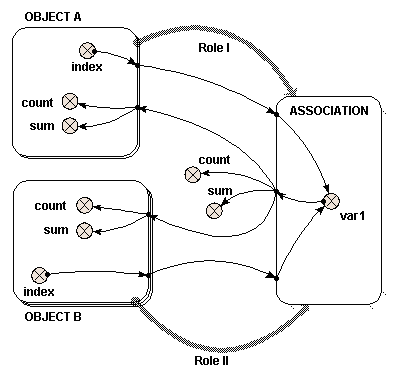
Two role arrows from different submodels

If a single role arrow between two models can be compared to nesting one submodel inside the other, using two role arrows to link submodels both to a third can be compared to creating an area where the two submodels overlap and are interleaved with each other. From the point-of-view of "Object A", "Object B" is nested within "Object A". From the point-of-view of "Object B", "Object A" is nested within "Object B".

The following model diagram illustrates some of the features of this arrangement. Two multiple-instance submodels are created, "Object A" with two instances, and "Object B" with three. Both these objects are linked with role arrows to the third submodel "Association". One instance of "Association" is automatically created for each possible pair of instances of "Object A" and "Object B".

In this case, there are six instances of "Association", resulting from the two "Object A" and the three "Object B". Inside "Association" is a variable "var1". The two variables that influence "var1" have the full path names "../Object A/index" and "../Object B/index". The instance of "Object A" and the instance of "Object B" from which each "index" is taken is determined by the instance of "Association". Each instance of "Association" receives one of the six possible pairs of the "index" variables.

Local names for the two different full path names are created to avoid duplication, and to avoid using illegal characters such as spaces in the equation. Change the local names to be "indexA" and "indexB" to avoid confusion. Right-click the parameter name to alter it, as described in the help page. In this simple example, the equation for "var1" is "indexA*indexB".

If this were represented by a table, it would look like this:


Object A - instance 1

indexA" = 1

Object A - instance 2

"indexA" = 2

Object B - instance 1

"indexB" = 1

Association - instance 1

"Var1" = 1

Association - instance 4

"Var1" = 2

Object B - instance 2

"indexB" = 2

Association - instance 2

"Var1" = 2

Association - instance 5

"Var1" = 4

Object B - instance 3

"indexB" = 3

Association - instance 3

"Var1" = 3

Association - instance 6

"Var1" = 6

The order of the instances in "Association" is determined by the order in which the role arrows are added. It is not usually important. To understand how "var1" is represented, six influence arrows are taken from "var1" to different parts of the model.

  • Inside "Object A"
 

{var1}

count({var1})

sum({var1})

Instance 1

{1 2 3}


Instance 2

{2 4 6}

   
  • Inside "Object B"
 

{var1}

count({var1})

sum({var1})

Instance 1

{1 2}


Instance 2

{2 4}


Instance 3

{3 6}


To understand where both these sets of results for "{var1}" come from, look down (for "Object A") or across (for "Object B") the relevant lines of the full six instance "Association" table given above. The count() and sum() functions operate on the given {var1} to produce the results shown.

  • Outside both "Object A" and "Object B"
 

{var1}

count({var1})

sum({var1})


{1 2 3 2 4 6}


As with the use of a single role arrow, the condition symbol will permit the number of instances of "Association" to be less than the product of the number of instances of "Object A" and "Object B". The Boolean expression used in the condition symbol can involve influences from other model elements and can use the index(x) function to return the instance of both "Object A" and "Object B", using x=1 and x=2 respectively.

In : Contents >> Model diagram elements >> Role arrows


Model diagram elements : Role arrow : Two role arrows from the same submodel

Two role arrows from the same submodel
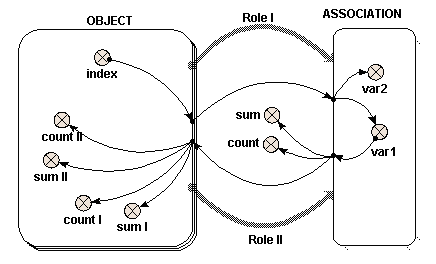
The most common use of the role arrow is (unfortunately) the most difficult to visualise. In this case, two different instances of the same object play two different roles in an association. One might think of this as being like each instance having all the other instances nested within it.

In the case of the single role arrow, or the case of two role arrows from two objects, the role itself was not an important element. The role arrow represented graphically the nesting arrangement. In this case however, the names of the two different role arrows are the only means of distinguishing the instances of the single object within the association submodel.

The following model diagram illustrates a simple example of the use of the association submodel in this way. There is an "Object" submodel, which has three instances. Two role arrows, "Role I" and "Role II", link "Object" to the "Association" submodel.

In this case, nine instances of "Association" are created, one for each possible pair of instances of "Object". Inside "Association" are two variables "var1" and "var2". Each of these receives a single influence arrow from the "index" variable in "Object", BUT, look at the list of parameters in the equation dialogue box, and two are given. These two parameters refer to the "index" variable in each of the members of the pair of instances of "Object" that generate this instance of "Association".

A unique local name for each parameter is automatically generated, but to avoid confusion, right click on each local name to rename it indexI and indexII, for "Value(s) of ../Object/index (from Object in Role I)" and "Value(s) of ../Object/index (from Object in Role II)" respectively. In this example, "var1" is given the expression "indexI" and "var2" is given the expression "indexII".

If this were represented as a table, it would look like this:


Object in Role I

"indexI" = 1

Object in Role I

"indexI" = 2

Object in Role I

"indexI" = 3

Object in Role II

"indexII" = 1

var1 = 1

var2 = 1

var1 = 2

var2 = 1

var1 = 3

var2 = 1

Object in Role II

"indexII" = 2

var1 = 1

var2 = 2

var1 = 2

var2 = 2

var1 = 3

var2 = 2

Object in Role II

"indexII" = 3

var1 = 1

var2 = 3

var1 = 2

var2 = 3

var1 = 3

var2 = 3

So far, the results are rather similar to those where two objects are involved. This is also true of what follows, though it is less obvious. To understand how "var1" is represented, six influence arrows are drawn from it to different parts of the diagram. (Symmetrical results are generated using "var2", though these are not given here.)

Inside "Object", "var1" again appears as two distinct parameters, distinguished by the name of the role arrow. Alter the local names to "var1_I" and "var1_II" for "Value(s) of ../Association/var1 (to Object in Role I)" and "Value(s) of ../Association/var1 (to Object in Role II)" respectively, as before. Look at the full nine-instance table above to determine the values of "var1_I" and "var1_II", by reading across (for "Role II") or down (for "Role I") the relevant line.


Instance 1

{1 1 1}


{1 2 3}


Instance 2

{2 2 2}


{1 2 3}


Instance 3

{3 3 3}


{1 2 3}

   
Outside "Object", "var1" has the value {1 1 1 2 2 2 3 3 3} and thus count({var1}) is 9 and sum({var1}) is 18. Note that values from all nine instances of "Association" are received by elements outside "Object".

The condition symbol can be used inside "Association" to permit fewer instances than the square of the number of instances of "Object" to be generated. The index(x) function returns the index of each of the members of the pair of instances that generate this instance of "Association" with x = 1 for "Dimension 1 of Object (3) in Role II for Association" and x = 2 for "Dimension 1 of Object (3) in Role I for Association". To identify which index refers to the use of which role arrow, see the indices panel on the Parameters tab of the equation dilogue box.

Note that the "(3)" is the size of the given dimension. Influences from other elements can also be used in the Boolean expression for the condition symbol.

In : Contents >> Model diagram elements >> Role arrows


Model diagram elements : Condition

Condition

A condition model element is used to specify whether a submodel, or a potential instance of a multiple-instance submodel, actually exists.

How to add a Condition symbol

The condition symbol only has meaning inside a submodel. Therefore, you should make the submodel first, then add the condition symbol to it. This is not strictly necessary: you can add the condition symbol first, then construct a submodel around it, but it is better practice to construct the submodel first.

See Adding node-type elements.

Rules

  • A condition element only has use within a submodel (since it specifies which potential instances exist). It should not appear in a population or per-record submodel because these have their own means of creating and destroying instances.
  • If a condition is inside a simple submodel, then that submodel either exists or not, depending on the result of evaluating the condition's expression.
  • If a condition is inside a fixed-membership submodel, then each instance of the submodel may exist or not, depending on the condition's expression (which would make use of the built-in function index to refer to particular instances).
  • If the condition model element is inside an association submodel, then the relation exists between a particular pair of object instances only if the condition's expression evaluates to "true" for that pair.

In : Contents >> Model diagram elements


Model diagram elements : Iteration

Iteration

An iteration model element makes its parent submodel an iterative submodel, whose contents should be evaluated repeatedly until a finishing condition is met.

How to add an Iteration symbol

See Adding node-type elements.

Rules

The iteration symbol contains the condition that marks the successful convergence of the iteration. An influence arrow coming FROM the alarm symbol can be used as an argument to the function iterations( ). This function returns the number of iterations made so far. This function can be used to set the initial value (also called the guess) for the loop, i.e. when the number of iterations so far is equal to zero. If the number of iterations so far is one or more, then the result of the last calculation should be used. Since the last calculation depends on the result calculated from the guess, a circular loop of influences is present. Normally, Simile would reject this loop at build time, but setting a property of the influence arrow: "Use values made in same time step" to true, allows the loop to be processed. Influence arrows with this property set are drawn with a dashed line. To set this property for an influence arrow, double-click on it to invoke the property dialogue box.

  • The expression in the equation dialogue box for a iteration element is a Boolean expression: that is, it returns the value "true" or "false". This normally takes the form of some sort of comparison, using the conditional operators such as >, <, >= etc, combined with logical operators such as "and" and "or".

In : Contents >> Model diagram elements


Working with equations

Working with equations

Equations are the mathematical basis for simulating the behaviour of a model. All node-type elements with the exception of file parameters, and all flows, must have equations for the model to run. For compartments, the equation defines the initial value, and is applied when the model is first built, when it is reset, or when the submodel instance containing the compartment comes into existence (for instance, if it is in a population submodel). For other components, the equation defines their value at any time while the model is running.

Before its equation is entered, a model element is displayed in red. It is not possible to run the simulation whilst any model elements are still red. If you make a change to the model that causes a component's equation to become invalid, for instance deleting an influence going to that component, it will be displayed in red to indicate that its equation must be edited before the model can run. Simile has an equation language that allows great power and flexibility in specifying expressions, reading data from tables, or sketching semi-quantitative relationships by hand. For more information, see the Introduction to equations.

How to enter equations

There are two ways to enter equations for calculating model element values. Either use:

How to write equations

The following topics provide detailed reference information on the parts that make up a complex expression, and on the mathematical functions available, both built-in and user-supplied. See:

Working with variables and data types

Further information on variables and data types useful in understanding Simile.

In: Contents

Working with equations : Introduction

Introduction to equations

Equations are used for two purposes:


  • to provide the initial value for model elements that need to be initialised, such as

    compartments;


  • to enable a value for each other type of element to be calculated while the model is running.


In the first case, the equation is used only at the very start of the simulation: the element’s value may change subsequently as the simulation proceeds. This use of the equation applies to just two types of model element: the compartment and the initialisation element for population submodels. For a compartment, it specifies the initial value of that compartment: the value of the compartment will change during the course of the simulation as a result of the flows into or out of it. For the initialisation element, the equation specifies how many instances of a population submodel initially exist: these may be destroyed and others created as the simulation proceeds.


In the second case, the equation is being referred to throughout the simulation. This use of the equation applies to all other types of model element.


In all cases, you (the model developer) enter the equation using the equation bar or equation dialogue window. The equation dialogue window is required for entering some more complex types of expression. This window is displayed by double-clicking on a model element (except for a submodel or an influence arrow) when you are in

Pointer mode.


An equation has the general form: quantity = expression where “quantity” is some quantity in the model (such as variable or flow) and “expression” is some algebraic expression that is evaluated when the model is running to provide the value for the quantity.


Since you have clicked on the symbol for a particular quantity, you have already specified what quantity the equation is for, and thus you do not have to enter the left-hand side of the equation: all you have to do is to enter the expression.


It is sometimes not appreciated that an equation is constantly being re-evaluated during the course of a simulation run. Thus, an equation for calculating the flow rate for water out of a tank, in terms of the amount of water in the tank, might be:


outflow = 0.1*tank


i.e. the outflow is proportional to the amount of water in the tank. When the model is running, the value for the amount of water in the tank is changing, and thus the calculated outflow changes as well.


In: Contents >> Working with equations


Working with equations : Equation bar

The equation bar

The equation bar offers a quick and simple way to enter equations for any elements on the model diagram.

  • Select the pointer tool
  • Click on the element whose equation you wish to edit.

The name of the element is placed on the left hand side of the equation bar.

  • Click on the equation bar edit box to enter a value or an expression for the element.
  • Click on the button, or hit return, to set the equation.
  • Click on the button if you make a mistake. It restores the previous entry.

Elements which are calculated from other elements, i.e. are at the end of one or more influence arrows, have the local names of those elements listed in a drop-down list under the button.

  • Click on any name listed in the drop-down box to enter it into the equation. The name is added at the position of the cursor in the equation text.

A selection of the most-commonly used functions are listed in a menu cascade under the button. The top level of this cascade also contains an entry labelled "Enum. type constants", for adding the names and members of any enumerated types defined in the hierarchy containing the selected component. This also allows access to the "boolean" unit type and its values.

  • Click on any function that appears in the menu cascade to enter it into the equation. The function is added at the position of the cursor in the equation text, and the cursor is moved to inside the parentheses after the function, so you can immediately add its arguments. One more useful thing: if you select part of the text in the equation bar before adding a function from the menus, the function is added with its parentheses around the selection, so the selection becomes the argument.

Auto-complete feature

Typing in the equation bar activates the auto-complete feature. If the first few characters typed match the start of any entry in the cascade menu described above, i.e., valid input parameters, function names or enumerated type names or members, the remaining text in the shortest of those possible matches will be inserted into the text and highlit. The cursor moves to the end of the highlit text. The modeller can then do one of the following:

  • Hit the left or right arrow to keep the inserted text. If a function name has been completed, the text includes the pair of parentheses that will enclose its arguments, so hitting left-arrow will keep the completion and position the cursor within the prentheses ready to add the rguments.
  • Hit the up or down arrows; these will select alternative completions from the same initial characters.
  • Continue to type; the completion text will be ignored. Completions will continue to appear as long as the typed characters still match some menu entries.

In: Contents >> Working with equations

Working with equations : Equation dialogue window

Equation dialogue window

The equation dialogue window is used to identify the data source used to calculate a value for a model element, as well as to set various other properties of the model element. The same dialogue window is used forcompartments,flows andvariables, as well as the control symbols iterations and conditions, and the population symbols. (Note that three other model elements,submodels, influence arrows, androle arrows each have their own dialogue box).

To open the equation dialogue window:

  • Select the pointer tool
  • Doubleclick on the component whose equation you wish to edit.

Alternatively:

  • Right-click on the component to be edited
  • Select 'Properties...' from the context menu.

The equation dialogue window consists of a notebook with three tabs. The first of these, labelled 'Main', is initially topmost, and contains the following panels which help you create the equation for your component:

Functions:

This panel displays a tree diagram containing all Simile's built-in functions, plus any user-defined functions that have been added on your system. They are grouped into categories, and have popups giving a brief description of each function. Doubleclicking on a function name will insert the function into the equation at the cursor position, and leave the cursor between the parentheses ready for argument expressions to be entered there if needed. If you have selected part of the equation text, the function is added with the selected text inside its parentheses.

Parameters:

The parameters in an equation are the values of the components that are linked to its own component by influence arrows. The parameters panel will show all the names associated with the parameters that have been connected. These are usually the same as the names of the components they come from, but may be different to avoid duplication, or in the case where a role arrow is being used to select only certain values from the component.

You can double-click on the parameter names to insert them into your equation, or hover over them to display a popup showing the location of their source and any roles that have been used to select their values. The next tab includes a panel that allows you to change the local names of the parameters.

Keypad:

This panel contains an array of buttons which insert text into whichever entry field has the cursor. They include buttons for moving the cursor back and forth, deleting a character and deleting all the text.

The second to right button on the top row inserts customizable text. By default it is set to µ since this character might otherwise be hard to find (it represents the micro- prefix for units) but you can set it to other characters or strings using the entry under the Edit tab in the Preferences dialogue window. Another useful setting for this might be π, which is interpreted as its trigonometrical value, or e if you are entering a lot of numbers in scientific notation.

Data source:

These three radio buttons set the data source to one of the following options:

  1. Variable parameter: the value for the model element is set from the equation when the model is built, and can be changed during the simulation. The value can be displayed and set through a user-operated slider control. This option is only relevant if the model element is at the beginning of a chain of influences. It cannot be used to alter the value of a model element that is calculated from the values of other model elements. The minimum and maximum values that the parameter can accept must be entered in the neighbouring text boxes. For a full explanation of working with variable parameters, see the help section Variable parameters, and for a full explanation of working with sliders, see the help section Sliders.

  1. Fixed parameter: the value for the model element is set when the model is built and does not change. The value can be set using a scenario file. This option is only relevant if the model element is at the beginning of a chain of influences. It cannot be used to alter the value of a model element that is calculated from the values of other model elements. An equation can be entered, but it is only used for setting the array dimensions of the parameter. i.e., its value is never used. For a full explanation of working with fixed parameters, see the help section on Fixed parameters an for a full explanation of working with scenario files, see the help section Working with external data.

  1. Equation: the value for the model element is calculated using the expression given in the text box. The expression is first evaluated when the model is built, and subsequently re-evaluated at each time step. For a full explanation of equations, see the help section Components of an equation. In brief, equations consist of functions operating on the values of the other model elements that influence this one. A list of functions is provided. Double-click on any of the function names to insert it into the equation text box. A list of the indices of the model element is also given. One index is listed for each level of nesting of the submodel(s) containing the model element. Double-click on any of the index names to insert the corresponding index() function into the equation text. Finally, a list of the other model elements (if any) that influence this one is presented. Double-click on any of the model element names to insert the name into the equation text.

Explicitly defined functons:

An equation can include one sketch graph or table function, which can be used exactly like any other function. These require extra data to be supplied, so they are added by clicking on buttons. If you just type graph() or table() into your equation, you will get an error message complaining that no data has been supplied to specify the behaviour of the function.

  • Graph: This button enables the user to sketch a graph for a mathematical relationship. The relationship is sketched in a window opened up by clicking on this button. Having done this, a reference to a function graph() is automatically added to the expression in the Equation box. This function is evaluated at run time by referring to the graph sketched by the model developer. See the help entry for the graph function for more information.

  • Table: This button enables a user to specify a tabulated relationship. The tabulated values are held in a data file, and clicking on this button enables you to browse through your file system for the data file, which can be in a variety of formats, and then choose the particular column of data you require from this file. Having done this, a reference to a function table() is automatically added to the expression in the Equation box. The function is evaluated at run time by doing a table look-up on the values provided. See the help entry for the table function for more information.

The data source panel also contains entry fields for minimum and maximum values and for units. It also shows the current array dimensions of the model element. The minimum and maximum values do not actually constrain the component's value but they are used when attaching I/O tools to set the range of values which can be displayed. Since the I/O tools have access to these values it would be possible to create an I/O tool that would display a warning if a value goes outside its minimum/maximum range. Minimum and maximum must be entered for variable parameters in order to set the range of values for their slider controls when the model runs.

The following panels are to be found on the second tab, "Parameters, etc..."

Indices:

If your component is inside a multiple instance submodel you can use the index(n) function to get the identity of the submodel instance currently being evaluated. However if you are inside many such submodels, multidimensional submodels, or particularly association submodels where you can also use index(n) to get the indices of the current base model instances, it can be confusing working out which nesting level you want. So this panel contains a list of all the available index arguments with popups explaining which index each one gives. Again, doubleclicking them inserts them into the equation text.

Influences

If the component has influence arrows connected to it from other components in the diagram, these will be listed in the Influences panel, along with their units and array dimensions if any. Doubleclicking on an influence's name will insert it into the equation text at the cursor position.

Hover the mouse over the local name of a model element listed in the influences list box to see the full path name of the model element. The local name is automatically composed from the full path name by replacing characters that have other meanings in equations (such as spaces, parentheses and carriage returns) with underscores. If you would prefer to use a different local name to refer to the full path name, the local name can be edited. Click on the name in the list box to edit it. The name you enter will only be used in this equation, which must use this name.

In the case where role arrows are used to select only a certain set of values from a component in another submodel, the default local name will also include the apropriate role arrow's caption. For the case of two role arrows between the same pair of submodels, influences between the submodels will get two local names each, one for the values associated with each role.

The local name will be enclosed in square or curly brackets if it refers to an array or list (see below), with nested brackets for nested sructures. These make the equation more readable, and you must keep them when editing the local name.

The 'units' field can also be edited, to set the units that will be used to convert the physical quantity of the incoming parameter into a number which will be used in the equation. See the section working with physical units for a full explanation of how this field is used.

The 'dimensions' field cannot be edited. This tells you the array dimensions of the value that this parameter supplies. Normally this will be the dimensions of the source component itself multiplied by those of any submodels the influence comes out of, though special rules apply for population symbols (creation and immigration behave as if outside their submodels) and those taking part in roles (normally you get a list, but going backwards along an 'exclusive' role you get a single value).

Documentation

Documentation appears on a separate tab in the dialogue box. You can enter a short title for the component and/or a longer description. For components with complex equations you can also put comments directly into the equation text by enclosing them in /* ... */ symbols.


In: Contents >> Working with equations

Working with equations : Components of an equation

Components of an equation

Expressions can consist of one or more of these components: numerical constants, symbolic names, mathematical operators, functions, and conditional expressions.

Numerical constants

Numerical constants are any numeric values, consisting of the digits 0-9, with an optional decimal point and a leading minus sign (for negative values). A leading 0 is optional for numbers less than 1.0. Standard scientific notation is provided (e.g. 0.12345E3 for 123.45), or you can enter very small or very large numbers by multiplying a value by 10 raised to a power, e.g. 0.12345*10^11 or 0.12345*10^-11. See also the section on Arrays and lists for details of how to enter arrays of numerical constants.

Enumerated Type constants
 

Symbolic names

A symbolic name represents the value of one of the variables, compartments or flows that influences the element in question. Each time the value of the expression is calculated, the current value of the influencing element is used.

The only symbolic names for model quantities that you can enter into an expression are those that influence the element in question. These are listed by clicking on the button on the equation bar, and in the "Parameter" column of the equation dialogue box. These must be entered exactly as shown, using the same punctuation (note especially the _ underscore symbols), and using the same case. The easiest way to do this, is to double-click on the name in the "Parameter" column.

Note that the symbolic name entered into the expression is the local name. This can be different from the name displayed on the model diagram, either to make the expression easier to read, or to avoid using certain illegal characters.
 

Mathematical operators

You can use the following mathematical operators:

+


e.g. 15+7 (evaluates to 22)

-


e.g. 15-7 (evaluates to 8)

*


e.g. 15*7 (evaluates to 105)

/


e.g. 15/7 (evaluates to 2.1428…)

^

raise to a power

e.g. 15^2 (evaluates to 225)

Functions

Simile provides a large number of functions that you can use in expressions already built-in, and the facility to extend this list.

Conditional expressions

Equations can include conditional expressions. These enable a complex expression to be constructed from a number of sub-expressions, with the conditional elements being used to select between one expression or another. Standard Boolean operators are available for constructing conditional expressions.

Intermediate variables

The equation dialogue box can be used to enter one or more assignments, before the expression that returns the element's value. These intermediate variables can be used to simplify complex expressions.

In: Contents >> Working with equations

Working with equations : Boolean expressions

Boolean expressions

Boolean expressions return only "true" or "false". Boolean expressions are commonly used in conditional expressions to decide between two or more alternative subexpressions, but a Simile variable can have a boolean value if its whole equation is a boolean expression; indeed, condition and alarm components have to have boolean values.

Constants

The expressions "true" and "false" may be used as Boolean constants in expressions. Note that quotation marks must be used around the words. This is because these constants are implemented as built-in enumerated types.

Mathematical comparisons

A simple condition consists of a direct comparison between two values, using the relational operators

>

greater than

X > Y

X is greater than Y

<

less than

X < Y

X is less than Y

>=

greater than or equal to

X >= Y

X is greater than or equal to Y

<=

less than or equal to

X <= Y

X is less than or equal to Y

==

equal to

X == Y

X is equal to Y

!=

not equal to

X != Y

X is not equal to Y

Thus, the following are legal examples:

  • 5 > 3 though it's hard to see the point of this, since this is always true
  • height <= 30 where the variable "height" is an influencing variable

Each of the two terms, on the left and right of the comparison, can themselves be arbitrary mathematical expressions. Thus, the following are also legal:

  • 5 > 3*2 (result is false, since 5 < 6)
  • 0.1*height <= 30
  • k*z+2 < 17*h

Logical comparisons

Four Boolean operators can be used in expressions. There are "and", "or", "xor" and "not". The following table shows the two alternative forms of these operators, which can also written in symbolic form. Note also that a comma "," is accepted as an alternative symbol for "and".


A and B

A && B

true if and only if both A and B are true

A or B

A ; B

true if either A is true or B is true

A xor B

A != B

true if either A is true or B is true, but not both

not A

! A

true if and only if A is not true

The truth tables for the four operators are given here. Note that "and", "or" and "xor" require two operands, whilst "not" requires one operand. The equation parser will signal an error if an incorrect number of operands is used.

Functions

Some functions return boolean values, i.e., any(), all(), channel_is(), dies_of(), and first().

In: Contents >> Working with equations >> Components of an equation

Working with equations : Conditional expressions

Conditional expressions

Simple equations, like Y = 5+7*X, provide a single, continuously-varying method for calculating a value for an element from the value(s) for one or more other elements. Often, however, the expression we want to use for calculating the result depends on the values of one or more aspects of the system. This means that we need a way, in a single equation, for choosing between alternative expressions. Conditional expressions provide a means for doing this.

In general terms, a simple equation has the form:

Y = expression.

A conditional equation has the form:

Y = if condition1 then expression1 else expression2

Y = if condition1 then expression1 elseif condition2 then expression2 elseif expression3 then condition3 ...... else expressionx

where:

  • expression is any legal Simile mathematical expression, including numeric constants, variables, mathematical operators and functions - and indeed further conditional expressions (i.e. conditional expressions can be nested)
  • condition is a Boolean expression constructed using Boolean operators or relational operators.

Note that while some programming languages, such as C and Fortran, allow you to use a numerical value of 1 or 0 to represent "true" or "false" in a conditional expression, Simile does not allow this. We feel that this practice makes the equations less readable. Instead, you can convert the number n into a boolean, using the expression "n!=0".

In: Contents >> Working with equations >> Components of an equation

Working with equations : Intermediate variables

Intermediate variables


Local variable assignments can be made before an expression, separated from the expression by a comma.  The expression returning the value of the element must come at the end.  The local variables can be used in the expression, often to simplify it.

In the following example, the local variable q is assigned a value, then the main expression follows after a comma, with q being used to simplify what would otherwise be an extremely complex expression:

q=(Topt-Tmin)/(Tmax-Topt),
if ((T>Tmin)&&(T<Tmax)) then
   (((T-Tmin)^q) * (Tmax-T)) / (((Topt-Tmin)^q) * (Tmax-Topt))
else
   0


There are four parameters influencing this expression, T, Topt, Tmin, and Tmax, through influence arrows in the normal way.  The assignment of a value to q is a purely local affair.

Working with equations : Functions

Functions

Simile provides a large number of built-in functions that can be used in mathematical expressions. These include standard mathematical functions, such as log(…) as well as functions specific to Simile.

Some functions have one or more arguments (in brackets, after the function name). Others, such as the time() function, which returns the current simulation time, do not. You must still write the brackets after the function name, even if there are no arguments. This indicates that the name is a function name.

For most functions, the arguments are scalar values, i.e. a single quantitative value. In some cases, an argument is expected to be some other type of data structure, such as a Boolean value (true or false), or an array or list (such as the sum(…) function, which returns the sum of the values in an array or list.


It is possible to include user-defined functions. These can be specific to modelling in a restricted domain (such as plant physiology), so it will be possible for researchers in a particular community to build up and share common libraries of functions. These functions are listed in a text file, and are either macros, which use Simile's equation language to formulate the expression, or external, where a definition is provided in c++ code.

Two special functions are graph(…) and table(…), which relate to a graphically-represented and a tabulated relationship respectively. These can be included in an expression like any other function, but differ from other functions in that the result they return for a given input value can be different in each equation in which it is used: it's definition is local to the equation, rather than being universally defined (like the log(…) function, for example).In: Contents >> Working with equations >> Components of an equation

Working with equations : Built-in functions

Built-in functions

Alphabetical list of most commonly used functions,  Trigonometric functions are listed separately. Please see the other categories at the bottom of the page for less common or recently added functions.

 Template  Effect

Input(s)

Return

value

abs(X)

Returns the absolute value of X


all([X])

all{X})

Result is true if all the elements of the array [X] or the list {X} are true

boolean array/list

 Boolean

any([X])

any({X})

Result is true if any of the elements of the array [X] or the list {X} are true.

boolean array or list

 Boolean
at_init(X) Returns X's value when last initialized or reset Any Same as input
binome(P, N) Returns a value from the binomial distribution with probability P and number of trials N

Real value from 0 to 1,                  Integer value

Integer value

ceil(X)

Rounds up X to the next whole number


channel_is(X)

X is an immigration, reproduction or creation channel. Returns true if this individual appeared through that channel.

   
colin([X]) Returns an index to the given array, with probabilities proportional to the array's values Array of numeric values Integer or enumerated type member
const_delay(X, T) Returns the value of X as it was T time units earlier in the run, or 0 or "false" if the component did not exist at that time Any non-array type, numeric constant As 1st argument

count([X])

Number of values in the array [X] or the list {X}

scalar array/list

 
dies_of(X) X is a loss channel. True if channel specifies the removal of the individual this time step. from loss channel Boolean

dt(I)

Returns the duration of the time step level I


element([X],I)

Picks the I'th value form the array [X]

array of any type,integer or enumerated type member


exp(X)

Returns e to the power X

   
first(T) Returns "true" if argument is the first member of its enumerated type Enumerated type member Boolean
firsttrue([B]) Takes an array of booleans and returns the index of the first with value "true" Array of booleans Integer or enumerated type member

floor(X)

Rounds X down to a whole number


fmod(X,Y)

Returns remainder after dividing X by Y

numeric, numeric

 
following(T) Returns next member of argument's enumerated type Enumerated type member Enumerated type member
gaussian_var(X,Y) Returns a sample from a Gauusian distribution with mean X and SD Y Real, real real

greatest([X])

greatest({X})

Returns the largest value from an array [X] or the list {X}

numeric array/list

 
howmanytrue([B]) Takes an array of booleans and returns the number that are true List or array of booleans Integer
hypergeom(P, M, S) Returns a deviate from a hypergeometric distribution for population, P, number of marks M, and sample size S. integer, integer, integer integer

hypot(X,Y)

Returns length of hypotenuse of triangle with base X and height Y

numeric, numeric


index(I)

Returns the index (instance number) of a member of a fixed membership or population submodel, for the level I of submodel nesting.

 Integer Integer or enumerated type member

init_time(1)

Returns the time at which this instance appeared -- argument is dummy

   
in_preceding(X) New in Simile v5.7: Returns value of X in preceding submodel instance Any scalar or array type As argument
in_progenitor(X) New in Simile v5.8: Returns value of X in submodel instance that reproduced to make current one Any scalar or array type As argument

int(X)

Returns integer part of X


last(X)

Recalls value of X from previous time step


least([X])

least({X})

Returns the smallest value from an array [X] or the list {X}

numeric array/list


log(X)

Returns natural logarithm of X


log10(X)

Returns base-10 logarithm of X


makearray(X,N)

Makes an array consisting of N lots of X

any type, numeric

array of same type

max(X,Y)

Returns greater of X and Y

numeric, numeric


min(X,Y)

Returns lesser of X and Y

numeric, numeric


parent(I)

Returns the id of the individual whose reproduction gave rise to this one, or 0 if it immigrated or was created


place_in(I)

When making an array with makearray, this gives each term's position in the array -- argument is nesting depth

   
poidev(X) Returns a value from the Poisson distribution with the given mean numeric integer
posgreatest([X]) Returns the index of the highest value in the argument array Array of numeric values Integer or enumerated type member
posleast([X]) Returns the index of the lowest value in the argument array Array of numeric values Integer or enumerated type member

pow(X,Y)

Returns X raised to the power Y

numeric, numeric

 numeric
preceding(T) Returns previous member of argument's enumerated type Enumerated type member Enumerated type member

prev(N)

Returns the value of this component N time steps ago


product([X])

product({X})

Result is the product of all elements of the array [X] or the list {X}

numeric array/list


rand_const(X,Y)

(Deprecated) Returns a random number between X and Y, which stays the same until the simulation is reset.

numeric, numeric


rand_var(X,Y)

Returns a random number between X and Y, with a new value every time step.

numeric, numeric

 
rankings([X]) Returns ranking of each element in order of size Array of numerics Array of integers

round(X)

Rounds X up or down to the nearest whole number

   
sgn(X) Returns the size of X; -1 if negative, 1 otherwise    

size(S)

Takes the name of a fixed-membership submodel and returns the number of instances that it has.


size(S,I)

Takes the name of a fixed-membership submodel and returns the size of one of its dimensions

submodel, numeric


sqrt(X)

Returns the square root of X


stop(X)

Stops the simulation, displaying value of X in a popup message

   
subtotals([X])

Returns running totals from summing the elements in the supplied array

Numeric array Numeric array

sum([X])

Result is the sum of all elements of the argument

numeric array/list


time()

Returns the current simulation time (the argument is ignored)

   
var_delay(X,T) Returns value of X as it was T time units earlier in run, or 0 or "false" if this is before component existed Any non-array type, numeric expression As first argument

with_colin({N},{X})

Returns a value from the list {X} with probabilities proportional to the corresponding values in the list {N}

numeric list,       any list

member of second arg

with_greatest([N],[X])

with_greatest({N},{X})

Returns the value from an array [X] or the list {X} whose position in the array or list corresponds to the largest value in the array [N] or list {N}

numeric array/list, any array/list


with_least([N],[X])

with_least({N},{X})

Returns the value from an array [X] or the list {X} whose position in the array or list corresponds to the smallest value in the array [N] or list {N}

numeric array/list, any array/list


In addition, a full range of trigonometric functions are provided.

In: Contents >> Working with equations >> Functions

Built-in functions : Arithmetic functions

Arithmetic functions

Built-in functions : abs function


abs function

abs(X)

Returns the absolute value of X - i.e. ignores its sign

Input: numeric scalar or numeric array

Result: numeric scalar or array

Examples:

abs(3) --> 3

abs(-3) --> 3

abs([2,-3,4,-5]) --> [2,3,4,5]

In: Contents >> Working with equations >> Functions >> Built-in functions

Built-in functions : pow function


pow function

pow(X,Y)

Returns X raised to the power Y

Input: numeric, numeric

Result: numeric

Comment:

This is equivalent to the use of the ^ operator: i.e.

pow(5,2)

is the same as

5^2

The latter should be used of preference, as it is the more familiar notation.

In: Contents >> Working with equations >> Functions >> Built-in functions

Built-in functions : min function


min function

min(X,Y)

Returns lesser of X and Y; i.e. it returns X if X<=Y, otherwise it returns Y.

Inputs: numeric, numeric

Result: numeric

Comments:

The min function is a useful way of ensuring that some value does not go above some threshold. For example, if b increase as a increases, but does not exceed 20, then the equation for b could be:

b = min(20, 0.2*a)

This avoids the use of a cumbersome if…then… else… construction

In: Contents >> Working with equations >> Functions >> Built-in functions

Built-in functions : max function


max function

max(X,Y)

Returns greater of X and Y; i.e. it returns X if X>=Y, otherwise it returns Y.

Inputs: numeric, numeric

Result: numeric

Comments:

The max function is a useful way of ensuring that some value does not go below some threshold. For example, if b declines as a increases, but does not go below zero, then the equation for b could be:

b = max(0,10-0.2*a)

This avoids the use of a cumbersome if...then...else... construction.

In: Contents >> Working with equations >> Functions >> Built-in functions

Built-in functions : sgn function

sgn function

sgn(X)

Returns -1 if X is negative, or 1 if X is zero or positive

Input: numeric, or array of numeric values

Result: integer, or array of integer values

Examples:

sgn(1.9) --> 1

sgn(-1.1) --> -1

Built-in functions : sqrt function


sqrt function

sqrt(X)

Returns the square root of X

Input: numeric

Result: numeric

In: Contents >> Working with equations >> Functions >> Built-in functions

Built-in functions : round function


round function

round(X)

Rounds X up or down to the nearest whole number

Input: numeric, or array of numeric values

Result: numeric, or array of numeric value

Examples:

round(1.9) --> 2

round(1.1) --> 1

round([1,2.1,3.9]) --> [1,2,4]

In: Contents >> Working with equations >> Functions >> Built-in functions

Built-in functions : log10 function


log10 function

log10(X)

Returns base-10 logarithm of X

Input: numeric

Result: numeric

In: Contents >> Working with equations >> Functions >> Built-in functions

Built-in functions : log function


log function

log(X)

Returns natural logarithm of X

Input: numeric; or an array of numeric values

Result: numeric; or an array of numeric values

In: Contents >> Working with equations >> Functions >> Built-in functions

Built-in functions : ceil function


ceil function

ceil(X)

Rounds up X to the next whole number (stands for 'ceiling')

Input: numeric, or array of numeric values

Result: numeric, or array of numeric value

Examples:

ceil(1.9) --> 2

ceil(1.1) --> 2

ceil([1,2.1,3.9]) --> [1,3,4]

In: Contents >> Working with equations >> Functions >> Built-in functions

Built-in functions : exp function


exp function

exp(X)

Returns e (the base of natural logarithms) to the power X

Input: numeric, or an array of numeric values

Result: numeric, or an array of numeric values

Example:

The exponential growth of a population is given by the formula

Nt = N0er.t

where:

Nt is the population size at time t,

N0 is the initial population size,

e is the base of natural logarithms,

r is the intrinsic growth rate, and

t is current time
 

We can represent this in Simile using a single variable (called N), with its equation being

N = 10*exp(0.1*time(1))

assuming that the initial population size = 10 and the value of r is 0.1.
 

In: Contents >> Working with equations >> Functions >> Built-in functions

Built-in functions : floor function

floor function

floor(X)

Rounds X down to a whole number.

Input: numeric, or an array of numeric values

Result: numeric, or an array of numeric values

Examples:

floor(3.1) --> 3

floor(3.99) --> 3

floor([1.1,2.4,3.7,4.9]) --> [1,2,3,4]

In: Contents >> Working with equations >> Functions >> Built-in functions

Built-in functions : int function


int function

int(X)

Returns integer part of X

Input: numeric

Result: numeric

In: Contents >> Working with equations >> Functions >> Built-in functions

Built-in functions : hypot function


hypot function

hypot(X,Y)

Returns length of hypotenuse of right-angle triangle with base X and height Y

Inputs: numeric, numeric

Result: numeric

Examples:

hypot(3,4) --> 5 (a 3:4:5 triangle)

hypot(x1-x2,y1-y2) --> the distance between two points with co-ordinates (x1,y1) and (x2,y2) respectively.

hypot(x-[xs],y-[ys]) --> [distances] I.e. an array containing the distance from one point with co-ordinates (x,y) to a set of points, with co-ordinates held in the arrays [xs] and [ys]. See comments.

Spatial modelling frequently requires that one object knows the distance to another. This requires that each has x,y co-ordinates. It is then simple to use the hypot function to work out the straight-line distance between them, as shown in the second example above.

The same principle applies when you use a multiple-instance submodel to represent a set of spatially-located objects. In this case, each object may want to know how far it is to all the other objects - for example, in working out the competition between trees in an individual-based tree model. The following model diagram fragment shows a typical model configuration for doing this:

Each tree has x,y co-ordinates. These are exported to two array variables, xs and ys, whose equations are simply:

xs = [x]

and

ys = [ys]

These arrays are then brought back into the submodel, and used to generate an array containing the distance for each tree to all the other trees, using the equation given in the third example above.

In: Contents >> Working with equations >> Functions >> Built-in functions

Built-in functions : fmod function


fmod(X,Y)

Returns remainder after dividing X by Y

Inputs: numeric, numeric

Result: numeric

Examples:

fmod(7,3) --> 0.333 (7/2 = 2.333, i.e. the remainder is 0.333)

fmod(time(1),1) --> a result that climbs from 0 to 1 repeatedly (i.e. a sawtooth pattern) as the simulation proceeds. See comments below.

fmod((index(1)-1),5)+1 --> 1,2,3,4,5,1,2,3,4,5,1,2,3... for successive values of index(1). See comments below.

This apparently obscure function in fact has (at least) two very valuable uses.

First, it can be used to generate regular cycles, in particular annual or daily cycles. Consider the case or a model with the time unit being one year, and a time step of less than a year. You want various exogenous variables (such as temperature or rainfall) to vary in a prescribed fashion during the course of each year, with the annual pattern repeating itself from one year to the next. The following diagram is typical of the model fragment you could use for representing this:

The variable time is simply set equal to current simulation time, using the function time(1). The variable season is set to rise from 0 to 1 every year. If your model used a time unit of one week, then the equation would be changed to

season = fmod(time,52)

and the value for season would then correspond to week number. The equations for rainfall and temperature are for illustration purposes only: you would need to replace them by something appropriate.

Second, the fmod function can be used to generate a regular spatial arrangement (rows and columns) for a 2D grid. Let's say that you are modelling an area of 10x10 grid squares. In Simile, you would set up a submodel, called perhaps Patch, with 25 instances. In order to give each patch location on a grid, each one needs to have a row and column attributes, with each patch having a unique combination of the numbers 1..5 for row and column. The only thing we know about each patch is that it has an index number (given by the built-in function index(1)), a value ranging between 1 and 25. The trick is to get row number to be, in sequence,

1,1,1,1,1,2,2,2,2,2,3,3,3...

and column number to be, in sequence,

1,2,3,4,5,1,2,3,4,5,1,2,3...

thus giving each of the 25 instances a unique row-and-column pair.

This is readily done using the following two equations:

row = floor((index(1)-1)/5)+1

column = fmod((index(1)-1),5)+1

See the floor function to understand why the row numbers should be in the first sequence above. For column, we divide the index number for each instance by 5, taking the remainder: the '-1' and +1' are there to ensure that we get the results in the blocks of five that we require. See a grid-based spatial model example to see this in action.

In: Contents >> Working with equations >> Functions >> Built-in functions

Built-in functions : Trigonometric functions

Trigonometric functions


Input(s)


acos(X)

Returns the arccos (inverse cosine) of X. Result is in radians.


asin(X)

Returns the arcsine of X. Result is in radians.


atan(X)

Returns a value in radians (range -pi/2 to pi/2), being the arctangent of X (the ratio of two sides of a right triangle). Same as arctan(X).


atan2(X,Y)

Returns the arctangent of X. Result is in radians.

numeric,numeric


cos(X)

Returns the cosine of X (an angle in radians)


cosh(X)

Hyperbolic cosine of X.


hypot(X,Y)

Returns length of hypotenuse of triangle with base X and height Y

numeric, numeric


sin(X)

Returns the sine of the argument (an angle in radians)


sinh(X)

Hyperbolic sine of X.


tan(X)

Returns the tan of the argument (an angle in radians)


tanh(X)

Hyperbolic tangent of X.


In: Contents >> Working with equations >> Functions


Built-in functions : List handling

List handling

Built-in functions : product function


product function

product([X])

product({X})

Result is the product of all elements of the array [X] or the list {X}

Input: numeric array or list

Result: numeric

Example:

product([2,3,4]) --> 24

In: Contents >> Working with equations >> Functions >> Built-in functions

Built-in functions : place_in function


place_in function

place_in(I)

When making an array with the makearray function, place_in() returns the current position in the array. If makearray() functions are nested one inside another, the argument to the place_in() function will determine which position is returned. An argument of 1 refers to the innermost makearray().

Input: integer

Result: integer

Examples:

makearray(if place_in(1)==1 then 10 else 5, 4) --> [10, 5, 5, 5]

makearray(if place_in(1)==2 then 10 else 5, 4) --> [5, 10, 5, 5]

makearray(makearray(if place_in(2)==1 then 10 else 5, 4), 2) --> [[10, 10, 10, 10], [5, 5, 5, 5]]

makearray(makearray(if place_in(1)==1 then 10 else 5, 4), 2) --> [[10, 5, 5, 5], [10, 5, 5, 5]]

makearray(4*place_in(1),12) --> [4 8 12 16 20 24 28 32 36 40 44 48]

makearray(makearray(place_in(1)*place_in(2),12),12) -->

[[1 2 3 4 5 6 7 8 9 10 11 12],

[2 4 6 8 10 12 14 16 18 20 22 24],

[3 6 9 12 15 18 21 24 27 30 33 36],

[4 8 12 16 20 24 28 32 36 40 44 48],

[5 10 15 20 25 30 35 40 45 50 55 60],

[6 12 18 24 30 36 42 48 54 60 66 72],

[7 14 21 28 35 42 49 56 63 70 77 84],

[8 16 24 32 40 48 56 64 72 80 88 96],

[9 18 27 36 45 54 63 72 81 90 99 108],

[10 20 30 40 50 60 70 80 90 100 110 120,

[11 22 33 44 55 66 77 88 99 110 121 132],

[12 24 36 48 60 72 84 96 108 120 132 144]]

Comments:

This function is only meaningful inside makearray() function. If used elsewhere, the equation parser will signal an error.

In: Contents >> Working with equations >> Functions >> Built-in functions

Built-in functions : makearray function

makearray function

makearray(X,N)

Makes an array consisting of N lots of X

Input: any type, numeric

Result: array of same type

Examples:

makearray(7, 3) --> [7, 7, 7]

makearray([rand_var(0, 1), rand_var(0, 5)], 5) --> [[0.62352, 2.43459], [0.11933, 0.423529], [0.94208, 4.43623], [0.40088, 1.63023], [0.11769, 4.97782]]

Comments:

This is an array constructor. The first argument can be any expression, and the second is an integer. The result is an array, each of whose elements is generated by evaluating the first argument. The size of the array is the value of the second argument, which must be a constant. If the first argument is an array, the result will be an array of arrays. See also the place_in function, which is used in complex constructions with makearray.

Use of makearray() is called explicit replication. It differs from implicit replication in that the expression being replicated is evaluated separately for each member of the generated array, including any implicit (but not explicit) intermediate results. This means that no attempt is made to combine the dimensions of the two arguments. The second argument must be a scalar integer, and the result will be an array whose outermost dimension is that value, and whose inner dimensions are the dimensions of the first argument.

makearray() could have been designed to work differently on an array first argument, replicating each element rather than the whole array. As in the case of implicit replication, the actual behaviour was chosen to be that which would be hardest to achieve by combining other functions. If you need to replicate the elements of an array, you can first split it up with the element() function then rejoin the results with makearray, e.g., makearray(makearray(element([3,6,9],place_in(2)),2),3) -> [[3,3],[6,6],[9,9]], whereas if makearray itself worked like this, it would be very hard to get its actual behaviour.

See also: place_in  function

In: Contents >> Working with equations >> Functions >> Built-in functions

Built-in functions : with_greatest function


with_greatest function

with_greatest([N], [X])

with_greatest({N}, {X})

Returns the value from an array [X] or the list {X} whose position in the array or list corresponds to the largest value in the array [N] or list {N}.

Inputs: numeric array or list, same dimensioned array or list with members of any type

Result: single value from second input

Example:

with_greatest([2,5,7,3], ["red", "blue", "green", "yellow"]) --> "green"

This example would require the definition of an enumerated type with the members "red", "blue", "green" and "yellow".

In: Contents >> Working with equations >> Functions >> Built-in functions

Built-in functions : sum function


sum function

sum([X])

sum({X})

Result is the sum of all elements of the array [X] or the list {X}

Input: numeric array/list

Result: numeric

Example:

sum([2,3,4]) --> 9

sum([[1,2],[3,4]]) --> [4,6]

Comment:

Note the behaviour with nested arrays. A new array results, consisting of the sum of the first value of each array, the sum of the second value of each array, etc.

In: Contents >> Working with equations >> Functions >> Built-in functions

Built-in functions: rankings function

rankings function

Takes an array of numeric values, and returns an array with the ranks of the corresponding elements in the argument. This is 1 for the largest element, and equal to the size of the array for the smallest.

Example:

subtotals([1,9,2,10,3,8,5]) -> [7,2,6,1,5,3,4]

Built-in functions: subtotals function

subtotals function

Takes an array of numeric values, and returns an array containing the running totals from summing the elements in the original array.

Example:

subtotals([1,9,2,10,3,8,5]) -> [1,10,12,22,25,33,38]

Built-in functions : element function


element function

element([X],I)

Picks the Ith value from the array [X]

Inputs: an array [X] of any type

integer I

Result: type

Examples:

element([10,20,30,40],3) --> 30 (since 30 is the value of the 3rd element of the array.

element([[1,2], [3,4], [5,6]],2) --> [3,4] (since the array [3,4] is the 2nd element of the input array)

element([10,20,30,40],index(1)) --> 10 for the first instance of a four-instance submodel, 20 for the second instance, etc, since index(1) has the value 1 for the first instance, 2 for the second instance, etc.

Comments:

This is an essential function for use with multiple-instance submodels, in which case it is almost always used in combination with the function index(1) in the second argument. One common use is to provide each instance of a multiple-instance submodel with a unique value for some parameter or other value. The third example (above) illustrates this: that could, for example, be the expression in a compartment element inside a four-instance submodel, initialising the compartment for each of the four instances to 10, 20, 30 and 40 respectively.

For advanced users:

The element function has rather more power than suggested above. The second argument can act as a sort of template to say how values (or sub-arrays) from the first argument are to be picked up. This is illustrated by the following two examples:

element([3,2,7,4,9,34,1,5], [[5,2], [1,5]]) --> [[9,2], [3,9]]

element([[5,7],[1,4],[8,5]], [3,3,2,2]) --> [[8,5], [8,5], [1,4], [1,4]]

In: Contents >> Working with equations >> Functions >> Built-in functions

Built-in functions : any function


any function

any(([X])

any({X})

Result is true if any of the elements of the array [X] or the list {X} are true.

Input: boolean array or list

Result: boolean

Examples:

any([false,false,false,true,false]) --> true

any([false,false,false]) --> false

In: Contents >> Working with equations >> Functions >> Built-in functions

Built-in functions : all function


all function

all([X])

all({X})

Result is true if all the elements of the array [X] or the list {X} are true

Input: boolean array/list

Result: boolean

Examples:

all([true,true,true,false]) --> false

all([true,true,true,true]) --> true

In: Contents >> Working with equations >> Functions >> Built-in functions

Built-in functions : least function


least function

least([X])

least({X})

Returns the smallest value from an array [X] or the list {X}

Inputs: numeric array/list

Result: numeric

Example:

least([2,5,7,3]) --> 2

In: Contents >> Working with equations >> Functions >> Built-in functions

Built-in functions : greatest function


greatest function

greatest([X])

greatest({X})

Returns the largest value from an array [X] or the list {X}

Inputs: numeric array or list

Result: numeric

Example:

greatest([2,5,7,3]) --> 7

In: Contents >> Working with equations >> Functions >> Built-in functions

Built-in functions : with_least function


with_least function

with_least([N], [X])

with_least({N}, {X})

Returns the value from an array [X] or the list {X} whose position in the array or list corresponds to the smallest value in the array [N] or list {N}.

Inputs: numeric array or list, same dimensioned array or list with members of any type

Result: single value from second input

Example:

with_least([2,5,7,3], ["red", "blue", "green", "yellow"]) --> "red"

This example would require the definition of an enumerated type with the members "red", "blue", "green" and "yellow".

In: Contents >> Working with equations >> Functions >> Built-in functions

Built-in functions : Model properties

Model properties

Built-in functions : prev function


prev function

prev(N)

Returns the value of this element itself, N time steps ago. See last, for a function that returns a previous value of any element other than this one itself.

Input: numeric

Result: numeric

Example:

Consider a variable that flips from state 1 to state 2 when some triggering condition is satisfied (the Boolean variable, trigger, is true, for example) then stays in state 2. The equation for the variable could make use of prev, as follows:

if time()==0 then 1 elseif trigger then 2 else prev(1)

In: Contents >> Working with equations >> Functions >> Built-in functions

Built-in functions : parent function


parent function

parent(1)

Returns the id (instance number) of the individual whose reproduction gave rise to this one, or 0 if the individual being considered was created at the start of the simulation or by immigration.

Input: numeric (but a dummy value: use the value 1).

Result: integer (in fact, a negative integer number, being the instance number of a member of a population submodel. These are all numbered from -1 downwards.)

Comment:

This function is vital for the simulation of any form of biological inheritance from one generation to the next. You have to know who the parent is before you can allow the newly-created individual to inherit (possibly with modification) one or more of the characteristics of the parent.

In: Contents >> Working with equations >> Functions >> Built-in functions

Built-in functions : time function

time function

time()

Returns the current simulation time.

Input: none

Result: numeric (units = day)

Comment:

Any model which has exogenous variables (variables that change as a function of time, independently of the behaviour of the model, such as air temperature or rainfall) needs some way of knowing what the current clock time is: i.e. how far the simulation has proceeded. This function provides that information.

This function is not strictly-speaking necessary: you could get exactly the same behaviour by having a single compartment, initialised to zero, with a single flow in, with a constant value of 1. So, after 1 time unit the value of the compartment would be 1, after 12.5 it would be 12.5, and so on. However, the function is provided to avoid cluttering up the model with an extra compartment and flow.

In: Contents >> Working with equations >> Functions >> Built-in functions

Built-in functions : first function

first function

first(T)

Takes an argument T that is a member of an enumerated type, and returns "true" if it is the first member of its type, and "false" otherwise.

Input: enumerated type member, or array of enumerated type members

Result: boolean, or array of boolean values

Examples:

If enumerated type "fruit" is defined as "apple", "grape", "banana":

first("apple") --> "true"


first(["banana", "apple", "banana"]) --> ["false", "true", "false"]


Built-in functions : following function


following function

following(T)

Takes an argument T that is a member of an enumerated type, and returns the next member of the enumerated type.

Input: enumerated type member, or array of enumerated type members

Result: enumerated type member, or array of enumerated type members

Examples:

If enumerated type "fruit" is defined as "apple", "grape", "banana":

following("apple") --> "grape"

following(["grape", "apple", "grape"]) --> ["banana", "grape", "banana"]

Built-in functions : in_preceding function

in_preceding function -- new in Simile v5.7

Usage: in_preceding(expression of any type) returns that type

Definition: Used in a multi-instance submodel, returns the value of the argument expression  as it would be in the preceding instance of that submodel, or 0 or "false" in the first instance. The argument can include the function prev(0) to refer to the value in the previous submodel instance of the component in whose equation the in_preceding() function appears.

Note that a model that contains a circular set of influences can build and run properly if the input parameter associated with one of the influences is only used in the argument of an in_preceding() function. This is because since the value of the argument is calculated for one submodel instance and then used in the next, there is no actual circular dependency.

Example 1:

A 5-instance submodel contains a variable with the equation

index(1)+in_preceding(prev(0)).

The values will be:

1 3 6 10 15

Example 2:

An 8-instance submodel contains two variables, "received" and "forwarded". These are connected to one another by influences in each direction. The equation for "forwarded" is received/2. The equation for "received" is

if index(1)==1 then 200 else in_preceding(forwarded)

The values of "received" for the 8 instances will be:

200 100 50 25 12.5 6.25 3.125 1.5625
 

Built-in functions : stop function


stop function

stop(n)

Input: is a number (real or integer) of your choice

Result: None (see text)

When executed, this function halts execution of the model, and produces the following error message:

Simile ran into a problem trying to run this model.

While it was trying to calculate the value of variable

var (node x) during execution of the model at

time t, there was a user-defined interruption: n.

It is useful to define error conditions where you (the model designer) know that the model should not be used or is not applicable for some reason. Trivially, it can be used to guard against mathematical errors, for example:

if (time()-50) != 0 then 1/(time()-50) else stop(5)

This form has some merit when running in C++, but generally, to track down mathematical errors, it is easier to debug in Tcl. If execution in Tcl would take too long, then this is a useful alternative. Its primary use however, is to enable you to catch out-of-range conditions in the specific circumstances of your model.

The use of an error code in the user-defined interruption (e.g. stop(13) ) enables you to see which stop( ) function caused the model to stop running, if there is more than one in your model.

Result is undefined, because simulation stops at the point at which the function is called, but has integer type (this is important because if it is called in a conditional, the other branch of the conditional must also have a numerical type).

Examples:

if population>50 then stop(1) else 0

if (time()-50) != 0 then 1/(time()-50) else stop(5)

In: Contents >> Working with equations >> Functions >> Built-in functions

Built-in functions : var_delay function

var_delay function

var_delay(var,n)

Input: a variable name and a numerical value (real or integer) of time units

Result: the value (any type) of the named variable, n time units ago

This function returns some previous value of another variable, an arbitrary period of time before. The period of time is defined in time units (not steps). The number need not be an integer, but whatever the actual time step, delay is always rounded to the nearest multiple of 0.1 of a time unit. The variable whose previous value is required is specified by name. The variables must be linked with an influence arrow.

This is a general replacement for the last( ) function, which returns the value of the named variable from the previous time step only. The delay must be between 0 and 100 and is rounded to the nearest 0.1. The delay can vary; if the delay is constant, the function const_delay() will do the job more efficiently.

Examples:

runoff=var_delay(rain,soak_time)

Built-in functions: at_init function

at_init function

at_init(X)

Returns the value the argument had when first used, i.e., on model reset or when the submodel instance containing this equation was created.

at_init(X) creates an implicit intermediate result, which has the same dimensions as its argument. So if this result is implicitly replicated elsewhere in the equation, the same value will be used each time. See makearray for behaviour in explicit replication.

Input: Any data type

Result: Same type as input

Built-in functions: const_delay function


const_delay function

const_delay(var,n)

Input: a variable name and a numerical constant (real or integer) of time units

Result: the value (any type) of the named variable, n time units ago

This function returns some previous value of another variable, a arbitrary period of time before. The period of time is defined in time units (not steps). The number need not be an integer, but whatever the actual time step, delay is always rounded to the nearest multiple of 0.1 of a time unit. The variable whose previous value is required is specified by name. The variables must be linked with an influence arrow.

This is a general replacement for the last( ) function, which returns the value of the named variable from the previous time step only. The delay must be a numeric constant; for variable delay see var_delay().

Examples:

runoff=const_delay(rain,10)

Built-in functions: dies_of function


dies_of function

dies_of(X)

Returns true if argument is the loss channel that will cause the individual to disappear at the end of the current time step.

Input: value from a loss channel in the local submodel

Result: boolean

Built-in functions: in_progenitor function

in_progenitor function -- new in Simile v5.8

Usage: in_progenitor(expression of any type) returns that type

Definition: Used in a population submodel, returns the value of the argument expression  as it would be in the instance of that submodel containing the reproduction channel responsible for the instance being evaluated, or 0 or "false" in an instance that arrived via a channel other than reproduction. The argument can include the function prev(0) to refer to the value in the progenitor submodel instance of the component in whose equation the in_progenitor() function appears.

Note that a model that contains a circular set of influences can build and run properly if the input parameter associated with one of the influences is only used in the argument of an in_progenitor() function. This is because since the value of the argument is calculated for the progenitor instance and then used in the offspring instance, and the progenitor always comes before the offspring in evaluation order, there is no actual circular dependency.

Important: If the progenitor instance has been removed (see Extermination) then using this function will return meaningless values, and may cause model execution to be aborted due to memory access violations. To avoid this problem, make the in_progenitor function itself the argument of an at_init() function, e.g., at_init(in_progenitor(index(1))). If this is done, the inner argument will be evaluated for the progenitor instance when the offspring instance is created -- at which time the progenitor definitiely exists -- and then retained within the offspring instance's data structure. The only reason for not doing this would be if changes in the value in the progenitor continue to affect the offspring, and offspring never outlive their progenitors, e.g., in an L-systems model of tree branching.

Built-in functions: iterations function

iterations function

iterations(X)

Returns number of iterations that have been done up to this point in an alarm submodel. Argument is the boolean balue from the alarm symbol.

Input: value from an alarm symbol in the local submodel

Result: integer

Built-in functions: preceding function

preceding function

preceding(T)

Takes an argument T that is a member of an enumerated type, and returns the previous member of the enumerated type.

Input: enumerated type member, or array of enumerated type members

Result: enumerated type member, or array of enumerated type members

Examples:

If enumerated type "fruit" is defined as "apple", "grape", "banana":

preceding("grape") --> "apple"

preceding(["banana", "grape", "banana"]) --> ["grape", "apple", "grape"]

Built-in functions : sofar function


sofar function

sofar([X])

sofar({X})

Result is…

Input: numeric array/list

Result: numeric

Example:

Comment:

In: Contents >> Working with equations >> Functions >> Built-in functions

Built-in functions : size function


size function

size(S)

size(S,I)

The first form takes the name of a fixed-membership submodel and returns the number of instances that it has. The second form takes the name of a fixed-membership submodel and returns the size of the Ith level of nesting of this submodel.

Input: submodel name

Result: integer

In: Contents >> Working with equations >> Functions >> Built-in functions

Built-in functions : dt function


dt function

dt(I)

Returns the duration of the level I time step.

Input: numeric. This is the time step level.

Result: numeric

Examples:

dt(1) --> 0.1 (for a model whose top-level time step was set to 0.1 in the Run Control panel)

dt(2) --> 0.001 (for a model whose 2nd-level time step was set to 0.001 in the Run Control panel)

If you are starting off with Simile, it is unlikely you will need to understand the concept of "time step index". You will probably just be making models with a single time step, hence one level, so don't worry about anything except the use of dt(1).

The main use of the dt function is to engineer the addition or removal of a specified amount of a substance into or out of a compartment. The only handle we have for causing changes to the amount in a compartment are flows, and flows are expressed as a rate per unit of time (whatever time unit is used for the model, e.g. year). This creates a problem if we want to add or remove a specified amount of substance at some instant in time. For example, consider a model with a time unit of year, a time step of 0.1, and with a compartment X from which we want to remove 5 units at the instant that some condition, which only lasts for 1 time step (0.1 years), is met. If we simply had a flow out that was zero when the condition was not met, and was 5 when the condition was met, then for one time step the flow would be 5 (units per year): hence, only 0.5 units would be removed in the 1/10th of a year, not the 5 we intended. What we need to do is to artificially inflate the flow rate by a factor of 10 (in this case, with a time step of 0.1) for this one time step. We do this by dividing the flow rate (in our flow equation) by 0.1 (in this case), or by dt(1) in general. The flow rate then appears to be 50 units per year for that one time step, giving a loss of 5 units in the one time step. Bingo!

The actual flow expression for the case considered above would be:

flowout = 5/dt(1)

Special case

Using the argument zero in the function, i.e. dt(0), is equivalent to saying dt(n), where n is the time step index of the submodel in which the function is used. This is useful, because when a submodel time step index is changed, it is then not necessary to edit the dt() functions within it to preserve the meaning.

In: Contents >> Working with equations >> Functions >> Built-in functions

Built-in functions : count function


count function

count([X])

count({X})

Number of values in the array [X] or the list {X}

Input: array or list of values (numeric or boolean)

Result: integer

Examples:

count([4,5,6]) --> 3

In: Contents >> Working with equations >> Functions >> Built-in functions

Built-in functions : channel function_is

channel function

channel_is(X)

X is an immigration, reproduction or creation channel. Returns true if this individual appeared through that channel.

Input: numeric

Result: Boolean

Examples:

channel_is(cr1) --> true, for each instance of the population that was initially created through channel cr1.

Comments:

This function can only be used inside population submodels. Its argument is the name of a channel (i.e. a population control symbol, one of creation, immigration or reproduction). Note that the value of the channel itself is not used, just the name. The result can be used in calculations inside the population submodel. For example, the expression

land_owned = if channel_is(im1) then 0 elseif channel_is(cr1) then 10

would allocate 10 acres of land to each member of the original population, but none to immigrants.

In: Contents >> Working with equations >> Functions >> Built-in functions

Built-in functions : last function


last function

last(X)

Recalls value of X, another element, from previous time step. X must influence this element in order to be used in the equation. See prev, for a function that returns a previous value from this element itself.

This function has been replaced with the delay( ) function, which is more general in allowing the value of a variable to be returned from an arbitrary number of time steps before.

Input: numeric

Result: numeric

In: Contents >> Working with equations >> Functions >> Built-in functions

Built-in functions : init_time function


init_time function

init_time(1)

Returns the time at which this model component first came into existence. This really only has any use for:

  • population submodels, so that the model knows when a new member of the population was created; and
  • conditional submodels, so that the model knows when the submodel, or one instance of it, came into existence because the condition controlling it became true.

Input: numeric. In fact, the argument is not used, so simply insert the number 1. The only reason for having the brackets and an argument enclosed between them is that this is the only way that Simile can recognise that this is a function.

Result: numeric

Example:

Let's assume you have a population submodel, and some property of each individual is related to its age (e.g. its growth rate, or its probability of dying). Simply create a variable called age (inside the submodel), and insert the following equation:

age = time(1) - init_time(1)

The result is the difference between the current simulation time (given by the function time(1), and the time when the instance was created, given by init_time(1).

In: Contents >> Working with equations >> Functions >> Built-in functions

Built-in functions : index function


index function

index(I)

Returns the index (instance number) of a member of a fixed membership or population submodel, for the level of submodel nesting specified by the argument.

Input: numeric

Result: numeric

Comment:

The index function is frequently used in conjunction with the element function when working with multiple-instance submodels: both fixed-membership and population submodels.

The argument specifies which index is to be returned. You can see summary information about the meanings of the different indices in the listbox headed Indices: in the equation dialogue. The argument is an integer between 1 and the maximum number of indices available. index(1) corresponds to the 'innermost' index, i.e., if you have one multiple-instance model inside another, the result of index(1) will be the index of the inner submodel instance, and the result of index(2) will be that of the outer submodel instance. Similarly, if a submodel has two dimensions, then index(1) and index(2) will be valid in that submodel, giving an instance's position along the inner and outer dimension respectively.

Relation submodels do not usually have indices of their own, but you can get the indices of their base submodel instances using the index() function. If one of the roles in a relation has been specified to 'allow base instance lookup', then the base submodel for this role will be 'innermost' and and the index of the instance in this role will be the result of calling 'index(1)' in the relation submodel.

For fixed-membership submodels, the function returns an integer value between 1 and n, where n is the number of instances for the submodel. For variable-membership submodels, it returns an integer between 1 and n, where n is the maximum possible index. For a population submodel this would be the total number of instances of the population that have ever existed during this simulation run. For a conditional submodel the maximum will be the size given in the submodel dimensions. For either of these, an instance with a particular index number may or may not exist.

In: Contents >> Working with equations >> Functions >> Built-in functions

Built-in functions : Statistics

Statistics

Built-in functions : rand_const function

rand_const function

rand_const(X,Y)

Returns a random number between X and Y at the start of the simulation or when the submodel instance is created. The random-number generator is not called again, and so the value stays the same until the simulation is reset.

Input: numeric, numeric

Result: numeric

Comment:

The main use of this function is to assign values to a set of instances of a multiple-instance submodel (fixed-membership or population). For example, to randomly assign initial sizes to a set of trees in a multiple-instance tree submodel, we could use the equation:

size = rand_const(12,20)

or to assign random locations to the trees, we could use the equations:

x = rand_const(0,50)

y = rand_const(0,100)

which would randomly place the trees in the left-hand half of a one-hectare plot, assuming that the values are in metres.

The use of rand_const() is deprecated because it cannot be made to behave in the same way as rand_var when implicitly replicating over an array. It is implemented by internal conversion to at_init(rand_var(x,y)) and this form should be used in full to make the replicatio behaviour clear.

Historical note: You may come across some models that use a rand(X,Y) function. This behaves like rand_const if Simile deduces that the model element will only be called at initialisation time, and like rand_var if the equation contains some variable that changes over time. The use of this function is now also deprecated because the semantics of the two uses are so very different. Also, there are some situations when you need to be able to over-ride this behind-the-scenes decision about how the function should behave.

In: Contents >> Working with equations >> Functions >> Built-in functions

Built-in functions : rand_var function

rand_var function

rand_var(X,Y)

Returns a random number between X and Y, with a new value every time step.

Input: numeric, numeric

Result: numeric

Comment:

This function is used for doing stochastic modelling and Monte-Carlo simulations, i.e. one or more processes in the model (like giving birth or dying) have a random element to them.

rand_var gives a new result for every call, and if it is used in an expression that is replicated to make an array, each element's random value will be different.

rand_var uses the pseudo-random sequence generator built into the c++ compiler which Simile is using to create executable models. The sequence is initialized with a value generated from the process ID and clock time when Simile starts up, so no two runs will produce the same results. However, if it is required that a model has exactly the same behaviour each time it runs, despite including calls to rand_var, this can be achieved by means of a tool that sets the seed to a given value; see Initializing pseudo-random sequence.

Historical note: You may come across some models that use a rand(X,Y) function. This behaves like rand_const if Simile deduces that the model element will only be called at initialisation time, and like rand_var if the equation contains some variable that changes over time. The use of this function is now deprecated because the semantics of the two uses are so very different. Also, there are some situations when you need to be able to over-ride this behind-the-scenes decision about how the function should behave.

In: Contents >> Working with equations >> Functions >> Built-in functions

Built-in functions : binome function

binome function

binome(prob, n)

Input: Real numerical value, integer value

Result: A value from the binomial distribution with the given probability and number of trials. A new random deviate is generated each time step.

The binomial distribution describes the probability of a given number of positive outcomes occurring when a number n of trials are carried out, each with a certain probability p of a positive outcome.

This function is implemented using a pseudo-random sequence generator; notes regarding its behaviour can be found in the documentation for the rand_var function.

Examples:

coins_heads_up = binome(0.5, coins_tossed)

Built-in functions : colin function

colin function

colin([Array])

Returns a deviate from a distribution whose relative probabilities are given by the values in the argument array. A new deviate is generated each time step.

Inputs: array of probabilities (real).

Outputs: index to value in array (int).

This can be used to make a deviate from an explicit set of probabilities where the pattern does not match any other built-in statistical function.

This function is implemented using a pseudo-random sequence generator; notes regarding its behaviour can be found in the documentation for the rand_var function.

Example:

colin([1,1,1,10,1]) --> 4 (usually), 1,2,3 or 5 (occasionally).

Built-in functions : gaussian_var function

gaussian_var function

gaussian_var(mean, sd)

Input: Two real numerical values

Result: A random sample from a Gaussian (normal) distribution, with the supplied mean and standard deviation. A new random sample is generated each time step.

This function is implemented using a pseudo-random sequence generator; notes regarding its behaviour can be found in the documentation for the rand_var function.

Examples:

daily_rainfall = gaussian_var(annual_rainfall/365, 1.0)

Built-in functions : with_colin function

with_colin function

with_colin({ProbList},{ValList})

Takes two lists with equal size, and returns an element from the second argument, picked at random with the probability of each element proportional to the value of the corresponding element in the first argument. A new return value is generated each time step.

Inputs: list of probabilities (real), list of corresponding values (any).

Outputs: element picked from second list (any).

This can be used to make a deviate from an explicit set of probabilities where the pattern does not match any other built-in statistical function.

Note that it only works on lists; if you want to do something similar with fixed-size arrays, you can combine the element and colin functions to achieve the same effect as follows: element([ValList], colin([ProbList]))

This function is implemented using a pseudo-random sequence generator; notes regarding its behaviour can be found in the documentation for the rand_var function.

Example:

with_colin({1,1,1,10,1}, {"apples", "pears", "oranges", "grapes", "bananas"}) --> "grapes" (usually), "apples", "pears", "oranges" or "bananas" (occasionally)

Built-in functions: hypergeom function

hypergeom function

hypergeom(Pop, Mark, Sample)

Returns a deviate from a hypergeometric distribution for a given population, number of marks, and size of sample.

Inputs: Population size (int), number of marked individuals (int), size of sample from population (int)

Outputs: deviate of number of marked individuals from sample

The hypergeometric distribution tells us the range of probabilities of getting a number of "marked" individuals when taking a sample of a certain size from a population, a given number of which are "marked".

This function is implemented using a pseudo-random sequence generator; notes regarding its behaviour can be found in the documentation for the rand_var function.

Example: A research process involves ringing a certain number of seabirds from a population and releasing them, then at a later date recapturing a different number of the birds and checking how many ringed individuals are retreived. If a random group of individuals are captured each time, the probability of getting n rings back is equal to the probability of getting the result n from the equation:

rings_retrieved = hypergeom(Seabird_population, Birds_ringed, Birds_caught)

Buit-in functions : poidev function

poidev function

poidev(mean)

Input: Real numerical values

Result: A value from the Poisson distribution with the given mean. A new random deviate is generated each time step.

The poisson distribution describes the probability of a given number of positive outcomes occurring in the limiting case of the binomial distribution, i.e., with very many trials each with a very small chance of a positive outcome.

This function is implemented using a pseudo-random sequence generator; notes regarding its behaviour can be found in the documentation for the rand_var function.

Example: A hospital serves a large community in which a certain percentage of individuals are thought to be carriers of the hospital superbug MRSA. If we admit a small number of individuals to hospital, we would expect the probability of getting a certain number of MRSA carriers in that group to be equal to the probability of getting that number as the result of this equation:

MRSA_positive_admissions = poidev(Total_admissions*MRSA_prevalence_percent/100)

Working with equations : User-supplied functions

User-defined functions

There are two different mechanisms for users to supply functions for use in expressions. One is user-defined macros, which provide a short-hand for long or complex expressions that would otherwise have to be used repeatedly in expressions. The other is user-defined external procedures, written in a programming language such as Tcl or C++.

User-supplied function declarations and definitions should be put in files in the Functions directory in Simile's local data tree. This tree is created automatically when you first run Simile. Its location is:

  • On Windows: "My Simile Files", under "Documents" (Windows 7 or Vista) or "My Documents" (earlier Windows versions)
  • On Linux: .simile, in the user's home directory
  • On MacOS: Simile, in the user's home directory

Declarations and definitions in the Functions directory in Simile's installation tree (e.g., "Program files/Simile54") are for functions treated as "Built-In", i.e., expected to be available in any Simile system. It is worth looking at these for guidance in writing your own functions, as the formats are the same.

In: Contents >> Working with equations

Working with equations : Macro definitions

Macro definitions

Macro definitions provide a shorthand for long, complex expressions that would otherwise have to be used in equations, possibly in several different elements. The definitions are stored in one or more external files, which are read each time Simile starts. This allows users to edit the files to include user-defined macros.

Each new macro is defined in a new line in any file with the extension .pl in the Functions directory. There are two places where this directory can be; one is within the Simile program files tree (for built-in functions), and the other is under Simile's local directory (for functions to be treated as user-defined). Any functions added by modellers should be placed in the latter location;  this has the effect that when a model requiring the functions is saved, they are marked as user-defined, and if the model is subsequently opened on a system where the function definitions are not present, a warning is displayed saying which user-defined functions are missing.

The format of the macro definition line is:

f(X1, X2 ... Xn) --> F(X1, X2 ... Xn).

where:

  • f is the name of the user-defined function. This has the format of a Prolog atom, so it must start with a lowercase letter.
  • X1, X2 … Xn are a series of one or more variable identifiers. These have the format of Prolog variables, so they must start with uppercase letters. These arguments to the function are replaced when the function is used, by the symbolic names of the influencing variables. If the function requires no arguments, you must place a pair of single quotes between the empty parentheses.
  • F(X1, X2 … Xn) represents any expression that could be used in an element's equation. The variable identifiers can be used as quantities anywhere in this expression. This is the macro itself. As with any expression in the equation language, it may extend over more than one line.
  • The symbol '-->' means 'maps onto'. It, and the final period, are part of Prolog syntax.

The function, as it appears on the left side of the arrow, can then be used in any Simile equation, with any sub-expression taking the place of each of the variable identifiers. The result returned by the function will be the same as that which would have been returned by the expression on the right hand side, if the same sub-expressions had been substituted for the variable identifiers.

The .pl files distributed with Simile (and installed in the Functions directory in Simile's program files) contain a number of examples of function definitions. These include the following:

  • subtotals(Arr): Takes an array and returns another array of the same size containing the totals of all the values up to that point in the original array. e.g., subtotals([1,2,4,3]) = [1,3,7,10].
  • rankings(Arr) Takes an array and returns an array of integers of the same size each representing the position in the sequence of largest to smallest (largest = 1) of the corresponding value in the original array. e.g., rankings([8.2, -5.1, 2.5]) = [1,3,2].
  • colin(Arr) Takes an array and on each time step returns an integer, with the probability of each value being proportional to the value at that position in the original array.

Comment lines, starting with a %, can be included in this file, and standard multi-line comments bounded by /*...*/ can be used.

If there is a syntax error in a user function definition, this will cause a warning to be produced when Simile is started. The other definitions will still be usable.

In: Contents >> Working with equations

Working with equations : External procedures

External procedural functions

To include user-defined external procedures, there are three files:

  1. A file under the Functions directory with the .pl extension. This file can also contain macro definitions. Procedurally defined functions that are treated as being built-in to Simile go in Simile's installation tree, while those that are treated as user-defined go in the local information tree. The declarations take one of two possible forms:

    function(Name, ResultType, ArgTypes).
    This form is used for ordinary, deterministic functions.
    sample(Name, ResultType, ArgTypes).
    This form is used for functions which give a new value each time they are called, even if the arguments do not change. This is used for stochastic functions such as gaussian_var, and is required because Simile otherwise tries to be lazy -- it only re-evaluates a function if the arguments change.

    In either form, "Name" is the name of the function, which is used in Simile's equation language. "ResultType" the type of the result - one of int, real, boolean or any - and "ArgTypes" a list of argument types in the same form. These allow the Prolog equation parser to accept this function in equations, and to put it into the target language program as a procedure call wherever it is used.

  1. procs.cpp -- This is in the same Functions directory as the function declaration. It contains the C++ implementation of the function. When the model is built in C++, during compilation of the generated code, this file is included (via support1.cpp) and linked into the resulting model library.
  1. procs.tcl -- contains the Tcl implementation of the function. This is sourced just prior to the model program, but not in global scope so any global variables used by the procedure need to be declared both inside it and out.

These files are stored in the Functions directory of the Simile program files tree. If you wish to build models in both C++ and Tcl, using the same function name, you must include the function definition is both procs.cpp and procs.tcl.

It is generally not a good idea to use global variables in the function definitions, because if the functions are used in more than one place in the model, a value set when running one instance of it may be used when running another instance.

In: Contents >> Working with equations


Working with equations : Graph function

Graph function

The Sketch Graph window is called from the equation dialogue when the modeller wishes to sketch, by hand, the relationship between two variables. The relationship is, mathematically, a function: that is, there is only one Y value possible for any given X value.

The graph is sketched using the mouse. The graph consists of a number of straight-line segments. The x-coordinates of the two ends of each segment is fixed, but the y-coordinate of each end can be dragged up or down with the mouse. The y-coordinate at the end of one segment is constrained to be the same as the y-coordinate at the start of the next, making a continuous, if angular, curve. The modeller can vary the number of line segments used to make up the curve: if this number is quite high, then a close approximation to a smooth curve can be obtained.

The function is actually evaluated using linear interpolation. On any one occasion, there will be a single value for the x (independent) variable. The function calculates which line segment this occurs in, and how far along the line segment it lies. Simple algebra is then used to calculate the corresponding value for the resulting dependent (y) variable. Alternatively, you can choose to have the exact y value for the closest defined x value to the one given; see "options" below.

The window itself does not show the names of the variables involved. The independent (X-axis) variable is not yet specified at this stage, since that only happens when the user returns to the Equation window. The x value can be any Simile expression. There does not need to be a specific variable associated with y-axis, since the result of evaluating the graph function is just like any other function result - a value to be incorporated into the rest of a mathematical expression: graph(weight) plays the same role in an equation as log(weight), for example.

Click the OK button to return to the equation dialogue window. New text reading "graph()" has been inserted into the expression field, if this is the first time the sketch graph has been used for this equation. You must insert, between the brackets, the name of the independent (x-axis) variable or other expression. If you have already entered a graph() expression in the equation dialogue box, then the opportunity is given to edit the previously-drawn curve. It is not possible to use two different graph() functions in the same expression.

Drawing the curve

The curve is constructed by moving the mouse into the graph pad, holding the mouse button down, then moving the mouse from left to right (or from right to left) along the desired path. You are unlikely to get it right first time. If a line segment ends up in the wrong place, just try again. For finer control, you can click on a vertical line at the required point: the ends of the two line segments meeting at this line will then jump into position.

Scaling the axes

The two edit fields along each axis (Min and Max) are used to indicate the range of each axis. You click in the edit field, then enter a value that is appropriate to the lower and upper limits respectively of the variable in the relationship. Thus, if the independent variable were temperature, and we were modelling a site in Africa, then the x-axis might be scaled to be between 10 and 40 (the units of degrees Celsius are implicit). When you change the scaling of an axis, the actual sketch stays the same, so the behaviour of the function is changed to correspond to the new axis scaling.

By default, "Min" and "Max" are 0 and 100 respectively on both axes. It is not permissible to leave any entry blank.

Current position

These two edit fields display the current position of the mouse pointer in the graph area whilst dragging the curve. You can use this display to exercise finer control over the curve. It is also possible to enter values directly into these boxes, copying values from a table for example. After entering the Y-value, press the return or enter key on the keyboard to have the graph re-drawn to include the new pair of values.

If you want exact values for all the points in the graph, click the "Edit as table" button, and enter them with the keyboard, or by cutting and pasting.

Options

Between points

The normal behaviour of the graph function is to interpolate between the two nearest defined y values to get the function's result. Alternatively you can select 'Round' here, in which case you get the exact y value for the nearest defined argument value. The shape of the sketch graph changes to illustrate the actual values returned.

Out of range

There are three options to determine what happens if the independent variable falls outside the range scaled in this window, whilst the model is running.

  • truncate: this option extends the curve horizontally to the left and to the right.
  • extrapolate: this option extends the curve along a line with the same slope as the first and the last segment.
  • wraparound: this option joins up the left and the right ends of the curve. It is useful for defining repeating functions like sin(x).

X axis resolution

Clicking on the right-arrow button doubles the number of vertical lines in the graph pad area; clicking on the left-arrow button halves the number of lines. The higher the resolution, the greater the number of line segments making up the curve, and the smoother the curve is.

Altering function while model is running

The behaviour of the sketch can be altered while the model is running, using the edit sketch helper. This does not affect the version of the function in the saved model.

In: Contents >> Working with equations

Working with equations : Table function

Table function

The table dialogue window is used to create a table from data stored in a file. The required data are extracted from the file, and saved with the model. The table function is appropriate when referring to a relatively small amount of data which will always be the same wherever the model is used, for instance, the number of days in each month of the year. If you do not wish or need to store the data in the model, you can use a file parameter to access the data when the model is run. This is significantly quicker; so much so, that for extremely large data sets it is the only feasible approach.

There are three main uses of the table function:

  • entering a value for some variable for each instance of a multiple-instance submodel;

  • entering time-series data; and

  • entering a relationship between two variables.

In all cases, the table dialogue window is accessed through the equation dialogue window of a variable. Each variable can store one table. Because it is implemented as a function, the table can be used in the equation for the variable together with other components. Each table has one or more indices, which are used to extract a particular item of data from the table.

For example, a series of samples of soil quality might have two indices, an x- and a y-coordinate. The data value would record the soil quality for each (x,y) pair. The table function would then be table(x,y) and would return the value representing soil quality at the given coordinates. In this case, x and y could be influences from other variables or could be derived from the index of a multiple-instance submodel. In other cases, the index might be derived from simulation time.

Loading the table data

When you hit the 'Table...' button, the table data dialogue appears. This is the same dialogue that is used to load the data for a file parameter, and is used in the same way. Therefore, your data can be in any of the formats that are supported for file parameters -- but remember that very large datasets will be handled inefficiently, so use file parameters instead. The data is stored as an array in the model, so any indices loaded from the file must be integers.

Using the table function

The table function always takes at least one argument, and if there is more than one index, takes as many arguments as there are indices. It returns the item of data referred to by the arguments. Each application of the table function makes use of a different source of its arguments. We now examine these in turn.

Entering a value for each instance of a multiple-instance submodel

Suppose that we have a model that contains multiple instances of some type of object: for example, multiple patches of land, multiple trees in a stand of trees, or multiple species of vegetation in an area. We have a file containing actual data for this scenario: for example, a database containing elevation and slope data for the patches of land; species, height and diameter for the trees; or growth rates and initial biomass for the vegetation.

Create the table, selecting as data column the column containing the data you wish to use. Do not specify an index. The row number will be used instead. Return to the equation dialogue window by clicking OK.

Notice that Simile has automatically inserted table() into the Equation box. Change this to table(index(1)) : this indicates that each value in the column of data from the file will be assigned to the corresponding instance number in the model.

Entering time-series data

Many ecological models include exogenous variables, such as temperature or rainfall, which influence the behaviour of the model but are not themselves influenced by it. Sometimes the modeller is content to generate values inside the model, using a time-series generator to produce a sequence of values with appropriate statistical properties. Often, however, historical records exist, and the modeller wants to use these in the model.

As stated above, the table() function is only appropriate if the amount of data is relatively small and it is to be stored as part of the model. If you have large datasets which you want to load into the model as it runs from a separate file, you should look at working with time series data.

The quickest way to include a small time series in your model is to have a data file, as specified above, with at least two columns: one for the variable of interest (e.g. temperature), and one giving the time when each temperature measurement was made. Drag the column heading corresponding to the variable of interest (say, temperature) into the Use as data column edit box. Drag the column heading corresponding to the simulation time into the list box labelled Use as indices.

The text table() is inserted into the equation box. Change this to table(int(time())). Because time() returns a floating point number, the int() function is used to convert it to an integer. The text now reads table(int(time())).

There is more information on working with time series in the Working with External Data section of the help.

Entering a relationship between two variables

In this case, one or more other elements are used as the argument(s) to the table function. For example, if we have a series of pairs of temperature and rainfall values that produce different growth rates, we can use the expression table(temperature, rainfall). Note that both arguments must be integers. If they are not, use the int() function to convert them.

In: Contents >> Working with equations

Working with equations : Arrays and lists

Arrays and lists

Arrays are data structures that consist of more than one element. Each element of the array may be:

  • a scalar: a single real, integer or Boolean value; or
  • an array or list: thus arrays and lists can be nested (to any depth).

Arrays can be created either automatically (when required) or by the user.

Lists are data structures that consist of zero or more elements, and can only be created automatically. Lists are created when values from a population submodel, conditional submodel or other variable-membership submodel are used outside the submodel itself.

Referring to arrays and lists

An array variable is denoted by enclosing the variable's name in square brackets. Thus, [weight] represents an array of one or more weights. This is a one-dimensional array (a vector), because the variable name is enclosed in a single pair of square brackets. By contrast, [[weight]] is a two-dimensional (rectangular) array of weights. This could be used to represent, for example, the weight of each of 10 varieties of fruit (orange, apple, banana, etc) in each of 20 samples.

Note that the size of the array (also known as its dimensions) is not referred to when the array is used in equations. The dimensions are shown in dimensions field of the equation dialogue box.

An list variable is denoted by enclosing the variable's name in curly brackets. Thus, {weight} represents a list of zero or more weights.

How arrays are made

There are three ways in which an array can appear in a model.

  1. An influence arrow might be drawn from a variable inside a fixed-membership, multiple-instance submodel to a variable outside the submodel. As soon as the influence crosses the submodel boundary, what was referred to as a scalar variable inside the submodel becomes an array outside it, since there is now a fixed set of values (one for each submodel instance).
  1. The user might build an array inside the equation dialogue for a variable by explicitly listing all the elements of the array. Thus, if you enter [2,4,6,7] in the equation dialogue for a variable, then its value becomes the array consisting of these four values. Note that the square bracket notation has two quite different interpretations. When the square brackets enclose the name of a single variable, then it is understood that this variable is an array. When the square brackets enclose more than one values, then it is understood that the whole structure is an array. This difference is illustrated by the following examples: (a) [weight] and (b) [weight, height]. The first is referring to an array called weight (which could have any number of values). The second is defining an array with two elements, the scalar variable weight and the scalar variable height. The latter has just two elements.
  1. The user might use the makearray(…) function. This is called explicit replication.

Processing arrays

Arrays can be processed in a number of ways.

  1. You can use a function that is expecting an array as an argument. For example, the function sum(…) will sum the elements of an array.
  1. You can use arrays in mathematical expressions. Simile has powerful built-in methods for calculating with array variables which totally avoid the need for looping structures for calculating with arrays. For example, the expression: [k]*[weight] where both arrays have the same number of elements, returns an array with each element equal to the corresponding value of [k] multiplied by the corresponding value of [weight].
  2. You can also combine scalar values with arrays in expressions. In this case, the result has the same dimensionality as the array, with the scalar value being used the same way for each element. For instance, 2 + [3,4,6,7] = [5,6,8,9]. This is called implicit replication. Similarly you can combine arrays of different dimensionalities (but not different dimensions), e.g., a 3-element array with a 3x2-element array.
  3. You can extract particular values from an array. The function element(array,i) returns the i'th element from the array. Thus: element([2,4,6,3],2) returns the value 4 (being the second element of the array).

Array-valued components

If a component's equation evaluates to an array, the component will be displayed with a repeated border as shown above, to indicate a stack of different values. An influence from that component to another will allow the array to be used in the destination component's equation in any of the ways described above. The number of layers in the stack indicates the outermost dimension of the array, up to a maximum of four. Only compartments, variables and flows can have array values.

How lists are made

There is only one way in which a list can appear in a model: by having an influence arrow coming out of a submodel with a variable number of instances. This means:

  • a population submodel;
  • a relation (association) submodel; or
  • a conditional submodel.

Processing lists

Lists must be processed as soon as they appear in the variable outside the submodel which receives an influence arrow from a variable inside it. You cannot have a variable whose value is a list or array of lists. Rather, you must perform some legitimate list-processing operation, such as using the function sum(…) to sum the values of the list, so the variable's value is a scalar or fixed array.

More about Replication

In many cases, it is obvious how implicit replication will be applied when combining values with functions or operators. If one is scalar, then whatever the dimensions of the other, the result will have those dimensnsions. But what if the values are arrays with different nestings? If we add a 1-D array to a 2-D array, the result will be a 2-D array -- but how will the values of the 1-D array be shared out?

What happens is, the elements of the lesser-dimensional array are assigned to the elements of the higher-dimensional array with the same outer indices. For instance, [[1,2],[3,4]] + [10,20] is [[11,12], [23,24]] and not [[11,22], [13,24]]. The easiest way to remember how it is done is to learn the reason for it being that way, which is as follows: a modeller might wish to get either of the two possible results above, depending on the needs of their model. If they want the second case, they can be sure of getting it by using the makearray() function on the second argument, so they are actually adding [[1,2],[3,4]] and [[10,20], [10,20]] which have the same dimensions. However, if they want the first case, it would be more complicated to arrange it using such explicit replication, so to make things simpler, that is how implicit replication works.

In: Contents >> Working with equations

Working with equations : Dimensions


Dimensions

The dimensions field in the equation dialogue box is provided for reference only. It is not necessary to edit this information. The dimensions are a measure of the size of an array (or vector). Note that a vector is a one-dimensional array, and the term array is used here to cover both.

[2,3,4] has dimensions 3

[[2,3,4],[4,6,8]] has dimensions 2,3

In: Contents >> Working with equations

Working with equations : Physical units

Physical units

Unit definitions

Component values in Simile, and parameters used in equations, may be assigned physical units (e.g., cubic metres) by the modeller. There is a large set of such units built into Simile, and it can be extended with extra unit definitions provided by the modeller. The supplied units will be used to provide consistency checking and unit conversions where appropriate.

First off, there are the baseline units. These are the ones in terms of which all other units are defined. Simile comes with five baseline units predefined, metre (m), gramme (g), second (s), kelvin (k) and radian (rad). These are measures of length, mass, time, temperature and angle respectively. You can use either the short or long form to specify the units of a value.

Next there are the decimal multiplier prefixes, such as micro (). All those defined in SI are available. To use a decimally multiplied unit, simply put its prefix in short form before the short form of the unit itself, for instance kg = 1000 grammes (kilogramme). Some combinations of a multiplier and a base unit have a long form defined, e.g., kilogramme (kg), centimetre (cm). Again you can use either the short or long form to specify your units. Note that where appropriate we provide both the UK and US spellings.

Finally there are derived units, which are defined in terms of numerical constants and other units. You can write a derived unit using the short forms of other units (including other pre-defined derived units), integers and the symbols * (multiply), / (divide) and ^ (power). You can only use ^ with an integer exponent, as it works as a shorthand for multiplying, e.g., m^3 (cubic metre) means the same as m*m*m. There are also a number of pre-defined derived units. These include W (watt), psi (pound per square inch) and so forth. They may have a long form, and you can use either short or long form, and precede the short form with a decimal multiplier prefix, e.g., MJ for megajoule. Short forms of derived units can also be combined using symbols as above, e.g., W/m^2 = watts per square metre.

The definitions of all units are provided in the file new_units.pl in the Functions directory of the Simile installation. If you want to add extra units for your own application domain, create a file with a .pl extension in the appropriate place (see User-defined functions) and add the definitions in the same format as the built-in unit definitions. Note that all definitions define a short form in terms of other short forms -- you specify the longhands separately if they are needed. You cannot do anything with longhand forms except use them on their own to specify the units of model quantities -- all definitions, combinations and decimal multiplications must be done on short forms.

Effects of setting units

There are two mechanisms within Simile for checking that physical units are compatible and for including a unit conversion where appropriate.

  • Mechanism I is a method of using units to perform an ad-hoc conversion between values in different systems, without cluttering equations with conversion constants. This mechanism performs conversions between different Simile components.

  • Mechanism II is a system of entering equations with dimension checking, enforcing consistency and performing the required conversions automatically. This mechanism performs conversions within a component's equation.

The first mechanism is always active. To activate the second mechanism, select the "Yes" option in the drop-down field labelled "Use units in math" in the Model...Properties dialogue box. The options are "Default", "Yes" or "No". The default is to inherit the setting from the parent submodel. In a top-level submodel (i.e. desktop), the default is "No". It is possible to have submodels with equation dimension checking and submodels without in the same model.

When you enter a new equation with the equation dialogue, you can enter a unit specification in the units field. If you do not do so, or if you use the equation bar, the value is given the default units for its equation. In the equation box, you can also specify units for the values associated with incoming influences. If you do not provide units for them, they get the same units as the component they come from.


Mechanism I : Ad-hoc conversions


If you enter units for a value from an incoming influence, and the value of the component from which that influence comes also has units, Simile will perform a compatibility check and add a conversion if one is required. This makes it straightforward to include unit conversions when integrating models from different sources; provided the appropriate units are specified on each side of any link between them, the conversions will be built in automatically.

If the units at the source are real (i.e., it has no physical units) then it can be given any physical units at the destination and no conversion will be done. But if it does have physical units, then any units given to it at the destination must be compatible with them. That is to say they must have the same physical dimensions. For instance, mph (miles per hour) are compatible with m/s (metres per second) because they are both measures of speed. If one component has units of mph, and another has an influence from it which is given units of m/s, then the value from that influence that is used in the equation will be the result of converting the source value from mph to m/s, i.e., dividing it by about 2.25. However mph is not compatible with, say, km, because km is a measure of distance, not speed.

The same sort of check is also performed when a flow joins a compartment. Because the compartment's value is a function of the flow's value over time, the flow's units must be compatible with the units for the rate of change of the compartment over time. For instance it would be OK for the compartment to have units of litre and a connecting flow to have units of ft^3/day, because the first is volume and the second a rate of change for volume. In this case a conversion will be done on the amount of change due to the flow before adding it to or subtracting it from the compartment. But they could not both have units of litre, because the flow must be compatible with the compartment's rate of change rather than its actual value. In a future version of Simile we may allow a flow to have two different sorts of units at once, one for each end, to capture the situation in which it transforms one substance into another, e.g., a chemical reaction. In the mean time, if a flow has no physical units then no conversion will be performed at either end.


Mechanism II : Fully consistent physical dimensions


When units checking within math is selected, setting an equation causes it to be checked for consistency of units. This works by generating a physical sort of units for each subexpression in the equation starting with the units of the incoming parameters, and ending with a default sort of units for the result.

When adding or subtracting two quantities, both quantities must have the same units. There is one exception: if one quantity is a numerical constant, it automatically takes the units of the other. If the two quantities have the same dimensions but do not also have the same units, it is necessary also to specify a conversion for one or both to the same units. This can be done by changing the units associated with a parameter as described in the last section. When that is done, a conversion will be applied to the parameter value before it is used in the equation, so it becomes compatible with the quantity added to or subtracted from it. For example, adding one distance in feet to another in metres, it is necessary first to either convert the former to metres, the latter to feet, or both to a third unit, such as km. The result will be in the units of both the arguments.

When multiplying or dividing two quantities, the units of the result are determined by multiplying or dividing the units of the quantities themselves. e.g., the result of dividing a parameter with units metre by one with units metre/second will have units second.

Explicit conversion of dimensions

Although it should always be possible to create a model in which strict conservation of physical units applies, it is often the case that a model will include some ad-hoc representation of a complex relationship for which the exact equations are not available. In this case, the units of an equation's result may bear no relationship to those of its arguments. For instance, you might have a flow into a model compartment with dimensions mass/time, and the rate of this flow is set by a sketch graph against time. A sketch graph, like trig and exponential functions, must have a unitless argument, and produces a unitless result. However, the result of the time() function has dimensions time, and so cannot be used directly as the argument. For this kind of situation, you can include a unit name in the equation, with double-quotes around it to distinguish it from a parameter name, to represent unity with those units. So the argument for the graph function would be time()/"day" if the x-axis values on the graph represented numbers of days. Similarly, the result of the graph function is a unitless value, so it must be given units to allow it to make sense to the rest of the unit-checking-enabled model. This can be done by multiplying it by unit specifications -- for instance if the y-axis values on the graph represented mass transfer rates in kg/hour, the equation would be graph(...)*"kg"/"hour".  Of course the flow might go into a compartment whose units were some measure of mass other than kg, bit Simile would perform the appropriate conversions in this case.

If all the compatibility requirements are met, the end result of this process is a sort of units for the result of the equation. This is used as the default sort of units for the value being calculated. If you supply another sort of units for this value, it must be compatible with the default in terms of dimensions, and if the two are not the same an extra conversion may be applied after the equation has been calculated and before its value is assigned to the component. Note that the default units generated for the equation may not be in the most readable form, for instance if a result in watts is generated the units from the components might actually be something like N*m/s. In such a case you can set the units manually to the normal form, and no conversion will be done because they are mathematically equivalent.

In the physical sciences, many models can be completely expressed in terms of physically meaningful quantities. With this sort of model, it is a good idea to enable units checking within math, as it provides an extra safeguard against mistakes. In ecology and the social sciences, it is more common to use ad-hoc parameterisation that defies physical interpretation. In these cases, it is probably not useful to use this system, which is why it is switched off by default.

In: Contents >> Working with equations

Working with equations : Enumerated types

Enumerated types

Enumerated types allow you to refer to a each object in a collection by name, where the alternative is to use an arbitrary index number. To understand what is meant by an arbitrary index number, consider the following contrasting situations.

Let's say, for example, that you want to model soil water dynamics, with the soil divided into (say) four layers. You would create a submodel with four instances, numbered 1 to 4. You can then find the value for water content in the third layer using an expression such as element([water],3). In this case, the index number refers meaningfully to the layer number.

Now, suppose you wanted to model the growth and yield of four fruit trees: say apples, oranges, lemons and pears. You could use the above approach, creating a submodel with four instances, but in this case you would have to remember that instance 1 is "apples", 2 is "oranges", and so on. The index number is now an arbitrary index number.

The enumerated type mechanism enables you to associate the name of each fruit with each instance of the submodel, and to use this name (rather than a number) when referring to a particular instance. This considerably increases the clarity of your model, since someone trying to follow the logic of the model does not need to keep on checking up on the correspondence between an integer number and some more meaningful label.

Defining an enumerated type

Before you can use an enumerated type, you must define it. Enumerated types are defined at the level of the submodel. All submodels contained within the submodel in which the type is defined also have access to the definition. It is therefore most simple to define it for the whole model (so that any submodel in the model can then use it). To do this:

  1. Go into the submodel properties dialogue for the Desktop, either by doubleclicking on the background or by selecting "Properties..." from the edit or context menus
  2. Click on the "Advanced" tab in the Properties dialogue window to view the advanced options.
  3. Click in the edit field above the "Add type" button, type in the name for the enumerated type, e.g. "fruit", and click the "Add type" button.
  4. Click on the word "fruit" now entered into the Enumerated types list, to highlight it.
  5. Type "apples" into the same edit field, and click on "Add member".
  6. Repeat for "oranges", "lemons" and "pears". If at any stage the word "fruit" becomes un-selected, select it again to enable you to add new members.
  7. To see what the list of values is for "fruit", hover over the name and observe the pop-up reminder.
  8. You can now (or at some later stage) define additional enumerated types in the same way.

Alternatively, once you have supplied the name of the type, you can read the members from a file. To do this, click on the "Get from file" button. This displays the table entry dialogue, and you can use this as if you were specifying a data table to load. However, the data is not actually loaded; instead, all the different values are listed, removing duplicates, and these are made into the members of your enumerated type. The values must be textual, not numbers, so only data entry from columns or grids is allowed.

Using an enumerated type

The following model diagram will serve to illustrate how an enumerated type can be used. It shows a variable size inside a multiple-instance submodel (one instance for each fruit). This variable is exported as an array outside the submodel, then one value is picked up from this array.

If this model were set up without using an enumerated type, then the following would be used:

Submodel fruit: Number of instances (using specified dimensions): 4

Variable size: if index(1)==1 then 4.2 else 3.7

Variable sizes: [size] (Dimensions are automatically set to 4)

Variable size_apples: element([sizes],1)

If this model (with the same model diagram) were set up using an enumerated type (e.g. fruit, as defined above), then the following would be used:

Submodel fruit: Number of instances (using specified dimensions): fruit (i.e. the name of the enumerated type is entered into the dimensions edit field, and automatically sets the number of instances for the submodel to the number of values in the enumerated type - in this case, four.)

Variable size: if index(1)=="apples" then 4.2 else 3.7

Variable sizes: [size] (dimensions are automatically set to fruit)

Variable size_apples: element([sizes],"apples")

Things to note:

The same enumerated type can be used in several places. For example, you could have another submodel that also has dimensions of fruit.

Note that the only test we can do with an enumerated type value is a test of equality with the index of a submodel (if index(1)=="apples"...). We can't use the greater-than or less-than operators, since the list is unordered (what a statistician would call nominal rather than ordinal).

Additional considerations

You can use the member names as indices when reading parameter values from a file. This is particularly convenient when the file was used to create the list of member names.

For example, the following file could be used

fruit, price

apples, 7.0

oranges, 7.4

lemons, 7.2

pears, 8.1

Using array functions

You can use the makearray function to create an array. For example, the equation

makearray(1,"fruit")

will create an array with dimensions (size) equal to the number of members in the enumerated type "fruit". It will be populated with values of 1. You can use the test place_in(n)==member to set each value separately. For example, the equation

makearray(if place_in(1)=="apples" then 7.0 elseif place_in(1)=="oranges" then 7.4 elseif place_in(1)=="lemons" then 7.2 else 8.1, "fruit")

will result in the same array as the above table.

Why is it called an enumerated type?

In programming, a type is a set of values from which a variable may take its value. Thus if a variable is of type "integer", then this set of values is all the whole numbers. If it is of type "real", then it is the set of all decimal values that can be represented on the computer. If it is an enumerated type, then the set of values is defined by an explicit list of all the values that the variable is allowed to take. The standard example is the enumerated type "days of the week", in which the set of allowed values is given by the list [Monday, Tuesday, Wednesday, Thursday, Friday, Saturday, Sunday]. A particular variable (e.g. "washing day") can be defined to be of this type: we then know that its value must be one of these seven possible values.

Working with equations : Local names

Local names

The local name is automatically composed from the full path name by replacing characters that are illegal in equations (such as spaces and carriage returns) with underscores. If you would prefer to use a different local name to refer to the full path name, the local name can be edited. To do this, you must have the equation dialogue box open, and click on the tab labeled "Parameters etc.".

Right-click on the name in the list box to edit it. Each other model element can have only one local name in this one (though the other model element might be referred to using a different local name in further other model elements expressions). For this reason, if you edit the local name, you may also need to edit the expression itself to update the corresponding references.

In: Contents >> Working with equations

Working with equations : Equation Listings

For documentation purposes, it may be necessary to produce a listing of all equations in a model, including such information as how the value of each other component is referred to in the equation, the definitions of any enumerated types used, and so forth. This can be done by selecting the 'List equations' entry from the 'Model' menu. The listing can be selected and copied from its window, and pasted into other applications.


Working with submodels

Working with submodels

Simile enables you to wrap any part of your model diagram up in a round-cornered box, called a submodel. The submodel concept can be used to address a wide range of modelling needs, including plug-and-play modularity, disaggregation, spatial modelling and individual-based modelling. If you are new to Simile, you are strongly encouraged to read the introduction to the submodel element, so that you are aware of the various uses of submodels in your modelling.

Defining properties

A submodel's properties are set using a dialogue box invoked by double-clicking anywhere within the submodel in select mode, or by using the "Properties" command of the context menu for that submodel.

Operations on submodels

The editing operations in the context menu apply to the components in the submodel for which it was invoked. Also, the following tools are used to perform operations on submodels:


Opening a new window for a submodel


Saving a submodel


Loading a saved model as a submodel


Multiple-instance submodels

Multiple-instance submodels are one of Simile's most valuable features, for constructing object-based models. For real-world objects, such as a tree, it is useful to be able to model several particular instances of the object, each acting in the same general way, though differing in their particular attributes.

  • Fixed membership submodels have a specified number of instances
  • Per-record submodels have one instance for each set of data loaded for its parameters.
  • Population (variable membership) submodels offer control over the number of instances using special model elements

Advanced use of submodels

  • Plug-and-play modularity uses submodels to substitute one alternative section of a model for another, or to include a model developed for another purpose or at a different time within a second model.
  • Iterative submodels contain components that are evaluated repeatedly until a finishing condition is met.
  • A submodel may be given a different time step index than its parent, allowing processes in the submodel to be simulated with a shorter or longer time step than those in the parent model.
  • Satellite submodels are used to extract a subset of values from a population submodel according to a given condition.

In: Contents

Working with submodels : Context menu

The actions in the context menu apply only to the submodel for which it was invoked. To invoke the context menu for a submodel, either:

  • Right-click in the background of the submodel while in pointer mode, or
  • Click o the "Edit" item in the menu bar of a window that has been opened to display the contents of that submodel.

The context menu contains the following entries:

  • Create new (only if invoked by right clicking): Creates a node-type component or starts a flow or submodelat the point selected
  • Undo/Redo: only works for top level, and applies to the whole model
  • Copy diagram: puts a copy of the model's graphics onto your desktop's clipboard, for pasting into other graphical applications
  • Cut/copy/paste/delete: move the selected part of the diagram to or from Simile's own clipboard
  • Reroute links, align to grid: tidy up the selected part of the diagram
  • Select/unselect all, invert selection: Manipulate the selection to set which components other operations will be applied to
  • Find, find next: search the submodel's contents for captions, equations or comments containing given text
  • Properties: open the submodel properties dialogue for this submodel
  • Preferences: applies to the whole of Simile


Working with submodels : Submodel properties dialogue

Submodel properties dialogue

The submodel properties window enables you to set the properties of a particular submodel. To invoke the dialogue box, either:

  • double-click in any blank area of the submodel, or
  • select the "Properties..." item in the context menu for the submodel.

The properties dialogue has two tabs, "Basic" for those most commonly used, and "Advanced" for those that are needed less often.

Basic properties

Control of number of instances

The most important property of a submodel is that it can exist in a number of different instances. Each instance follows the same logic in its calculations, but can differ in the values of its attributes. There are two mechanisms for controlling the number of instances of each submodel.

  • Using specified dimensions (default)

    This radio button enables you to specify that the submodel has fixed dimensions. By default, each new submodel exists only in a single instance. The dimensions can be set to be any vector or higher-order array. For example, entering 10 in the edit box, creates a vector of 10 instances of the submodel. Entering "10,10" in the edit box, creates an two-dimensional array of 100 instances of the submodel.
  • Using number of data records in file

    This radio button allows the number of instances of a submodel to be controlled by the number of data records in the file. The submodel must contain one or more fixed parameters, (i.e. a variable whose values are read in from a data file). The values for the fixed parameters are set in the normal way, and the number of records determines the number of instances created.

  • Using population symbols

    This radio button enables you to specify that the submodel is a population submodel. In this case, control of the number of instances is performed using the population symbols: creation, reproduction, immigration and extermination.

Background shade and/or image

These three buttons are used to specify the nature of the background colour for the submodel. The "Clear background" button specifies that the submodel is actually transparent: it will take on the colour of the enclosing submodel (or the main desktop window). (i.e. it should be read as "the background is clear", rather than the instruction "Clear the background").

The "Background shade" button calls up a standard colour selection dialogue window. Use this to select the colour of the submodel's background. This is highly recommended: having coloured submodels greatly enhances the effectiveness of the model diagram in communicating the structure of the model to other people.

The "Image…" button calls up a standard file selection dialogue window. Use this to select an image file (in either gif or jpeg formats) for the background of the submodel. There are three modes for image display:

  • Tiled: If the submodel is larger than the image, the image will be repeated (tiled) across the area of the submodel; if the submodel is smaller than the image, the bottom and right of the image will be cropped to fit.
  • Centred: The image will be displayed at the centre of the submodel. If the image is larger than the submodel box, only the centre of the image will be displayed. Note that a centred image will not be displayed in the background of windows showing only that submodel, because it might look confusing.
  • Scaled: the image will be stretched or shrunk along each axis to fit the submodel exactly.

If a background shade as well as an image is specified, the background shade will be visible through transparent parts of the image, and also around a centred image if it is smaller than the submodel.

Description and comments

The Description and Comments boxes enable you to type in free-form comments about the submodel. Use this to document the date of creation, author, main features, etc.

Advanced properties

Calculation

  • Use own code

    Allows an external procedure to set values in the submodel. See Using externally-supplied procedures for details.

  • Use units in math

    This selects how physical units and dimensions are handled when checking equations in this submodel. The two mechanisms for handling units are described here. Selecting 'No' means only the first mechanism is used. 'Yes' enables both mechanisms. 'Default' uses the same setting as the submodel's parent model, or first mechanism only for the top-level model.

  • Time step index

    This enables you to specify on which time step the submodel is updated. In most models, there is only one time step (the "Time step #1" value in the Run Control window), which applies to all submodels. In that case, you do not need to do anything here. However, in certain circumstances, it is useful to be able to change this. See time step index for information on these cases.

Appearance

  • Hide contents

    This suppresses the display of all model elements inside the submodel. You can do this for neatness of the diagram, so that some person looking at a complex model is spared the detail of a nested submodel. However, it is also useful if you are working with a complex model diagram, since a number of screen operations (such as deleting a model element) become quite slow with a complex model when all model elements are displayed.

  • Relative scale

    This changes the size of the model diagram elements in this submodel relative to those in its parent.

Enumerated types

Enumerated types are created using this dialogue box. Enumerated types are lists of names that can be chosen amongst when setting the value of a variable of that type. Please see the help page for more information on enumerated types and on how to create them.

In: Contents >> Working with submodels


Working with submodels : Opening a new window

Opening a new window for a submodel

You may want to open a new window for a submodel for one of two reasons:

  • to view and edit the submodel independently of the main model
  • to save the submodel to file, or load a previously-saved submodel into the current model.

You open up a new window for the submodel by selecting Pointer mode from the tool bar, then double-clicking on the submodel envelope. Note that it is fairly easy to miss, and click inside the submodel. In that case, the submodel properties dialogue will appear. If that happens, click "Cancel" and try again.

Note that any changes you make to the submodel in its own window are simultaneously made to the submodel in the desktop window. You can edit the model diagram using the same set of tools as are available in the desktop window. Note however, that the toolbars may not be displayed if the window is not large enough. All the tools must then be accessed through the menus.

Note also that any actions that change the scroll region of the new window, for instance growing it beyond its current scroll region, will alter the scale of the submodel relative to its parent. To understand this, consider the following terminology:

  • The submodel panel is that part of the main desktop window occupied by the submodel, i.e. that is enclosed in the submodel envelope.
  • The submodel window is the separate window opened up for viewing and editing the submodel.
  • The submodel scroll region (also called the canvas) is the area behind the submodel window that is available for the submodel diagram.

Thus, the submodel window reveals part of the canvas. We can move around the canvas by scrolling the window with the side and bottom scroll bars. Only if the window is actually the same size as the canvas, will not need to scroll the window to see the whole canvas.

Note, now, that the submodel canvas always represents the same area as the submodel panel. Thus:

  • if you increase the size of the submodel canvas, then the size of model-diagram elements in the submodel panel will decrease, relative to the other elements in the desktop window; and
  • if you increase the size of the submodel panel, and use the zoom to fit option for the submodel window, then the size of model-diagram elements in the submodel panel will increase, relative to the other elements in the desktop window.

In all cases, however, you can also adjust the relative scale of the submodel without opening up a separate window for it, by using the relative scale slider in the submodel dialogue window.

In: Contents >> Working with submodels

Working with submodels : Saving a submodel to file

Saving a submodel

In order to save a submodel to file, open a new window for the submodel, then select the "Save" command on the "File" menu of the submodel window.

The submodel will be saved as a .sml file. In fact, this file will contain nothing to indicate that it is a submodel: Simile makes no distinction between a main (top-level) Simile model saved to file, and a submodel saved to file. If the submodel had influences coming into it from other parts of the model, then the influenced variables in the submodel will be converted to "Input Parameters", indistinguishable from input parameters in top-level models specified by the model designer. The only thing to note is that these automatically-created input parameters will appear red in the model diagram if you have not specified "Min" and "Max" values for them in the equation dialogue prior to saving the submodel.

In: Contents >> Working with submodels

Working with submodels : Importing a submodel from file

Loading a saved model as a submodel

In your current model, create an empty submodel. This should be fairly large, so that the diagram of the model you will be inserting is not all squashed up.

Select pointer mode, and double-click on the boundary of the submodel. (If you miss, you will see the submodel properties dialogue window: cancel this and try again). You will see a new model diagram window, just like the main desktop window except smaller. It will have the same menu as the main desktop window.

Select the "Open" command from the "File" menu, and locate and load the Simile model (.sml) file.

You will see the loaded model in both the new submodel window, and in the round-cornered submodel box in the main Desktop window. You can close the submodel window, or keep it there if you want to work on the submodel and it is too small in the main Desktop window. Note that, if you enlarge the submodel window, you will probably want to do Zoom to fit in order to get the model submodel diagram to occupy the whole of the available space.

Any model or submodel saved to file can be treated as a submodel or as a model. No real distinction is made between the two concepts. If you load a previously-saved model into a submodel window, then it will become a submodel in the current model. If, on the other hand, you load a previously-saved submodel into the desktop window (i.e. the main, top-level window), then it will become a model in its own right.

So, in order to load a previously-saved submodel as a stand-alone model, all you need to do is to start a new session of Simile (or select the "New" command from the "File" menu in the desktop window), then select the "Open" command from the "File" menu in the desktop window, and find the .sml file that contains the previously-saved submodel.

Any variables in the submodel that had previously received influences from outside the submodel automatically become "Input parameters". If they had been previously assigned min and max values, then you will get a slider for each such variable when you come to run the submodel (now a model). Any such variable that had not been assigned minimum and maximum values will appear red when you load the submodel, and you need to open up the equation dialogue for this variable and either:

  • unclick the "Input parameter" check box and enter a value into its equation dialogue; or
  • enter min and max values.

In: Contents >> Working with submodels

Working with submodels : Multiple-instance submodels : Fixed

Multiple-instance submodels: fixed membership

A fixed-membership submodel is one type of multiple-instance submodel. In this case, the number of instances is fixed throughout the simulation run.

By making a fixed-membership multiple-instance submodel, we are saying that:

  • The model contains a fixed number of objects, each of which behaves according to the same rules (represented by the model elements and equations inside it).
  • Each object may (and usually does) differ in one or more numeric values: the initial value for compartments, or the values of parameters.

When should I use a fixed-membership multiple-instance submodel?

Fixed-membership submodels are useful for handling many forms of disaggregation in model design. You may, for example, be interested in modelling the changing population of a country like the UK. You first model has a single compartment, representing the total population size. You then decide to represent this information on a regional basis, in order to capture differences in population parameters in different regions. You have now disaggregated your model into multiple regions. Your model diagram looks very similar: the only difference is that the part representing population dynamics is now wrapped up in a multiple-instance submodel, one instance for each region. This is a fixed membership submodel, because the number of regions is fixed.

Conversely, fixed-membership models can be used for scaling up. To take the previous context, you might have begun making a model of the population growth of just one region. You then want to scale the model up to the whole of the UK. Again, you wrap up the original model and make it into a fixed-membership, multiple-instance submodel.

Although disaggregation and scaling up are conceptually very different - in fact, opposite - activities, the appearance of both the before and after model diagrams is the same in both cases. The only difference comes in terms of the initialisation and parameterisation for the original model.

How to make a fixed-membership submodel

  1. Use the submodel tool to drag a submodel envelope on your model diagram. The submodel may be drawn in an open area of the model diagram, and not enclose anything. Or you can drag the submodel around existing elements on your model diagram, if you want those enclosed in the submodel.
  1. Open up the submodel properties dialogue by selecting the Pointer tool, then double-clicking anywhere in the blank area of the submodel (not on its border, and not on any existing elements). Note that the "Generated set" radio button has been selected by default. This term denotes that the submodel is to be fixed-membership. Enter a value into the "Dimensions" box corresponding to the number of instances you want. Click on the "OK" button.
  1. Back on the model diagram, the submodel's appearance has now changed. Its simple border has now been replaced by multiple lines on the bottom and right, indicating that there is a fixed number of multiple instances (it's meant to look like a stack of cards).

How to make the different instances different

There are two main ways in which you can make one instance different from the others.

  • You can give each instance a different initial value for one or more compartments.
  • You can give each instance a different value for one or more parameters.

Conceptually, these are very different. In the first case, you are saying that the differences between the individuals are simply in terms of the state they happen to be in when you start the simulation. In the second case, you are saying that the individuals differ in some intrinsic property. You can of course mix these: individuals may differ in both their initial state and their parameterisation.

There are several methods you can use to assign different values to different instances. These techniques apply equally to compartments and parameters.

Load the values from a file

If you put a fixed parameter inside a fixed membership submodel, then when you run the model, there will be an entry in the file parameters dialogue requiring values for this parameter. The data you enter will have to include a value for each instance of the submodel.

Generate the values randomly

Enter the expression

rand_const(0,10) (replacing 0 and 10 by whatever range you want)

in the Equation box for the compartment or parameter to cause each instance to be assigned a value randomly picked from the specified range. rand_const(A,B) samples from a rectangular probability distribution over the range A...B: Simile also alows you to use values from other distributions, e.g. Normal (and it is possible to engineer these yourselves).

Note that if there is no explicit indication that they return a constant value, Simile's statistical functions return a new sample from the given distribution on each time step. If you are using a sampling function to set up a multiple instance submodel with data that conforms to a statistical pattern, it is probable that you want each instance to keep the value it was given when the model was initialized or reset. This can be arranged by wrapping the statistical function in the at_init() function, e.g., at_init(gaussian_var(50,10)).

Select elements from an array

If your submodel has a small number of instances, you can explicitly list the value for each instance in an array, and select from this array the value for each instance.

Let's say you want to model the loss of water from 5 tanks. The tanks differ in terms of the initial amount of water they hold: say 10,5,20,50 and 9 litres. You have made the water flow model into a submodel with 5 instances. You could use the following expression in the Equation box to initialise the water compartment:

element([10,5,20,50,9],index(1)) (replacing [10,…,9] by whatever you need)

This selects the value 10 for the first instance, the value 5 for the second, and so on. See the help information on the functions element and index for more information.

Alternatively, you could have a separate array variable, say "initial_water", whose only job is to hold the array of values, take an influence arrow from it to the compartment, then select a value from that array for each instance:

initial_water = [10,5,20,50,9]

water = element([initial_water],index(1))

Use conditional expressions

You can develop expressions conditional on the value of index(1) (i.e. the numeric index of each instance) in a wide variety of ways. For example, you want the first three instances to have a value of 20, and the rest 10, then you could use the expression:

if index(1)<=3 then 20 else 10

Use a sketched graph or built-in table

You could use the sketch graph or built-in table functions in the equation dialogue to specify the values of the compartment or parameter as a function of index(1). This is particularly appropriate if the instances have a natural ordering, e.g. age-classes in a population, or soil layers, when the quantity under consideration might be considered to have some ordered relationship with the instance number.

Variables exported from a fixed-membership multiple-instance submodel

If you take an influence from a variable (a) in a fixed-membership multiple-instance submodel to another variable (b) in the same submodel, then b sees a as a scalar variable: i.e. as having a single value. You could use an expression for b like

3*a

How can this be, when we know that a has one value for every instance of the submodel? It's because the equation is expressed as a general rule: whatever value of a a particular instance has, then its value of x is 3 times greater.

However, things change when we take an influence from a variable (a) in the submodel to one outside (c). Because c is outside the submodel, it can see all the values of a. a must now be treated as an array of values, not as a single value.

An array is denoted by enclosing the name of the variable with [...], thus a inside the submodel has become [a] outside it. Thus, when we open up the Equation dialogue window for c, the influencing variable appears as an array, and its name is enclosed in square brackets. And the expression for calculating c must do the same. Thus, legitimate expressions for c are:

3*[a] c becomes an array with as many elements as a, each multiplied by 3

sum([a]) c has a single value, equal to the sum of the elements in the array [a]

In: Contents >> Working with submodels

Working with submodels : Multiple-instance submodels : Per-record submodels

Submodels with one instance per data record

It may be that you want to run your model with many different datasets, and these datasets each have different numbers of records which are supposed to correspond to instances of a submodel. Or perhaps you have nested submodels, where the membership of the inner submodel is different in each instance of the outer submodel, with the actual memberships being determined by the numbering of data records in a file.

For these cases, Simile provides the option of setting the number of instances according to the number of data points given for the fixed parameters within the model. To use this option, open the submodel properties dialogue and select the second radio button on the "Control of number of instances" panel, captioned "Using number of data records in file". The submodel will have the same border style as a population submodel, but should not contain any of the population control symbols. It must contain at least one fixed parameter.

When running the model, you must provide data for the fixed parameter(s). For each instance containing the per-record submodel, there must be at least one data item (the submodel must have at least one member) and the indices should run from 1 consecutively to the number of instances. You can have nested per-record submodels, possibly with the memberships of both the outer and inner submodels being set by the same parameter.

Working with submodels : Multiple-instance submodels : population

Multiple-instance submodels: population

A population submodel is one type of multiple-instance submodel. In this case, the number of instances may vary throughout the simulation run.

By making a population submodel, we are saying that the model contains a collection of objects, and individual objects can be created and destroyed during the course of a simulation run. The objects may (and usually do) differ in their attributes, but this is not such a central idea as it is for fixed-membership submodels: we can get interesting behaviour from a population model even if all the individuals have the same initial state and the same parameterisation.

When should I use a population submodel?

When I introduced the idea of fixed-membership multiple-instance submodels, I said that you can decide to have one in your model either by breaking something into smaller pieces (disaggregation), or by representing a larger unit as a multiple of a set of smaller units (scaling up).

Similar ideas apply to using a population submodel, but we use slightly different language. If you are interested in the behaviour of some large unit, such as the population dynamics of the deer on an estate, then you may consider it appropriate to model this in terms of all the individual deer on the estate. This is more a process of decomposition of the population into individuals rather than disaggregation. With the latter term, the small unit is like a miniature version of the larger one, with all the same attributes, whereas an individual deer is not a smaller version of a population. Conversely, you may have first modelled one deer, following its life history, then decided to make a model with lots of those rather than just one. This is more a process of multiplication rather than scaling up. (There is no standard terminology here. Don't worry too much about the terms used: the important point is to see that something different is going on with populations.)

How to make a population submodel

  1. Use the submodel tool to drag a submodel envelope on your model diagram. The submodel may be drawn in an open area of the model diagram, and not enclose anything. Or you can drag the submodel around existing elements on your model diagram, if you want those enclosed in the submodel.
  1. Open up the submodel properties dialogue by selecting the Pointer tool, then double-clicking anywhere in the blank area of the submodel (not on its border, and not on any existing elements). Click on the "Population" radio button. Do not enter a value into the "Dimensions" box. You can use the Creation symbol to specify the initial number of individuals in the population. Click on the "OK" button.
  1. Back on the model diagram, the submodel's appearance has now changed. Its simple border has now been replaced by a double line on the bottom and right, and a double line on the top and left.

How to make the different instances different

In general, you can use methods that are the same as or similar to those used for fixed-membership multiple-instance submodels, with some differences:

  • Use the channel_is() function. If your population has multiple channels (creation, immigration and reproduction symbols) then an equation can apply this function to a parameter corresponding to an influence from one of the channels to get a boolean result which is true in each individual that appeared due to that channel.
  • Use the parent() function. If your population contains a reproduction symbol, an equation can apply this function to a parameter corresponding to an influence from this symbol. The result is the index number of the individual that became the parent of the current individual, or 0 if the current individual appeared due to some other channel.
  • You cannot put a file parameter (fixed or variable) in a variable-membership submodel. This is because the table created by loading the data for a file parameter has a fixed number of values, and cannot be matched to a variable number of submodel instances.

Variables exported from a population submodel

With a fixed-membership multiple-instance submodel, variables are exported as arrays, since Simile knows precisely how many elements there are, and this number remains fixed for the duration of the simulation run. However, the number of instances for a population submodel can change dynamically during the course of the simulation run. Therefore, the set of values for a variable are exported as a list rather than an array. The number of elements in a list can vary, and (unlike an array) we can attach no particular significance to "the third element" of the list (since this might refer to quite different instances at different times during the course of the simulation)

Note that although an array can be passed around from one variable to another, a list must be processed into a scalar (single-valued) quantity as soon as it is received. Since any quantity exported from a population submodel must be a list, this means that the receiving variable must derive a single value from this list: its sum, perhaps, or its largest value, using a function capable of having a list as one of its arguments.

Special model diagram elements for population submodels

Four of the model diagram elements are only used in population submodels. They are:

  • initialisation, for specifying the initial number of instances;
  • migration, for specifying an absolute rate of creating new instances;
  • reproduction, for specifying the rate per individual for creating new instances; and
  • extermination, for specifying the conditions under which an instance is removed.

See the appropriate entries for further information on how to use these elements.

In: Contents >> Working with submodels


Working with submodels : Plug-and-play modularity

Plug-and-play modularity using submodels

"Plug-and-play" modularity means the ability to replace one module in a model with another, without having to specify how the module's inputs and outputs link up with the rest of the model. This requires that the modules to be swapped share the same interface to the rest of the model.

In Simile, a module is a submodel. There is a mechanism for replacing one submodel with another: simply open a separate window for the submodel, and use the File: Open command to load a new submodel. However, this by itself does not automatically remake all the links between variables in the submodel and those in the rest of the model.

In order to have plug-and-play modularity, we need to specify the interface between a submodel and the rest of the model. This means stating which variable in the submodel is linked to which variable in the main model, and the nature (dimensions, units) of the two variables. This specification is saved in a separate interface specification file, and can be loaded when we create a new submodel, in order to re-make all the linkages.

Demonstration of plug-and-play modularity

  • Step 1: Build a model with submodels
  • Step 2: Save one of the submodels as a separate model
  • Step 3: Save the interface specification
  • Step 4: Clear the submodel
  • Step 5: Load an alternative version of the submodel
  • Step 6: Load the interface specification file

In: Contents >> Working with submodels

Working with submodels : Plug-and-play modularity : Step 1


Step 1: Build a model with submodels

Next Step >>

In this simple example, we make a model of the interaction between plant
growth and soil water. We use a submodel for each component. Note that
at this stage we do not actually need to use submodels: they merely serve
to show the main functional components of this model.

Next Step >>

In: Contents >> Working with submodels >> Plug-and-play modularity

Working with submodels : Plug-and-play modularity : Step 2

Step 2: Save the submodel as a separate Simile model

Next Step >>

We first open up a separate window for the soil submodel by double-clicking on its boundary.

We now select the "Save as..." command from the submodel window's File menu (not the menu for the main model window).

Next Step >>

In: Contents >> Working with submodels >> Plug-and-play modularity

Working with submodels : Plug-and-play modularity : Step 3


Step 3: Save the interface specification


Next Step >>

We save the interface specification for the interface between the soil
water submodel and the rest of the model, using the "Save Interface"
command from the "Model" menu of the submodel window.


Next Step >>

In: Contents >> Working with submodels >> Plug-and-play modularity

Working with submodels : Plug-and-play modularity : Step 4


Step 4: Clear the submodel


Next Step >>

We clear the submodel, by selecting File: New from the submodel window's
menu.


Next Step >>

In: Contents >> Working with submodels >> Plug-and-play modularity

Working with submodels : Plug-and-play modularity : Step 5


Step 5: Load an alternative version of the submodel


Next Step >>

We now load an alternative version of the submodel.

This new submodel also has a variable called "Soil water" (though in
this case it is a Simile variable, not a compartment), and a flow called
"transpiration". Note also that this submodel is structurally different
from the first submodel: all that matters for plug-and-playability is that
the two models have the same interfacing variables: the rest of their
structure is irrelevant.

At this stage, the linkages are not re-made. The Soil submodel contains
an unsatisfied input parameter
"Plant biomass", while the main model contains an unsatisfied input
parameter called "Soil water". These undefined elements are shown in
red.


Next Step >>

In: Contents >> Working with submodels >> Plug-and-play modularity

Working with submodels : Plug-and-play modularity : Step 6


Step 6: Load the interface specification file

We select an interface specification file using the "Load interface"
command from the "Model" menu of the submodel window (again, not the main
model window).

Now, Simile automatically re-makes the linkages between the submodel and
the rest of the model.

Finally, we can close the submodel window, since it is not required any
more. We now have the new model!

In: Contents >> Working with submodels >> Plug-and-play modularity

Working with submodels : Conditional submodels

Conditional submodels

A conditional submodel is used when there are conditions under which a submodel, or an instance of a fixed-membership multiple-instance submodel, may or may not exist. By "exist" we mean that Simile evaluates the expressions in the submodel. The existence of each instance of the submodel is determined by evaluating a Boolean expression in a condition symbol placed inside the submodel.

The conditional submodel may represent a phenomenon that only occurs at certain times, for instance bush fires. Or it may represent a phenomenon that occurs in some, but not all, of the members of a group; for instance, if an area of interested is represented by a grid, then some vegetation types, e.g., forest, may be present in only some of the grid squares, so the processes associated with them sould be represented in a conditional submodel of the grid-square model.

If the submodel has influence arrows going from inside to variables outside itself, then:

  • if the submodel exists, the values emerging from the submodel are those calculated from the variables in the normal way;
  • if the submodel (or instance of it) does not exist, then a value is not exported for each variable: there is no value, since the variable just doesn't exist.

This means that we cannot be sure how many values are going to be exported from a single variable inside the conditional submodel. For a simple submodel, there could be zero or one values. For a fixed-membership multiple-instance submodel, there could be 0…n values, where n is the number of instances for the submodel.

Therefore values are always exported as a list from a conditional model, since a list (as opposed to an array) is the data structure used when the number of values in the data structure can vary dynamically over time. A list must be processed as soon as it is received: it cannot be passed around as a persistent data structure. Typically, you will simply use the sum function to add the values in the list together.

A few more detailed considerations:

  • The condition equation itself, and the equations of any variables in the submodel that affect the condition, must be evaluated in every case. If the condition comes out false, the values of these variables are discarded.
  • The condition cannot depend on a value outside the submodel that itself depends directly on values inside, since getting this value would require the existence status of the submodel to be already known. Simile reports this as a circularity problem.

In: Contents >> Working with submodels

Working with submodels : Iterative submodels

Iterative submodels

An iteration symbol and a property for influence arrows are included, to allow a loop to be executed multiple times within one time step. Such looping may be required, for example, when the value of a variable cannot be calculated directly from others, but is found by trying many successive values to minimise some error function.

The basic elements of an iterative loop are as follows.

The iteration symbol contains the condition that marks the successful convergence of the iteration. An influence arrow coming from the alarm symbol can be used as an argument to the function iterations( ). This function returns the number of iterations made so far. This function can be used to set the initial value (also called the guess) for the loop, i.e. when the number of iterations so far is equal to zero. If the number of iterations so far is one or more, then the result of the last calculation should be used. Since the last calculation depends on the result calculated from the guess, a circular loop of influences is present. Normally, Simile would reject this loop at build time, but the definition of the iterations() function makes it explicit that the influence from the alarm symbol refers to its value on the previous iteration, and therefore cannot be part of a circularity.

You do not have to use the iterations( ) function; if the results of previous iterations are irrelevant, as for instance in a generate-and-test algorithm, you may not need to have any influences from the alarm symbol at all. Alternatively, if each result does depend on previous ones but the actual number of iterations is irrelevant, you can use the boolean value of the alarm symbol directly to choose between starting a new iterative approximation (true) and refining the result of the previous iteration (false).  In this case you would get a circularity, but setting a property of the influence arrow: "Use values made in same time step" to true, allows the loop to be processed. You also need to set this property on influences that convey the result of the last iteration step for use at the start of the following step. Influence arrows with this property set are drawn with a dashed line, and the equation that uses their value gets the one from the previous iteration rather than the current one. To set this property for an influence arrow, double-click on it to invoke the property dialogue box.

It is unlikely that any of the above description is comprehensible without an example. The included example model for Ball-Berry stomatal conductance poses a problem for conventional System Dynamics modelling tools because it depends upon the solution of the following pair of simultaneous equations.

Gs = g0 + g1 * A * H / Ca

A = Gs * AQ

Apart from the external parameters, g0, g1, H, Ca and AQ, the equation for Gs depends only on A, and the equation for A depends only on Gs. In this implementation, the loop is opened, by introducing a place-holder for Gs, called Gs_0. This variable is calculated from A. A is calculated using Gs. A guess is made for the initial value of Gs. Subsequently, Gs is set to the last calculated value of Gs_0. The influence arrow from Gs_0 to Gs is dashed, indicating that the value from the previous iteration is to be used. The alarm symbol terminates the iterative loop when Gs and Gs_0 differ by less than one part in one thousand.

That's all there is to it, except that it's worth noting what to do if the iteration does not converge. It is necessary to use the new "Abort Execution" command in the "Model" menu of the model diagram window (i.e. NOT in the run control window).

In: Contents >> Working with submodels

Working with submodels : Time step index

Time step index

Introduction

Specifying different time step indices for different submodels is an advanced topic. It can lead to misleading results, and should be used only in accordance with the following notes.

By default, all the model state variables are updated using the same time step. When Euler integration is used to update the state variables, differential equations are, in practice, solved as if they were difference equations, with a small but finite δt. By specifying δt , the time step, to be reasonable small, the results of the difference equations are the same as the expected results of the differential equations. You can, however, take advantage of this ability to specify δt, to use different time steps for different submodels.

A common example is in the calculation of compound interest on money in a savings account. It is important when specifying that interest is to be compounded, that the period over which the compounding occurs is specified. For example, the same investment in two savings accounts, both paying compound interest at 12 per cent, will yield different amounts after one year if one account compounds monthly and the other compounds annually. In modelling these accounts, you would need to specify a different δt, the time step, for each, in order that the state variable (the amount in the account) was updated at different rates, either monthly or annually.

Another reason for having several time steps is when a model contains components that behave on different time scales. For instance a model of a grazing system might contain a lot of plants, with physiological processes that can be modeled with a time step of a day, and animals whose movements would be modeled on a time step of seconds or minutes. To model all the plants at the shorter time step would be inefficient, so the animals are handled by a separate submodel which is run with a shorter time step.

It is possible to specify up to seven time step indices. For each new time step category that you request, an extra Time step #x entry is added in the Run Control window, and that is where you specify the actual time step (e.g. 0.01) to be used for each index.

Notes

The following notes will help you use this concept:

  • Note that the TIME UNIT is the same over the whole model, and that all flows are expressed per time unit. The run control also specifies how long the model should be run for, in terms of time units.
  • Each submodel TIME STEP is specified in terms of a multiple of the time unit. The submodel time steps *must* be ordered from long to short, #1 must be the longest, #7 the shortest. During each time step that affects a submodel (i.e. its own and all longer ones) all the elements of the submodel are updated. Note, particularly, that since flows are expressed in time units, a compartment's value does not change each time step by the value that is entered (or calculated) for the flow, but by the same multiple of that value as the time step is of the time unit.
  • To refer to the time step in the model, use the function dt().

Special cases

In addition to the seven time step indices available, there are three special cases:

  • "Initialize only" denotes that the submodel should be updated only when the model is built.
  • "New params only" denotes that the submodel should be updated only when the model is built or when it is reset after new values for fixed parameters have been loaded.
  • "Reset only" denotes that the submodel should be updated only when the model is built or when it is reset.

In none of these cases will the submodel be updated during the simulation.

Example

For the example of compound interest given above, set the time step index for the annual submodel to #1 and for the monthly submodel to #2. In the run control, you will then need to set time step #1 = 12 and time step #2 = 1. Flows in both submodels will be expressed in the same time units, in this case, per month.

Note that this is exactly equivalent to time step #1 = 1 and time step #2 = (1/12). Then the implicit time unit is one year, and the flows will be expressed on an annual basis.

As a final point, note that it is possible to set explicitly the time unit for each flow. Enter explicit physical units such as kg/week or kg/day. If the compartment has compatible physical units, such as kg, then the appropriate conversion will be performed. If you do this, note especially that you must be consistent throughout a network of flows.

In: Contents >> Working with submodels >> Submodel properties


Working with submodels : Satellite submodels

Satellite submodels

A satellite submodel is one that has a single role arrow that connects to it from another submodel. An example is illustrated in the Role arrow topic. Put simply, the effect of the role arrow is to allow the satellite model to behave in some ways as if it were a submodel of the base model, while still also being a submodel of the model actually containing it. Each instance of the satellite model is associated with an instance of the base model, and influences running between the two will only reference data between base model instances and their own associated satellite model instances. By default there is one satellite model instance per base model instance, but this can be made more by giving the satellite model its own dimensions, or nesting it in another submodel which has dimensions. Also satellite models can be conditional, so some base model instances have different numbers of satellites, or none at all.

Satellite submodels are not used very often, because most modelling problems are expressed more clearly by association submodels. But they are worth discussing because they are the simplest use case of the role arrow, so they are a good way of understanding its semantics, which remain the same when it is used in more complex cases. Also, some problems are best modelled in terms of satellite submodels.

Let's say that you have a multiple-instance submodel containing information on the species and volume of a set of individual trees: each instance is one tree. You would like to find the total volume of all trees belong to species 1.

This is easy to do if you have model the trees using a fixed-membership submodel (i.e. assuming that you have a fixed number of trees). You simply take influence arrows from the species and volume variables inside the submodel to a variable outside (say total), and give total the equation:

total = sum(if [species]==1 then [volume] else 0)

[species] and [volume] are both arrays with the same number of elements, and Simile's array language matches them up. If you use a population submodel to model the trees, then you do not have a problem: you can use more than one list in the arguments of a Simile function or operator, provided they always have the same length, and the result will be a list of the same length, which is fine so long as it is not assigned to the result without being summed or otherwise converted into a single value. The equatuion would be:

total = sum(if {species}==1 then {volume} else 0)

If you want to get lots of summary information about trees of one particular species, then rather than summing the results of a conditional expression like this for each one, you could make the equations simpler by creating a satellite submodel with variables for the same values that are in the base model. In the above case, it would involve creating a new submodel for the species 1 trees, using a single role arrow from the tree submodel to this satellite submodel, and entering the condition "species==1". An instance of this submodel will be created for each tree of species 1, and not for the others. If you then take the "volume" value into the submodel, then you can extract the volumes just for species 1.

In: Contents >> Working with submodels

Working with submodels : Association submodels

Association submodels

Association submodels are used to contain properties of relationships between one or more other submodels. If only one submodel is involved, the relationship is between different instances of the submodel. If there are two submodels, the relationships are between the instances of the two submodels. An association submodel (which looks just like a normal submodel) is used to contain elements that are held in common between the submodel instances taking part in the association. In effect, these elements do not belong to just one or other submodel but to both. For instance, the concept of a salary requires an employer paying the salary as well as the employee receiving it.

Association submodels are often used to represent a model concisely that otherwise would require repetition. If you are familiar with object-oriented programming, you will notice that association submodels are similar in concept to association classes.

For more information:

Terminology

A 'base submodel' is a submodel that takes part in an association.

A 'relation' is an association between instances of the same base model.

A 'role' is the arrow that connects a base submodel to an association.

To create an association submodel:

  1. Create one or more multiple instance submodels that will be associated, each playing a role in the association. These are the base submodels.
  2. Create unique identifying variables in the base submodels. The variables allow unique identification of an instance. This is easy to specify, using variables taking the value of the submodel index (or indices).
  3. Create a single instance submodel which will be the association submodel itself, containing variables that specify the association.
  4. Draw role arrows from the base submodels to the association submodel. The role arrows should be given meaningful names indicating the role the instances of the base submodel play in the association. Meaningful role names make specifying the equations in the association much easier.
  5. Add a condition symbol in the association submodel specifying when the association holds true. The condition is an expression involving the identity variables of the base submodels.
  6. Include in the association submodel all the variables that belong equally to all base submodels.
  7. Draw influences between relevant variables in associated submodels and the association submodel and specify these variable's equations.

To follow this in practice:

Note that there are some advanced aspects of optimising the performance of models using associations For more information please see:

In: Contents >> Working with submodels

Working with submodels : Introduction to association

Introduction to the association submodel concept

The association submodel concept in Simile represents possibly the most significant contribution that Simile has made to the field of ecological modelling. It is a very powerful concept, with two key benefits:

  • it enables important aspects of the model design - the relationship between objects - to be represented in the diagram; and
  • it greatly reduces the computational cost of models involving interactions between large numbers of objects of the same type, thus rendering some models tractable that otherwise would simply take too long to run.

However, it's also true that a significant amount of effort is required on the part of the modeller to understand the association submodel, and how to use it in a given situation. This is partly because the ideas involved are unfamiliar, at least in the formal, computational way needed in a modelling environment such as Simile; and partly because the ideas are difficult. However, for the modeller who deals with interactions between many objects, the effort spent in learning how to use the association submodel will be well worthwhile.

But in order to understand how to use the relational submodel in your modelling, it is important to understand why we have introduced this construct.

Why is there an association submodel concept in Simile?

Consider a model in which we decide to have two types of object: farmers and fields. There are multiple farmers, and there are multiple fields. Each farmer has dynamic attributes (such as the amount of cash they have) and each field has dynamic attributes (such as the state of crop growth or the amount of nitrogen in the soil). Clearly, in Simile terms, our model would have two multiple-instance submodels: one for the farmers, and one for the fields.

However, there are interactions between farmers and fields. The amount of grain in a field is influenced by the harvesting decision of the farmer that owns a particular field. And the cash held by a particular farmer is increased by revenue from the grain sold from each of the fields owned by that farmer. How can we handle this?

There are two ways. Let's consider the case of calculating the grain yield for each farmer. One way is for each farmer to be presented with the grain yield from all the fields, and to use only the values from the fields he owns. This can be readily done in Simile: it simply requires that the array of grain yields is multiplied by an array (also with as many elements as fields), containing 0's or 1's, with the 1's indicating that the farmer owns the field. This works fine for smallish problems, but it means that the number of operations that have to be performed is equal to n*m, where n is the number of farmers and m is the number of fields. Thus, with 1000 farmers and 5000 fields, Simile would be performing 5 million calculations every time step. This is hugely wasteful of computing time, since in fact it only needs to do 5000 (one for each field).

The other way is to pass to each farmer only the grain yield values for the fields that he himself owns. In the present example, that would be an average of 5 values per farmer - instead of 5000! These values can then simply be summed to give the total grain yield for each farmer.

The job of the association submodel is to make it possible to restrict the amount of information in this way.

Naming the components of an association

The following practise is suggested, as it results (with luck) in meaningful text being generated for the parameter names that are used in equations. These are generated by appending the name of the relevant role arrow to the name of the source component.

Model object: Grammatical class of Caption: Example(s):
Base submodel Noun Farmer, field
Role arrow Adjective Owning, owned
Association submodel Verb (or abstract noun) Owns (or Ownership)

You can also use "my" and "his" for the role arrow names when symmetry means that there aren't two distinct adjectives, as might be the case in a neighbour relationship between grid squares.

In: Contents >> Working with submodels >> Association submodels

Working with submodels : Association submodel worked example

Worked example: water flow between soil layers

We want to model the movement of water between four soil layers. Each layer has a compartment representing the amount of water held in that layer. Water draining out of one layer will enter the layer immediately below it. The following diagram illustrates the system, with notional rates of 10, 20 and 30 units of water per unit of time flowing between the layers.

We begin by constructing a fixed-membership submodel to represent the four layers: each instance represents one layer. Each layer has a single compartment, for the amount of water in that layer. The compartment has a flow in, for the water flowing into it from the layer above, and a flow out, for the water flowing from that layer to the layer below. (There may well be other flows, but they are not relevant to the use of association submodels.) At this stage, we have not entered any values, so all the model elements are red.

Now, some of the elements have an association with each other - the relationship of one being immediately above the other.

  • Layer 1 is above layer 2
  • Layer 2 is above layer 3
  • Layer 3 is above layer 4

But potentially there could be associations between each instance and all the other instances. In other words, the relationships that we have, in this particular system, are a subset of all the 4x4 relationships that potentially could exist. We can represent this in a matrix (below), with as many rows and columns as we have instances in our submodel.

The ticks show when the relationship of being next to exists between an upper layer and a lower layer. Note that, in this particular problem, the relationship is not symmetrical: layer 1 is above layer 2, and not the other way around. In some cases, the relationship could be symmetrical (like neighbourliness in a spatial grid), but not here.

We will now modify the model diagram to represent the fact that this relationship exists between layers.

Quite a lot has happened here, so I'll explain the changes one-by-one.

We have added in a new submodel, and called it "Above". At this stage, it's just like any other submodel. Think of this submodel as a container to represent things about the relationship that exists between soil layers. We have to do this outside the "Layer" submodel (because anything inside the "Layer" submodel relates to an individual layer); and it needs to be some sort of container, because there are potentially lots of things we can say about the relationship between pairs of objects.
We draw two role arrows, each one going from the "Layer" submodel to the "Above" submodel. Each arrow shows one partner in the association. They're called role arrows because each one represents one role in the association. Here, we re-label them as "upper" and "lower", to indicate that one partner plays the role of being higher, the other the role of being lower.
We add a condition model element, labelled "above?" to the association submodel - that's the one with the question-mark inside it in the diagram above. Every association submodel needs one of these, so that we can specify which of all the possible relations between the objects actually exists.
We add in a variable, here called "layer number", in the "Layer" submodel. The equation for this is
layer number = index(1)
so it has a value 1 for the first layer, 2 for the second layer, and so on. i.e., as the layers go down, the index numbers go up.
We take an influence from "layer number" to the condition element. This is because Simile needs to know the layer number for each partner in the relationship in order to work out whether the relationship exists between any pair of layers. Once it knows that the "upper" partner has a layer number one greater than the "lower" one, then the relationship exists.
We enter the actual condition for the existence of the relationship into the condition symbol. The expression for this is:
above? = layer_number_upper == layer_number_lower - 1
(i.e. we are checking that the variable with the local name "layer_number_upper" is equal to the value of the variable with the local name of "layer_number_lower", minus one.) Where do the two layer_number variables come from? The answer is that they both come from the single "layer number" symbol - but one is the value of layer number for the upper layer, while the other is the value of layer number for the lower layer.

We are now in a position to pass information between pairs of instances of the "Layer" submodel. In this case, we want to pass the value for the amount of water passing out of one layer to the layer below it.

We begin by specifying how much water flows out of each layer to the layer below. Here, I've assumed 10 units per unit of time from the first layer, 20 from the second, and so on. In this particular context, this value is a property of each layer: each layer calculates the flow out of it. This could be because the flow is related to the water content of that layer, for example. We show this as a set of value beneath each column, since the columns refer to the upper layer.

This very simple property can be specified by supplying the following equation for the flow: outflow = element([10,20,30,0],index(1)).

In terms of our model diagram, the fact that we have provided values for the four outflows simply means that the outflow arrow is now black:

Now, each of the first three of these outflows in fact constitutes an interflow between the two layers: i.e. it is a property of the relationship between the two layers. In our matrix, we can therefore enter the values in the boxes corresponding to the linkage between the upper and lower layers:

On the model diagram, we add a variable inside the "Above" submodel, here called "interflow", and take an influence arrow to it from "outflow". This shows that (in this particular model) the interflow is calculated from the each soil layer's outflow.

Because we are inside the "Above" association submodel, we could (potentially) set interflow to the outflow from the upper layer or the outflow from the lower layer. The first has the local name "outflow_upper" in the equation dialogue box, while the second has the local name "outflow_lower". In this particular model, we want it to be from the upper layer, so we set the equation to: interflow = outflow_upper.

However, we know that the interflow between layers becomes the inflow for the lower layer. In our matrix, we show this fact by copying the interflow values across to the right, to the column representing the inflow into each layer.

In the model diagram, we draw an influence arrow from the "interflow" variable in the "Above" submodel to the "inflow" variable in the "Layer" submodel.

When we look inside the equation dialogue window for inflow, we get a bit of a surprise. We expect to see interflow as an influencing variable, but:

  • we actually see it offered twice, with local names "interflow_lower" and "interflow_upper"; and
  • each of these is a list (i.e. {interflow_lower} and {interflow_upper}), rather than a normal variable.

It's offered twice, because we could (potentially) be interested in the interflow values relating to the upper layer (those under the columns in the matrix above); or the interflows relating to the lower layer (the interflows to the right of the rows in the matrix above). We want the latter, so we choose {interflow_lower}.

Why is the information from the submodel a list rather than a scalar variable? Well, potentially there could be as many values as there are soil layers. In this particular case, we happen to have put in a condition that restricts it to one value for three of the layers, and none at all for one layer, so our list will contain only zero or one value, depending on the layer. But if we had allowed water to flow directly to a layer from any layer above it, then the list could contain several values.

Anyway, the fact that it's in a list means that we have to convert it to a single value by summing up the elements of this list. So the actual equation we use for inflow is:

inflow = sum({interflow_lower})

The model now only requires initial values for the water compartment to make it runnable. On running it, you will note that water in each of the top three layers decreases by 10 per time unit, as this is the amount by which the outflow is greater than the inflow. The water in the bottom layer increases by 30 per time unit, because its outflow is zero.

In: Contents >> Working with submodels >> Association submodels

Working with submodels : Role properties dialogue

Role properties dialogue

There are two advanced properties of role arrows that are set using this dialogue box. Note that it is not normally necessary or desirable to set these properties. They allow the program generation routines to make certain assumptions. If these assumptions are not valid, chaos will result.

Exclusive role

An exclusive role is one such as motherhood. Although each mother may have many children, each child has (or at some point had) exactly one mother. This is often expressed as a one-to-many relationship.

If you know there is always exactly one element in the list returned from the association submodel to the base model in this role, then you may (but do not need to) check the "Exclusive role" check box. The single element will then be returned by itself, without being enclosed in a list as would otherwise be the case. Note that in the aforementioned case of a motherhood relation, it would be the "is_child" role that is marked as exclusive, since the base model with the "child" role is getting the values from the unique association with a mother.

This allows you to use the value as an argument to functions such as element(). It may also be necessary to use this in conjunction with the property of influence arrows: "Use values made in same time step". It would probably help to talk about your model on the forum.

Allow base instance lookup

If you want to use one-sided relation enumeration, then the base model whose index you are looking up (as you loop over the instances of the other base model) has to be the one whose index is referred to as index(1) in the relation model. By default this would be the one with the role arrow that you added most recently, but it can be set using this property on its role arrow.

Since only one base model index can correspond to index(1) in the association submodel, setting this property on one role arrow clears it from other role arrows going to the same association submodel.

Setting this property never does any harm, and has other uses: if for some reason you have to delete one of your base models then re-create it, Simile might decide to change the order in which it assigns the index values in the association submodel, so what was previously index(1) becomes index(2). For this reason it's better to set variables in the base models to their indices and have influences from these into the association model (it also makes the equation more readable), but if you have referred directly to base model indices, setting this property allows you to control which base model index gets used as index(1).

Comments

Free-form comments can be entered in this text box, and are stored with the model. You are encouraged to comment your role arrows at length, so if you have used them wrongly, someone else can figure out how to put them right.

In: Contents >> Working with submodels >> Association submodels

Working with submodels : One-sided relationship enumeration

One-sided relationship enumeration

One-sided relationship enumeration is a feature specifically to make more efficient the creation of large rasters. A raster is a grid of pixels. Each pixel is equivalent in size and shape. Usually, each pixel is square, though it is also possible to work with other rasters. In this discussion, we shall consider only square grids.

In a square grid, each pixel has potentially eight neighbours: north-west, north, north-east, west, east, south-west, south and south-east. However, pixels at the edge of the grid will have only a subset of those neighbours. For example a pixel on the northern edge of the grid will have five neighbours (west, east, south-west, south, and south-west) and one in the south-west corner will have only three: (north, north-east and east).

To take advantage of the powerful features in Simile, we represent the pixels as instances of a multiple-instance submodel. The number of instances is equal to the width of the grid (in pixels) multiplied by the height. Each pixel has an id number, equal to the index of its position. The row and column that the pixel is in can be calculated from the id number, knowing the width of the grid.

Within each pixel, we can create an eight-instance submodel representing each possible neighbour. To allow for edge effects, we can make the existence of each of the eight conditional. Each (possible) neighbour-instance has a row and column calculated from its position relative to its parent pixel. Now each pixel has access to a list of its neighbours.

To use this knowledge, we can create an association submodel, representing the relationship of "neighbourhood" between the central pixel and the (up to) eight pixels that border it. Two role arrows are drawn between the pixel submodel and the neighbourhood submodel, representing the pixel in the centre and the pixels in the border.

The final step is to create a condition in the neighbourhood model that evaluates for each pixel whether any given pixel is in the neighbourhood. Since each pixel has a list of its own neighbours, this condition is simply:

any(my_id_border == {neighbours_ids_centre} )

In this expression, neighbours_ids_centre is the list of ids of neighbours from the instance in the "centre" role, and my_id_border is the index of the pixel that is potentially in the border (set to index(1) in a variable inside the grid square submodel). The condition is true (and the relationship therefore exists) for a centre and a border pixel, if any of the elements of the list of the neighbour_ids in the centre equates to the index of the pixel in the border.

So far, it is important to emphasise that we have followed the procedure that is standard in Simile for many different types of relationship. We now need to look carefully at what this model represents, how Simile is converting it into a computer program, and how it can be changed to make it more efficient.

What does the model represent?

This model looks unusual as the condition for the relation uses values from a submodel of the base model. But the operation is pretty similar to the self-relation in the previous section, with the difference that each base model instance can be in relation with many other instances. Any time the index of the instance in the "border" role matches any of the indices from the "neighbours" submodel of the instance in the "centre" role, an association instance will be created. Now if the "centre" instance needs to have information from all the "border" instances, this can be passed to the association via the "border" role and back via the "centre" role. Because different instances have different numbers of "neighbours" submodels, they have different numbers of associations.

How is Simile running it?

Now for the bad news. When Simile creates a program for any association submodel, it first creates nested loops for each of the base models. If there are two role arrows from the same base model as in this case, it will loop through all its instances, and for each one, loop through all its instances again. This is so it can compare values from every instance with those from every other instance, in order to decide which pairs the association holds between. In this model there is yet another loop inside these -- it has to loop through the instances of "neighbours" in the "centre" role to see if any match the index of the square in the "border" role.

This only has to be done when the model is initialized, as the definition of the relationship clearly dos not change over time or from run to run. Once the relationship is created, the association submodel instances have pointers to their base instances so they remember which ones to use. But if there are, say, a million grid squares (not an excessive number for Simile) it takes 8x10¹² comparisons to set up the relationship, which would keep your computer busy for hours. So what can we do?

How can we improve efficiency?

Very easily, just get rid of the association submodel, and instead have any variable that needs to be shared between neighbours taken outside the grid square submodel into an array variable of its own. Then draw an influence from that array to a variable in the "neighbours" submodel, and give it the equation element([array_outside],neighbours_ids).  The values of this variable can then be summed inside the grid square but outside the "neighbours" submodel to give the sum of the original values from all an individual's neighbours. This only needs one level of looping through the grid square model, since it is using the neighbours_ids values directly to index the array rather than comparing them with those from other instances.

But this model is not as clear as one with an explicit neighbour relationship, especially if many values are passed between neighbours. So we have added a feature to the interpretation of the condition symbol that allows an association to be built in a similar manner, i.e., by using the index to look up one of the base instances rather than seaching through all of them and comparing their indices with a value we got from the first base instance. To do this, we rewrite the condition's equation like this:

any(index(1) is {neighbours_ids_centre} )

Previously, this expression would have been written with the equality operator "==", instead of the key word "is". The new key word has been introduced in order to invoke the efficient program generation that is possible for rasters. Note that we have also replaced the reference to the variable my_id in the submodel with the "border" role, with the function index(1). This is because index(1) means the same thing (because we set "Allow base instance lookup" in the properties dialogue of the "border" role arrow), and we cannot use a variable from the base model in that role until we have looked up the base instance itself.

This is not the only situation that is applicable: in general, as the name implies, the feature is useful for any situation where the relationship can be calculated in a loop over only ONE of the roles. In this case, because each pixel is able to calculate its own list of neighbours, it is not necessary to take each possible pair of pixels and determine if they are neighbours. It is from this short cut that the improvement in efficiency stems.

There is a model in the catalogue on Simulistics web site, showing all this in practice. If, without looking at the example, you could create an equivalent model, you are a graduate summa cum laude of Simile use. The example can be used as a starting-point for most work on rasters, grid squares and so on.

In: Contents >> Working with submodels >> Association submodels

Working with submodels : Using externally-supplied procedures

Using externally-supplied procedures

As of version 4.8, submodels in Simile can be used to embody operations specified by procedures supplied separately, either as c or c++ code, or by shared libraries. You can also include your own code in a simile model using the external procedural functions mechanism, but using a submodel offers a number of advantages, namely:

  1. The external procedure can accept arrays as inputs, and write arrays as outputs

  2. Many outputs can be written by the procedure

  3. A procedure embodied by a submodel can have its own internal state.

A submodel that embodies an external procedure can also contain components whose values will be calculated by the normal Simile mechanism. It can be any of the types of submodel used by Simile.

Incorporating external code requires that we have variables in the submodel which hold the values going in and out of it. It is important that the datatypes of these variables, and their dimensions if they are arrays, match up to those that the external code is expecting. But most importantly of all, they must be passed in the right order.

Datatypes and dimensions

Simile's variables all have datatypes of int or double-precision. The datatype of each variable is derived from its equation and the datatypes of its parameters. If the equation is for an enumerated type member or a boolean value, the variable's datatype will be int. If it is for a numerical value, the datatype will be int if the value has no physical dimensions and its equation will only ever produce an integer (e.g., index(1)), or double otherwise. If you need to pass an integer value to or from your external procedure, make sure it is actually an integer. The unit appears in the model diagram popup for the variable, and in its equation dialogue. If the unit is real (i.e., datatype is double) when you want an int, go into the equation dialogue and delete the old 'units' entry, and do the same with any input parameters with units of real.

All Simile's real values are double-precision. If your procedure uses single precision floats, you must adapt it to read and write double-precision values.

The dimensions of array variables also depend on the equation. For inputs to the external procedure, your model should be generating arrays with the right dimensionality and datatype anyway. Variables for outputs from the external procedure must be given equations for default values, which basically serve the purpose of creating an array of the right dimensionality containing values of the right datatype. For instance, if your external procedure creates a 5x3 array of integers, the value into which it is put can have the equation makearray(makearray(0,3),5). If you put 0.0 instead of 0, you will get a 5x3 array of double-precisions. Default value equations are also used to set the datatype and dimensions of file parameters.

Simile's arrays of size n use elements 0 through n-1 of a c++ array. In earlier versions of Simile, the arrays were actually made one element too big, and elements 1 through n were used, with element 0 being unused. This has changed, in order to make it easier to integrate other c++ procedures which typically use element 0 as the first element of an array. However, the equation language functions that deal with array elements, i.e., index(n), element(m,n) and place_in(n), still use 1 as the index for the first value, so old Simile models will run unchanged (and use less memory!)

Parameter order

The order is specified by the names of the variables. Values to be passed to the procedure must be given captions beginning with "inputn", where n is the position in which that input is passed. When choosing this position, characters in the caption from the first non-alphanumeric character (e.g., space, underscore, parentheses) are ignored, and can be used to make the model diagram more readable, so for instance a variable called "input3 (volume of porridge)" will still be passed as the third input.

A similar scheme applies for outputs. Their captions begin with "outputn", where n is the position in the outputs in which that output appears. The external procedure gets as arguments all the inputs in order, followed by all the outputs in order. An output variable's default value may or may not be overwritten by the procedure, but there are two differences between the handling of inputs and outputs:

  • The procedure will not run in each time step until the input values and default output values have all been set in the model, but the input values can be used to calculate values of other Simile variables before or after the procedure has run, while output values will only be used elsewhere after the procedure has run,

  • Scalar (non-array) inputs are passed to the procedure as their actual values, while scalar outputs and all arrays are passed by reference, i.e., the procedure gets a pointer to a memory location where it can read the default value and write its result.

The return value of the procedure is not used by the model, but it just indicates to Simile whether an error has occurred in the procedure.

How often to run

Simile assumes that if the inputs and default outputs to a procedure do not change over time, then neither will its actual outputs, so the procedure will only be called at initialization or reset of the model. If you know the procedure's outputs change over time by themselves, make sure it runs every time step by setting an unused default output value to something you know changes over time, e.g., time().

Specifying the procedure

Now the submodel's contents specify how the procedure is to be called. But we still need to tell Simile the external procedure's name, and where to find it. Open the submodel properties dialogue, and look in the calculation panel. There is a checkbutton labelled 'Use own code'. After checking this you can hit the 'setup' button to get a subdialogue in which you specify the procedure. This has three sections:

  1. The procedure name section. Enter just the name of the procedure, not its parameters, as these are all specified by the model contents as described above.

  2. The name of a file to be included when building the model. This can either be a c or c++ (.c or .cpp) source code file containing the whole procedure definition, or a header file (.h) containing the declaration of the procedure in a precompiled library file.

  3. A list of library files. You do not need any library files, but they must be readable by the compiler Simile is using. For Unix systems the shared objects (.so or .dylib) work fine, but for Windows using the included compiler you need an archive (.a) file. Gnu MINGW includes utilities for creating this if all you have is a dynamic-linked library (.dll).

If your model is to run on multiple platforms, include libraries for all of them; Simile will only use the appropriate ones on each platform.

State for external code

One reason for using an externally written procedure is if you have a legacy model, written in FORTRAN or similar, which you would rather include in a Simile model as is than re-implement in Simile. These models are likely to include state variables of their own, allowing them to have dynamic behaviour. There are two issues here; firstly, we need to know when to reset these values and when to update them. An external procedure can tell what Simile is doing, by accessing the time and dt global arrays of doubles. These have a value at index 0 plus a value for each time step size in the Simile model. The values of t and dt for the time steps give you the time of last evaluation and the step size respectively for each different step size (like the time(n) and dt(n) functions), but the index 0 values are especially useful. time[0] gives the current integration method and which pass is being done if it is Runge-Kutta, while dt[0] indicates whether the model is being initialized (negative), reset (0) or updated (appropriate time step number). This can be used to select the action for an external model.

If an external procedure is only ever going to be called once per time step, then it can simply keep its state in locally declared variables. However, if you call the same external procedure in two different submodels, or in a multiple instance submodel, then each one must have its own instance of the state. Simplest way to do this is to make an array of the appropriate size in Simile and pass it to the procedure as an output. If the default values are constants, Simile will not write them once it has initialized, and the external procedure can use the space as a scratch pad unique to each instance.

In: Contents >> Working with submodels


Running models

Running models

Once you have drawn the model diagram and specified how to calculate the value of each element, you are ready to perform a simulation. During the simulation, the model is run for a specified number of time steps, and the changing values of any of the elements can be plotted, recorded in tables, or displayed using a variety of other visual tools. You can develop your own displays specific to the needs of your models.

Preparing models to run